Videos
Videos is the list of videos that your event shares. You can browse it, search it, filter it by tag, and open a video to watch it.
Browse the videos
The tabs at the top of the list come from your event, and your event names them. For example, there can be a tab for names, a tab for ratings, and one tab for each group of tags. The tabs show only when there is more than one.
- Tap a tab, or swipe left or right to go to the next tab.
- Scroll down to see more videos.
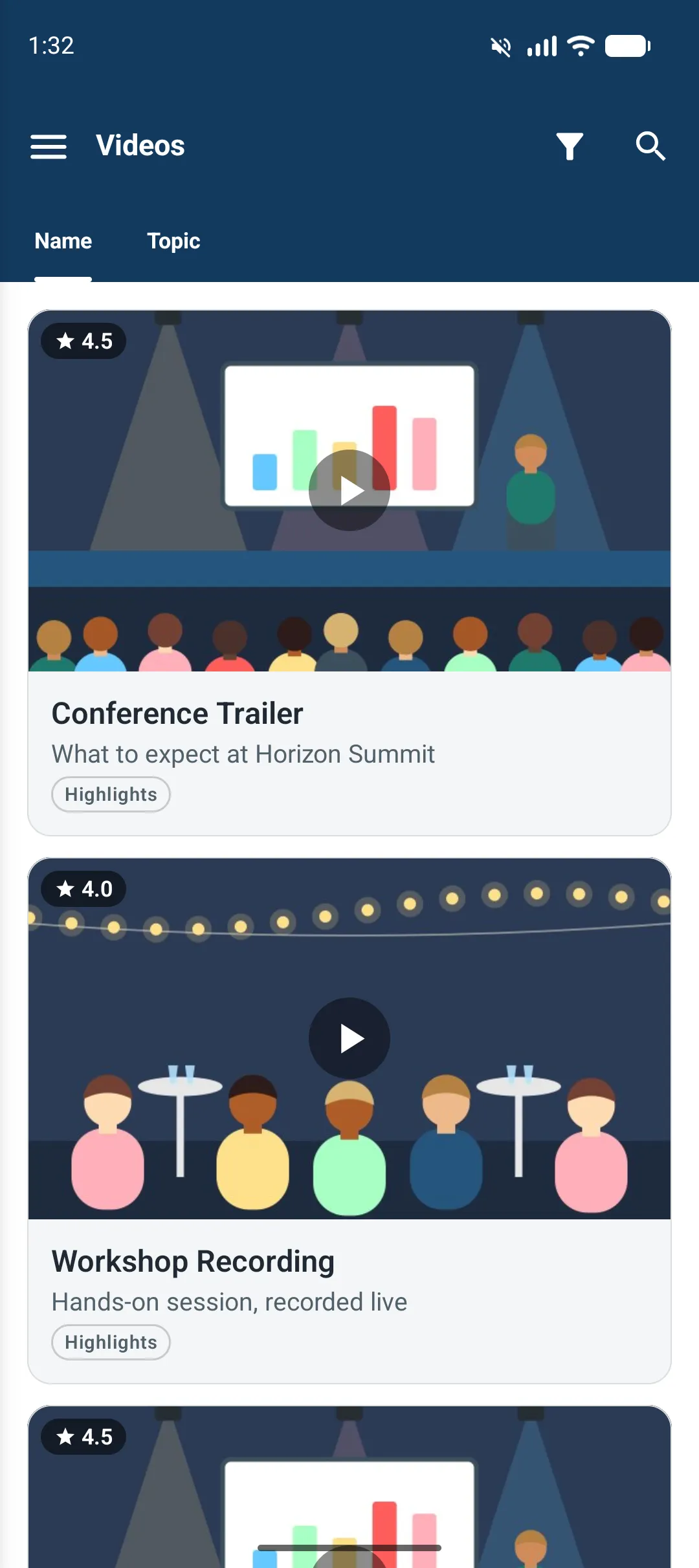
Each video shows a picture, its name, a subtitle, and up to four tags. When your event lets you rate videos, the average rating shows on the picture, for example 4.5.
- On a name tab, the videos that your event features show first. The other videos follow in order of their name.
- On a ratings tab, the videos with the highest average rating show first.
- On a tab for a group of tags, only the videos with a tag in that group show, in order of their name.
Search for a video
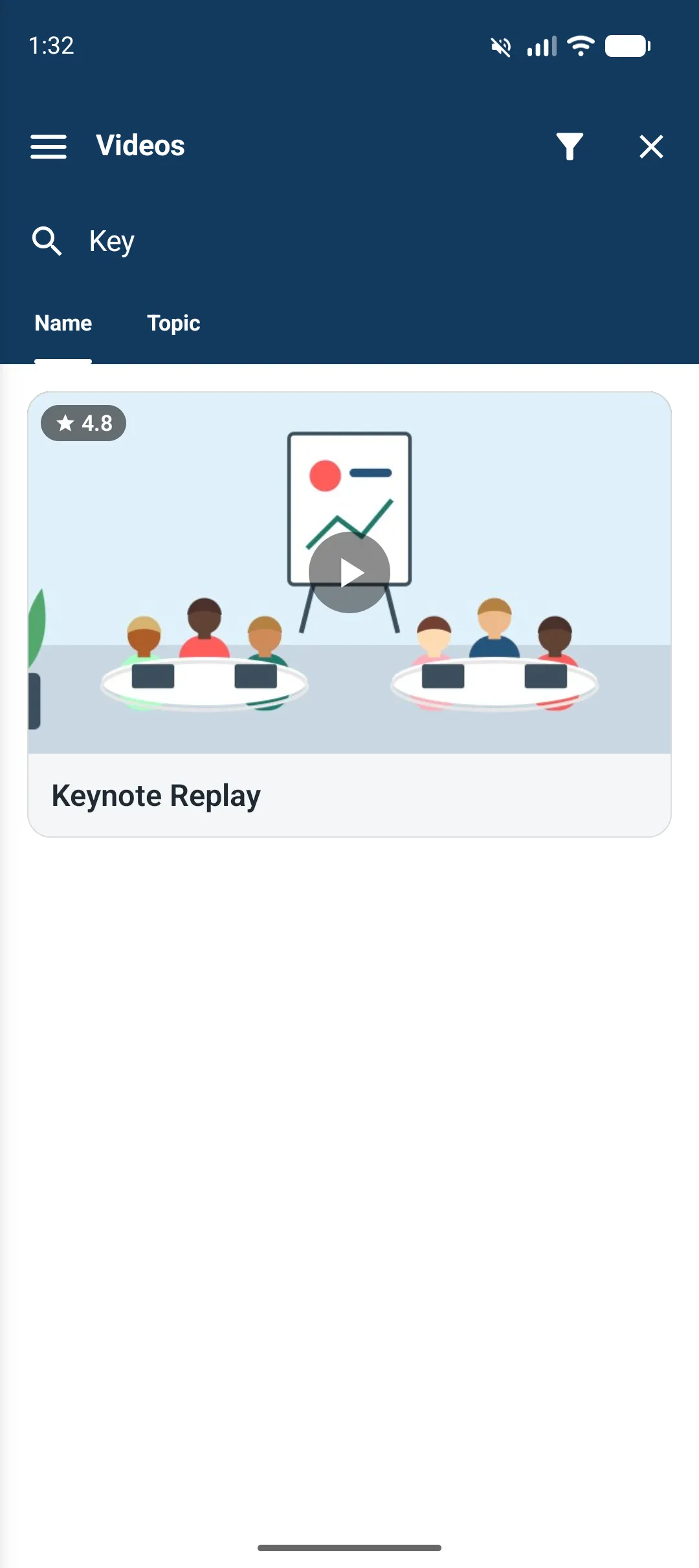
- Tap the search button at the top of the screen. A search field opens under the top bar.
- Tap Search videos and type a word. The list shows the videos whose name, description, or tags contain your text. In a name or a description, accents and capital letters do not matter.
- Tap a video to open it.
- Tap the close button at the top of the screen to clear the search and close the field.
The tabs stay while you search, but each tab shows the same results, in order of their name.
Filter the videos
The filter button shows only when your event has tags that you can filter by.
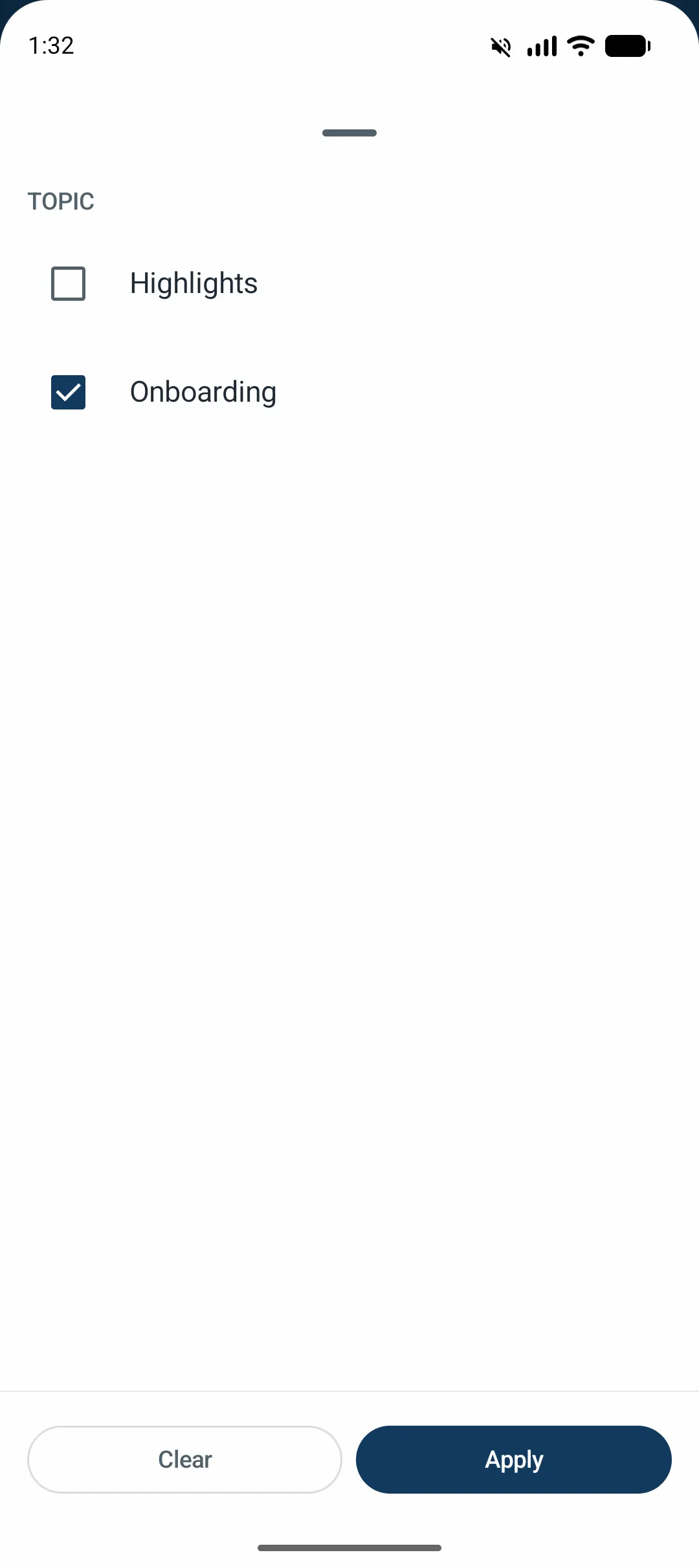
- Tap the filter button at the top of the screen. A list of tags opens from the bottom of the screen.
- Tap each tag that you want. A check mark shows in its box.
- Tap Apply.
The list shows the videos that have at least one of the tags you selected. The filters apply to every tab and to your search. Your filters show under the tabs. Tap a filter there to remove it.
To remove all filters, open the filters and tap Clear. If you close the filters without tapping Apply, your filters do not change.
Open a video
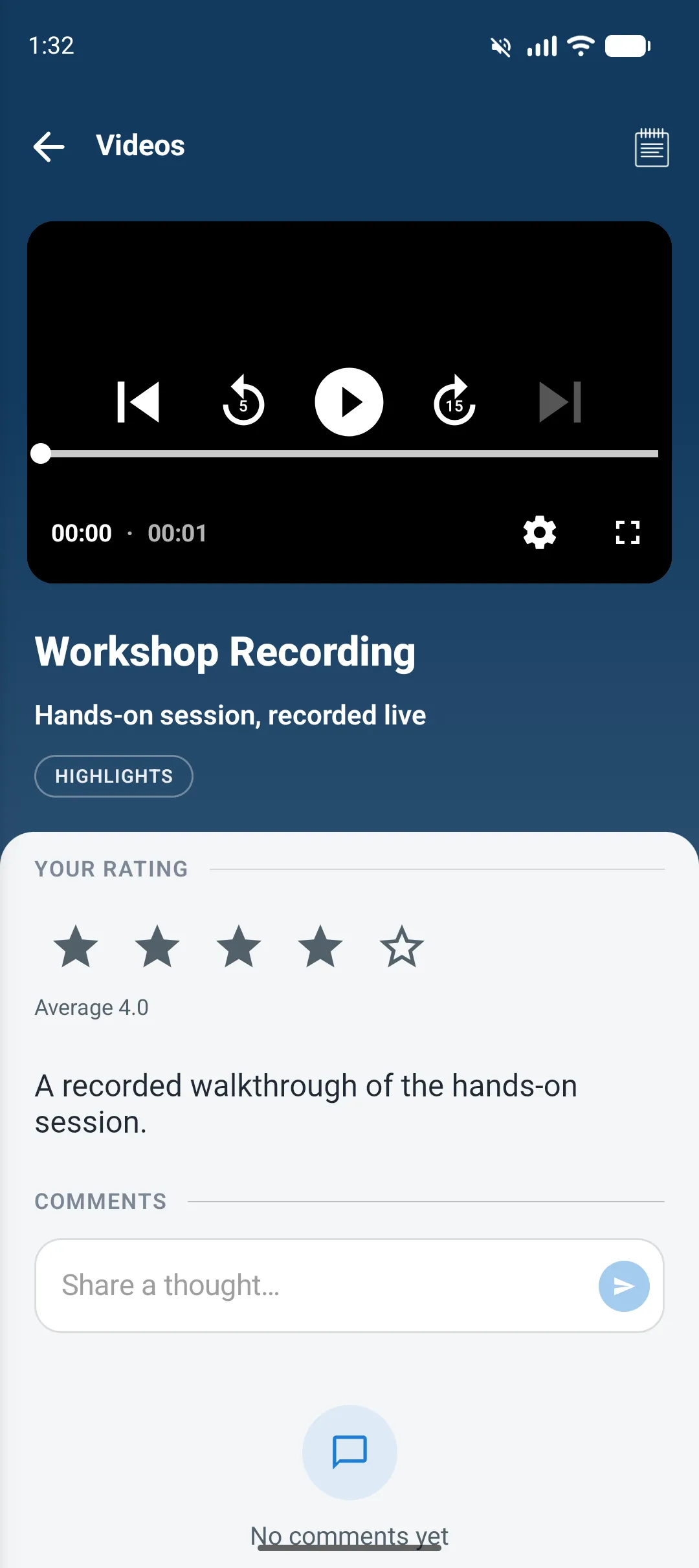
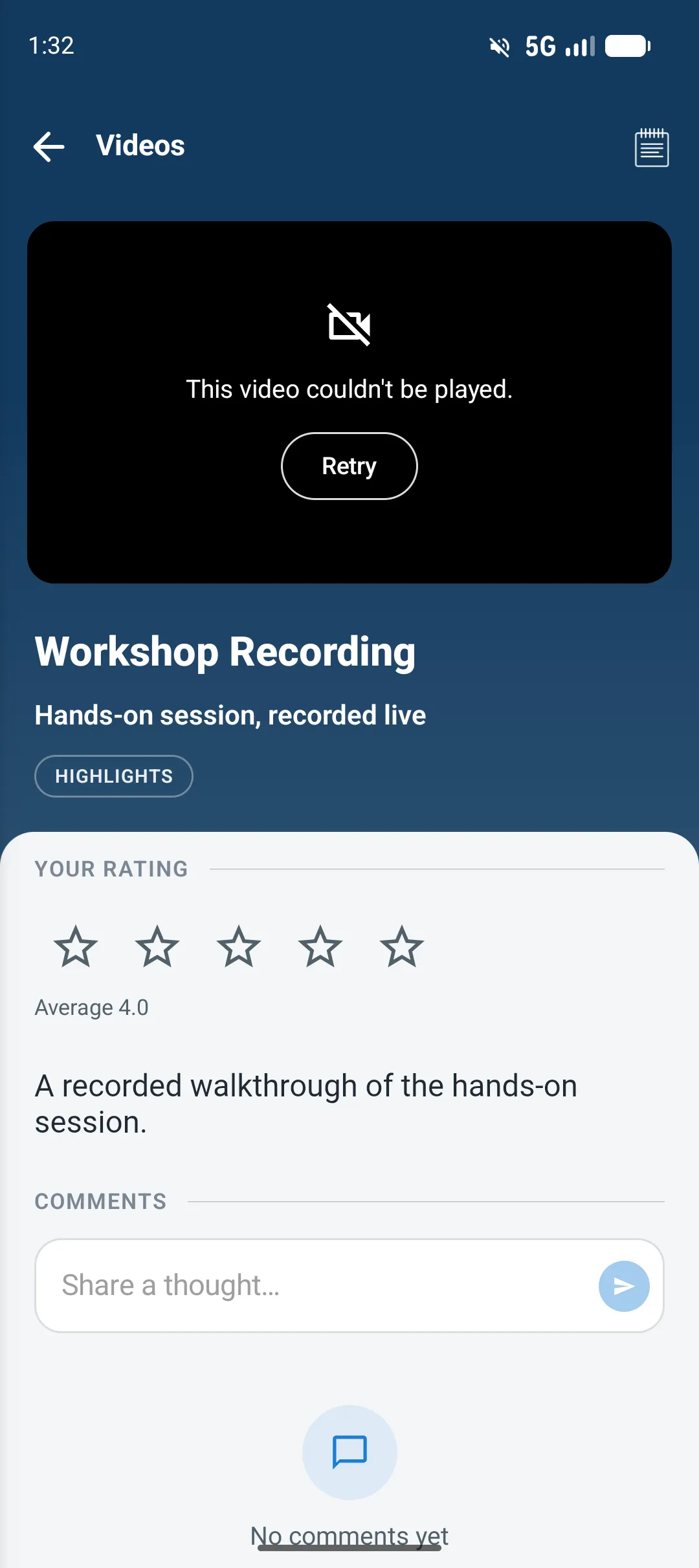
Tap a video in the list. The top of the screen shows the video player, then the video’s name, its subtitle, and its tags. Under that, the screen shows the items that your event adds:
- Your Rating. See “Rate a video” below.
- A description.
- Comments. See “Comment on a video” below.
Tap the back arrow to go back to the list.
Watch a video
- Open the video.
- Tap the play button in the player.
The video does not start by itself. Some videos play in the video player of the app. While the video loads, a spinner shows. Use the controls of the player to pause or move through the video. Tap the full screen button to watch it on the full screen. Tap the button again, or tap the back button of your device, to go back.
Other videos play in a web player, with its own controls.
When you leave the app, the video pauses. When you leave the video, it stops.
When a video does not play
- When a video has nothing to play, the player shows a crossed-out camera in place of the video.
- When the video player of the app cannot load the video, it shows This video couldn’t be played. Tap Retry to try again.
- When the web player cannot load, it shows This page couldn’t be loaded. Tap Retry to try again.
Rate a video
If your event lets you rate videos, Your Rating shows five stars under the video. You do not need to log in to rate a video.
- Open the video.
- Tap a star. The stars up to the one you tapped fill.
To change your rating, tap another star. About 15 seconds after your last tap, the app sends your rating to your event. When the video has ratings, the average rating of all attendees shows under the stars, for example Average 4.0.
Comment on a video
If your event allows comments, the Comments section shows at the end of the video.
- Tap Share a thought… and type your comment.
- Tap the send button.
If you are not logged in, the app asks you to log in first. After you log in, tap the send button again. If you do not have a profile, the app shows Participate and asks you to make a profile.
When a video has no comments, the section shows No comments yet.
When your event checks each comment before it shows, the app shows Comment Submitted and Your comment has been submitted! All comments are moderated, so viewing your comment may be delayed. Tap OK. When the comment cannot be sent, the app shows Error and Unable to submit your comment. Please try again later. Tap OK.
Tap Newest first to show the oldest comments first. Tap it again to go back.
Write a note about a video
If your event uses notes, a notes button shows at the top of the video. Tap it to write a note about the video.
When there are no videos
- If the list has no videos, it shows No videos yet.
- If no video matches your search, it shows No results and No videos match your search.
- If no video matches your filters, it shows No results and No Videos match your filters., with the name of the feature in your event.
What you might not see
Your event controls these items:
- The feature itself, and its name.
- The tabs, and their names.
- Which videos your event features, and their order.
- The filter button and the tags you can filter by.
- Which tags show in the list and on a video.
- The ratings, and Your Rating.
- The Comments section.
- The notes button. It shows only when your event uses notes.