Lead Capture
Lead Capture is for exhibitor staff. Scan the badge of a person who visits your booth, and the app adds the person to your list of leads. Then you can rate the lead and add notes.
Who can use Lead Capture
Lead Capture shows in the menu only when you are logged in, your event lists you as staff of an exhibitor, and the event lets that exhibitor capture leads. If you do not see it, ask the event organizer.
Scan a badge
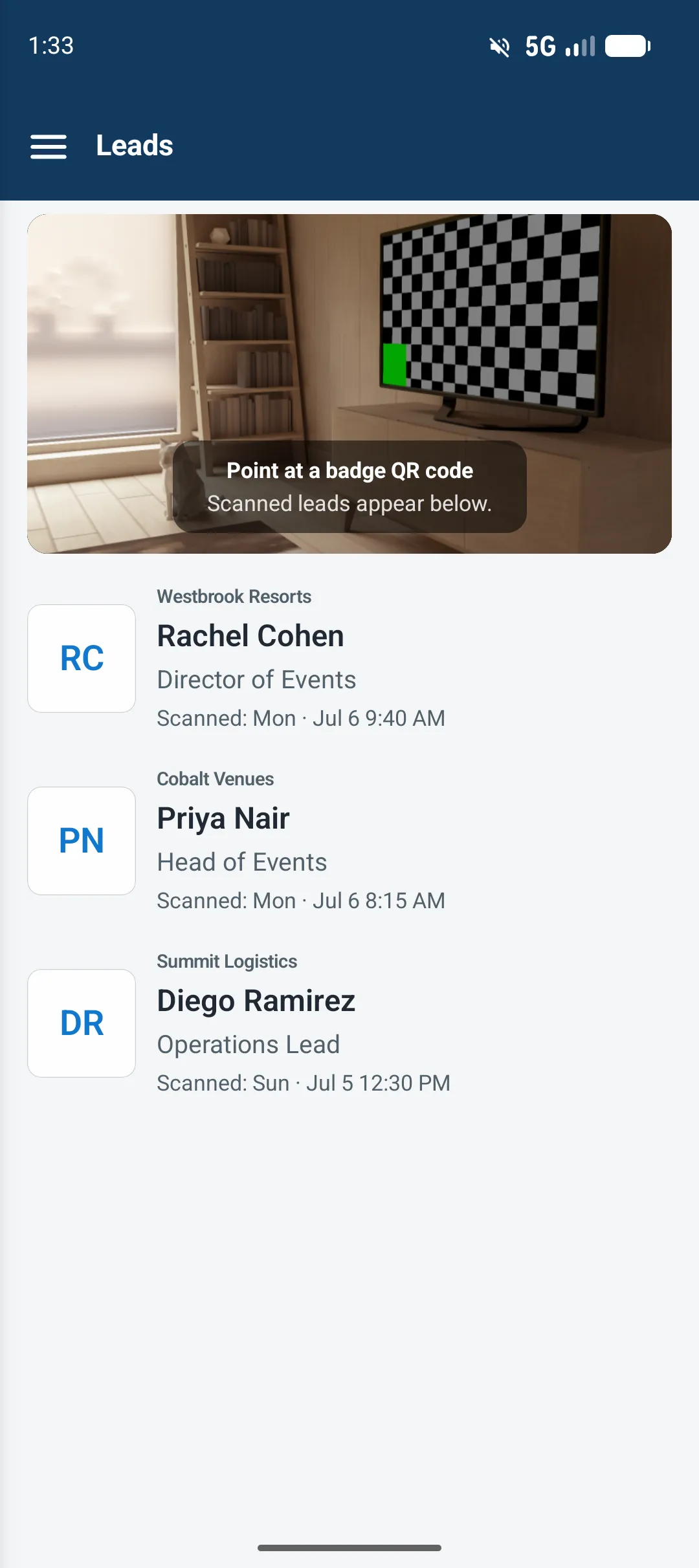
- Open Lead Capture. The camera shows at the top of the screen, with Point at a badge QR code and Scanned leads appear below.
- Hold the badge code in the camera view. The phone vibrates when the app reads a code.
- The new lead shows in the list below the camera.
When you open Lead Capture and the app does not have access to the camera, it asks for access. If you do not allow it, the camera area shows Camera access is needed to scan badges. Open Settings to allow it. Tap Open Settings and allow the camera for the app. If your device has no camera, the camera area shows No camera available.
When you scan a badge that is already in your list, the app does not add it again. The lead keeps its first scan time. The list scrolls to the lead and highlights it for a moment. The app ignores the same code again for 5 seconds.
A code that is not a badge does not become a lead. The app does with it what the home screen scanner does: a contact card goes to Contacts, a web link opens in your browser, and a link to a part of the event opens that part. If the app cannot use the code, it shows a message, for example That code isn’t something we recognize. Tap OK to scan again.
Scan from the home screen
You can also scan a badge with the scan button at the top of the home screen. See My QR Code. The app adds the lead and opens Lead Capture. The list then scrolls to the new lead and highlights it.
If you can also check in attendees to sessions, and the badge belongs to an attendee in the attendee list, the app shows the person’s name and Pick the session you’re checking attendees into. Tap Capture Lead to add the lead, or Check In to check the person in to a session. To do neither, tap outside the message. The scanner in Lead Capture does not ask: it always adds the lead.
See your leads
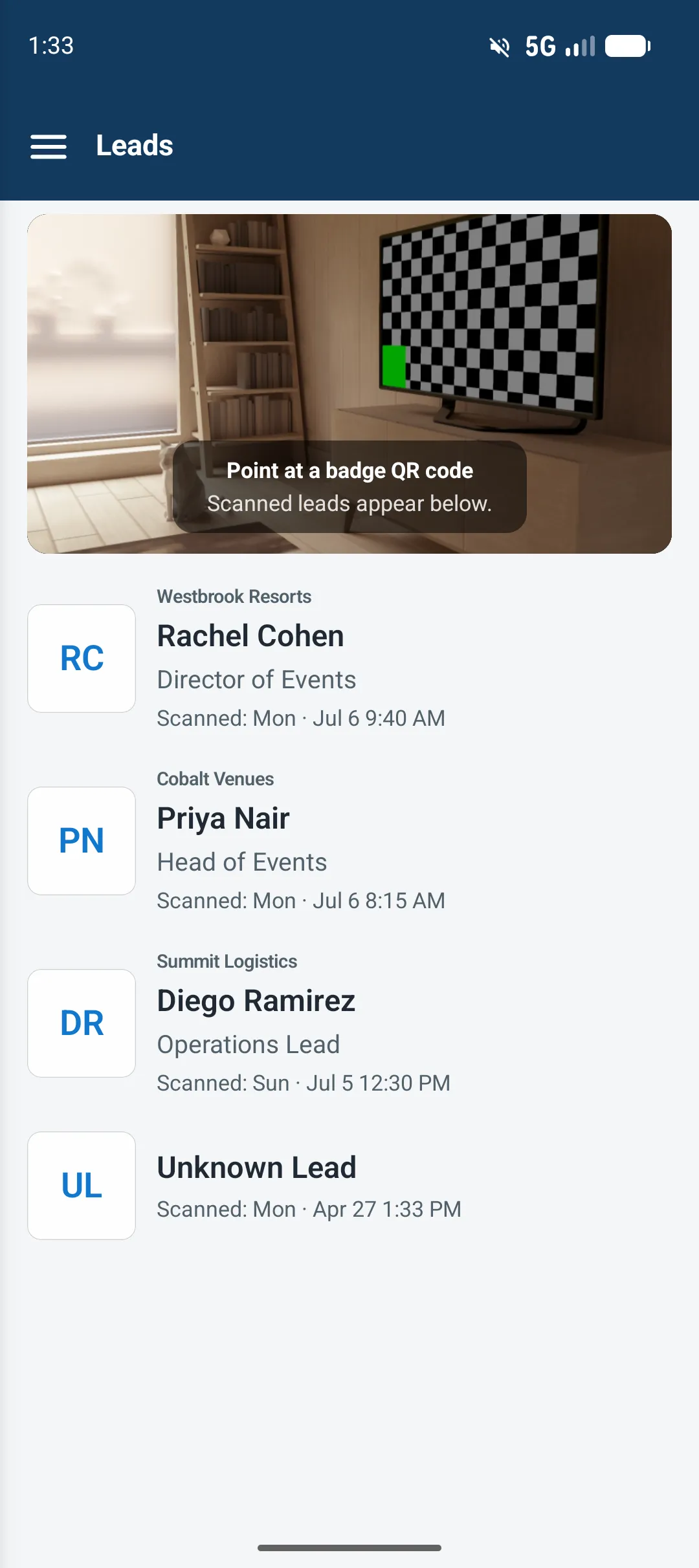
The list shows your leads, with the newest scan first. Each lead shows the organization, the name, the job title, and the scan time, for example Scanned: and the date and time.
A new lead shows Pending and the badge code until the app sends the lead to your event and gets the person’s details back. Then the lead shows the person’s name, organization, and job title. If the code does not match an attendee, the lead shows Unknown Lead.
If you have no leads, the list shows No leads yet and Scan a badge to capture a lead.
Rate a lead and add notes
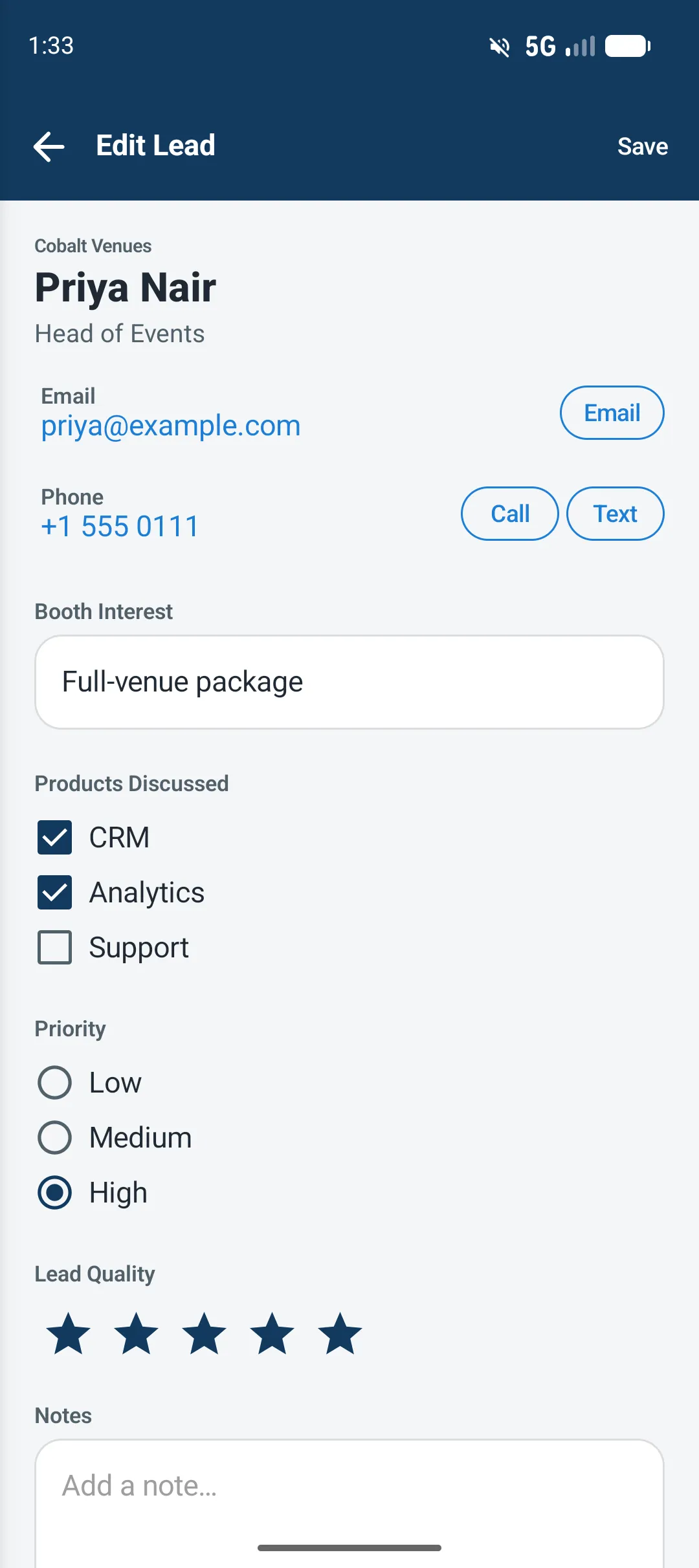
- Tap a lead in the list. Edit Lead opens.
- Fill in the questions that your event adds, for example a rating or a list of choices:
- For a text question, type your answer.
- For a choice question, tap one or more choices. Tap a selected choice again to clear it.
- For a rating, tap a star. Tap the same star again to clear the rating.
- Type a note in Notes.
- Tap Save.
To leave the lead without your changes, tap the back arrow or go back. The app does not ask you first.
The lead also shows the person’s email address and phone number when the event has them. Tap Email to write an email in your email app. If you have no email app, the app shows Sorry, there is not an app available to send an email. Tap Call to open the number in your phone app, or Text to write a text message. You can edit the questions and the note before the lead gets the person’s details.
Delete a lead
Swipe left on a lead. The app deletes the lead at once. It does not ask you first, and there is no undo button.
If you delete a lead by mistake, scan the badge again. The lead shows again at the top of the list, with a new scan time. Its notes and answers may not come back.
Use Lead Capture with no connection
You can scan badges and edit leads when you have no connection. The app saves each change on your device first, and sends it to your event a few seconds later. If the app cannot connect, it tries again after your next change, or the next time you open the event. Until the app sends a new lead, the lead shows Pending.
Before you log out
When you log out, the app deletes the event data on your device, and it does not send your changes first. Leads, notes, and answers that the app has not sent are lost. Before you log out, connect to the internet and wait a short time after your last change. Then make sure that no lead shows Pending.
What you might not see
Your event controls these items:
- The feature itself, and its name.
- Who can use Lead Capture.
- The questions on Edit Lead.