Speakers
Speakers is the list of people who speak at the event. You can browse it, search it, and open a speaker’s profile to see their sessions.
Browse the speakers
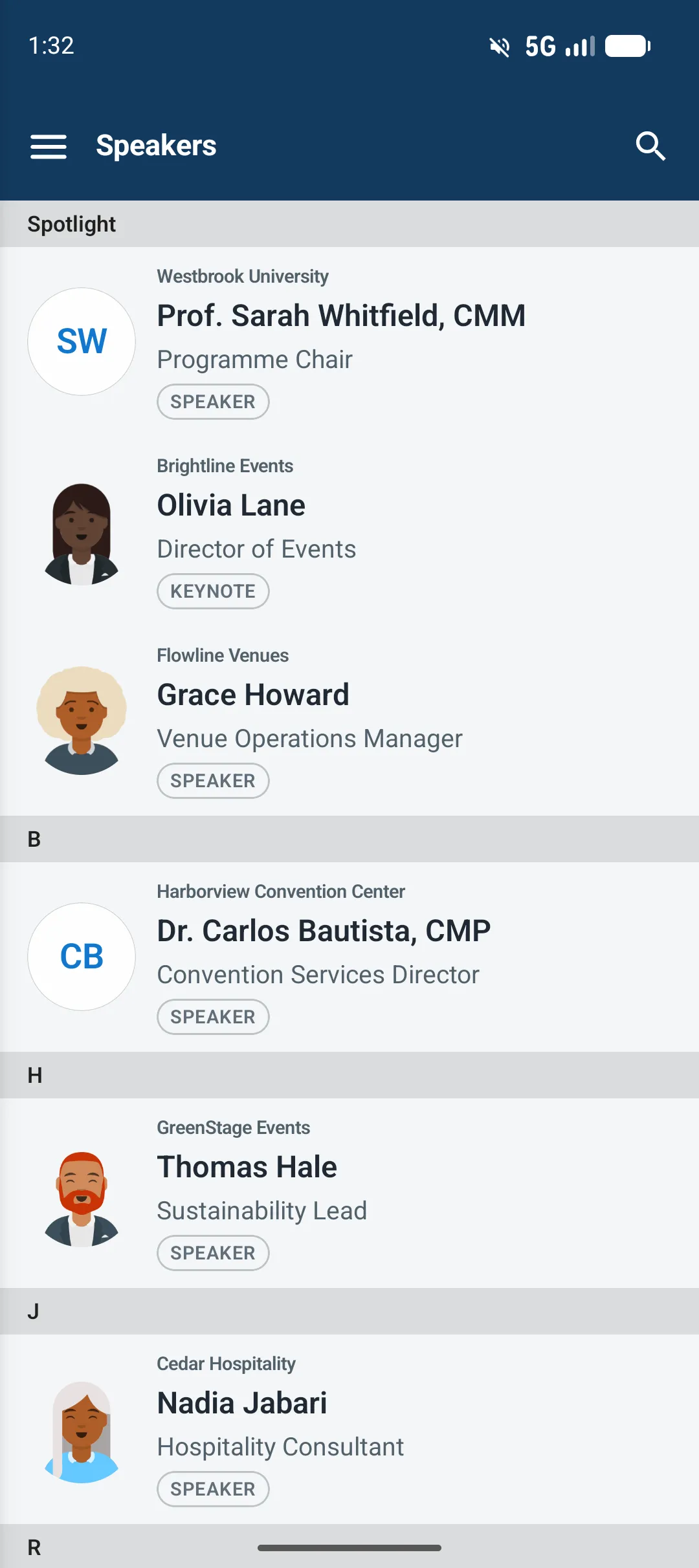
Scroll down to see more speakers. Speakers that your event features show first, under Spotlight. The other speakers are grouped by the first letter of their last name.
Each speaker shows their organization above the name and the job title under it. When your event gives the speaker a role, for example “Keynote”, the role shows in a chip under the job title.
Search for a speaker
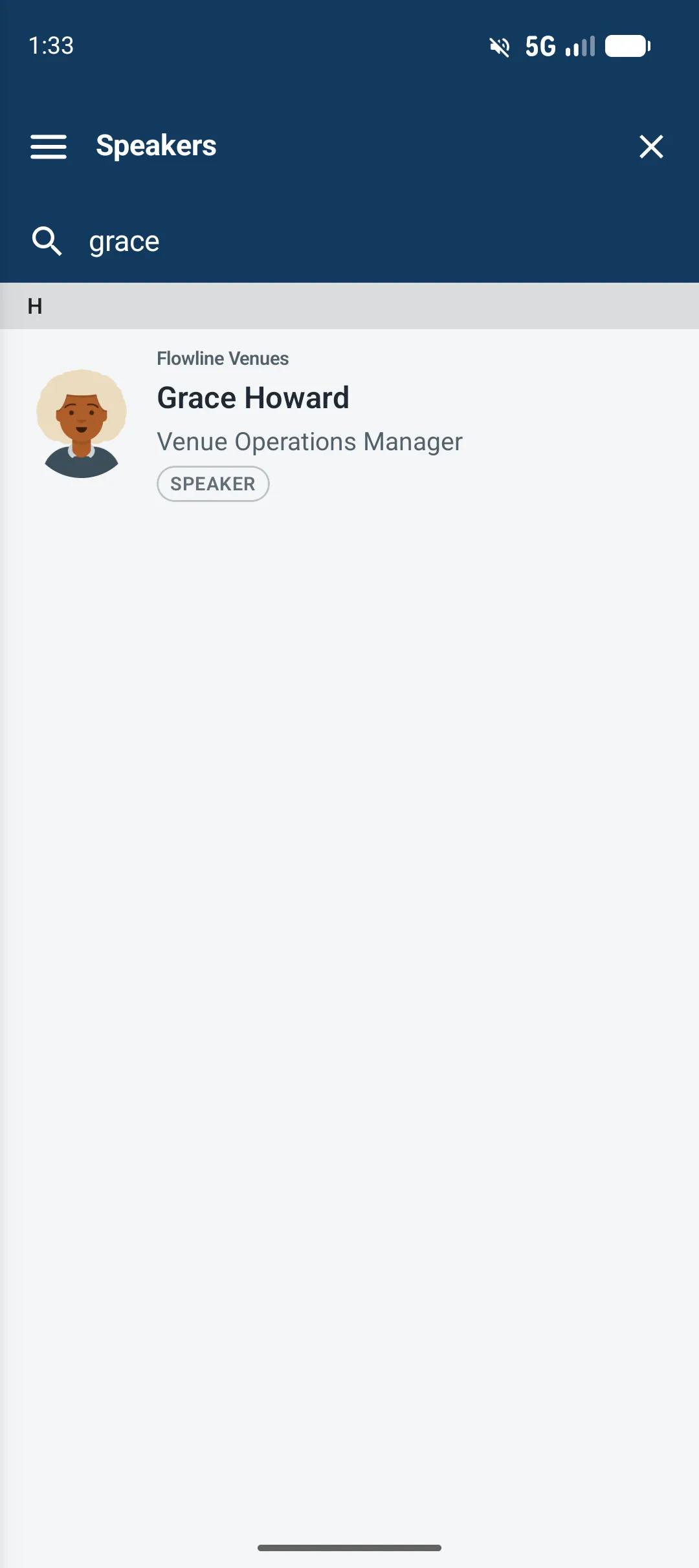
- Tap the search button at the top of the screen. A search field opens under the top bar.
- Type a name in Search speakers. The field is ready for your text when it opens. The list shows the speakers whose name, organization, or job title contains your text. Accents and capital letters do not matter.
- Tap a speaker to open their profile.
- Tap the close button at the top of the screen to clear the search and close the field.
When you type in the search field, Spotlight does not show. Speakers whose name starts with your text show first, then the other speakers that match. Each speaker shows under the first letter of their last name, so the same letter can show two times.
Open a speaker’s profile
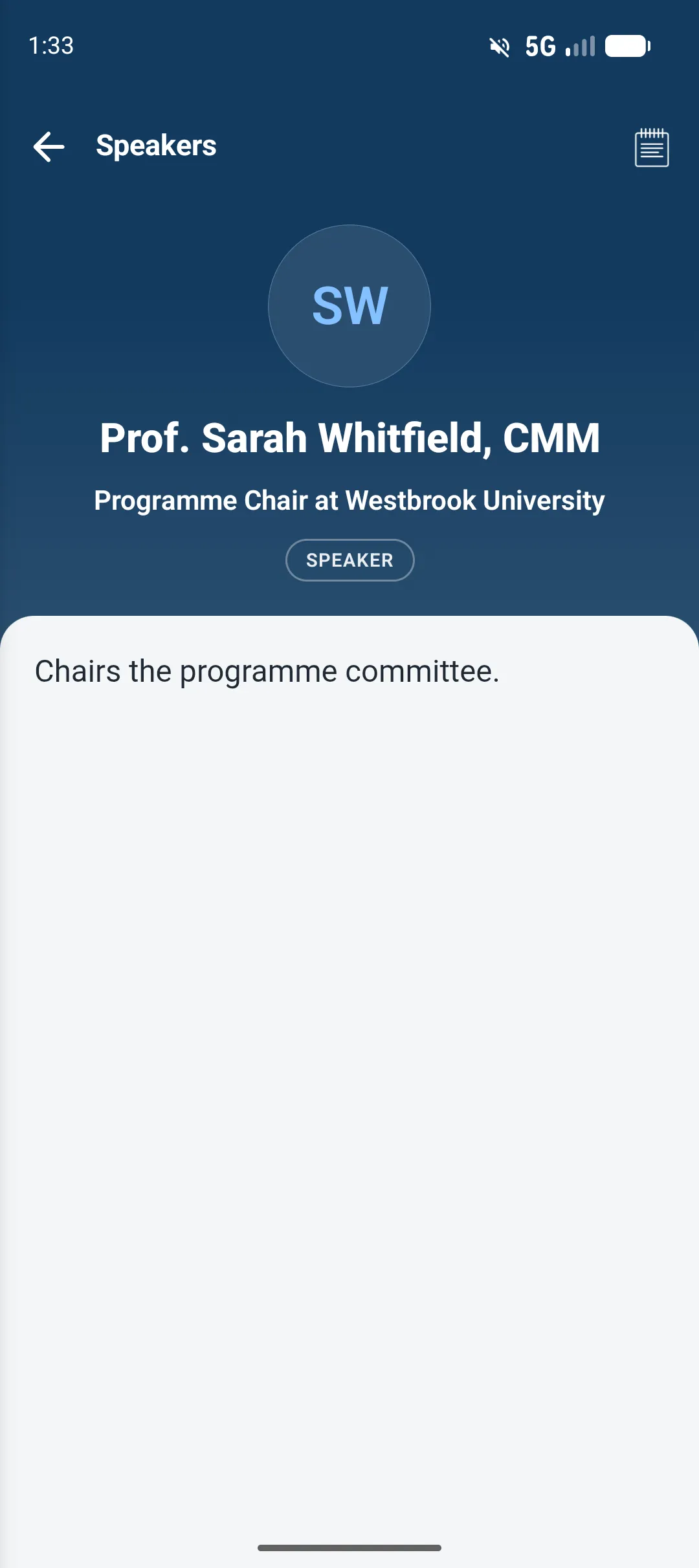
Tap a speaker in the list. The profile shows their photo, name, job title, and organization, and their role. Under that, it shows the items that the speaker and your event add, for example:
- A biography.
- Email, Phone, Fax, Website, and Address, and links to the speaker’s social media.
- The sessions where the person speaks, grouped by day. Tap a session to open it. See Agenda.
- Activity: the posts and photos that the speaker shared or commented on. Tap one to open it.
If the speaker has a photo, tap it to see it on the full screen. Tap the back arrow to go back to the list.
Get in touch with a speaker
On the profile:
- Tap Email to write an email in your email app.
- Next to the phone number, tap Call to open the number in your phone app, or Text to write a text message. Tap the phone number or the fax number to open it in your phone app.
- Tap the website or a social media link to open it in your browser.
- Tap the address to open it in your map app.
When your device has no app to do this, the app shows a message at the bottom of the screen:
- Sorry, there is not an app available to send an email
- Sorry, there is not an Internet browser available to open this link
- Sorry, there is not an app available to open this address
When your device cannot call or send a text message, nothing happens.
Write a note about a speaker
If your event uses notes, a notes button shows at the top of the profile. Tap it to write a note about the speaker. See Notes.
When there are no speakers
- If the list has no speakers, it shows No speakers yet and Speakers will appear here once they’re announced.
- If no speaker matches your search, it shows No results and No speakers match your search.
What you might not see
Your event controls these items:
- The feature itself, and its name.
- Which speakers show under Spotlight, and their order.
- The role of each speaker.
- The Activity section. It shows only when your event uses the activity feed or photos.
- The notes button. It shows only when your event uses notes.