Surveys
Surveys is a list of short forms that your event asks you to fill in. A session in the Agenda or a meeting in My Schedule can also have its own surveys.
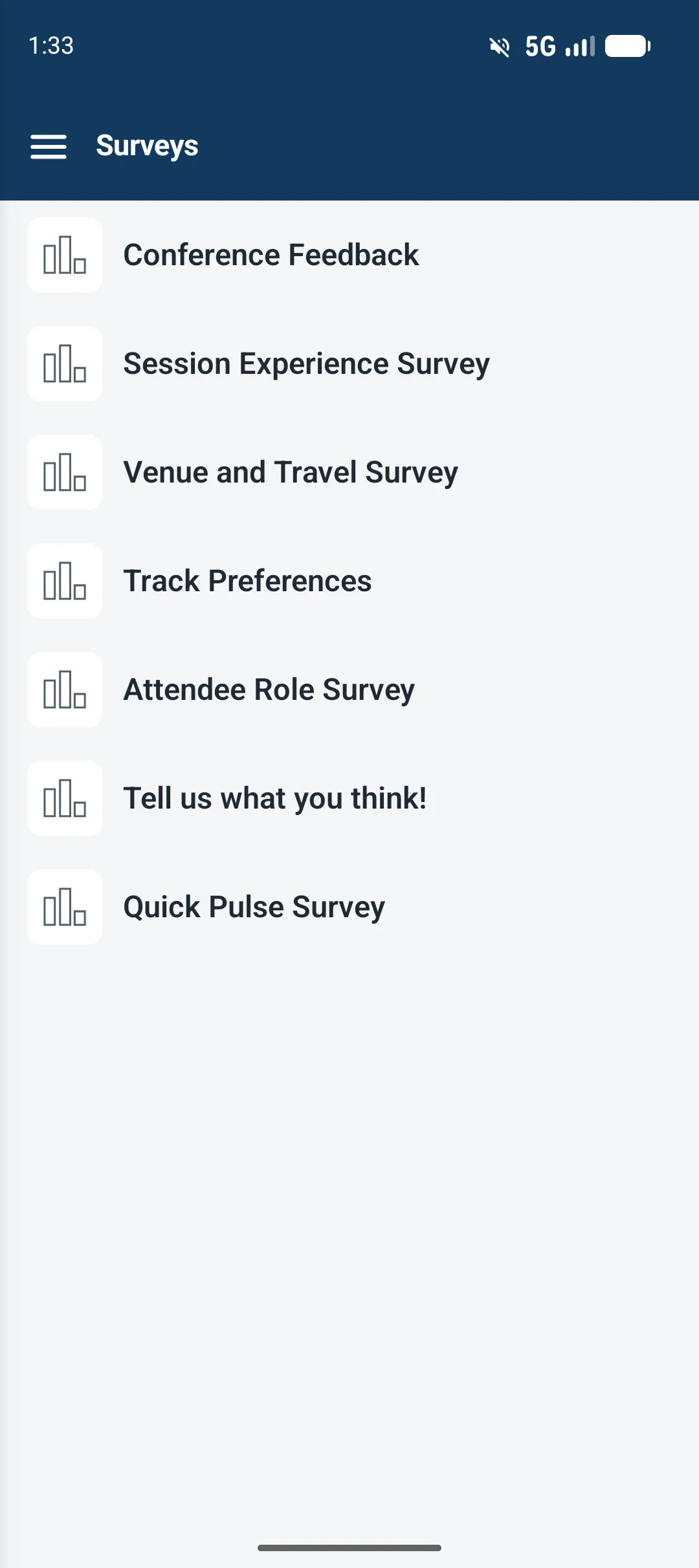
Find a survey
Open Surveys from the menu. The list shows the name of each survey. Your event sets the order. A checkmark in a circle shows next to each survey that you submitted.
The list shows only the surveys that are not part of a session or a meeting. To find the survey for a session, open the session in Agenda. To find the survey for a meeting, open the meeting in My Schedule. The surveys show in a section with the title Survey or Surveys, or with the title that your event gives the section. A survey that you submitted for that session or meeting shows a checkmark in a circle. A survey that you did not submit shows an empty circle.
If the list has no surveys, it shows No surveys yet and Surveys will appear here when they’re available.
Answer a survey
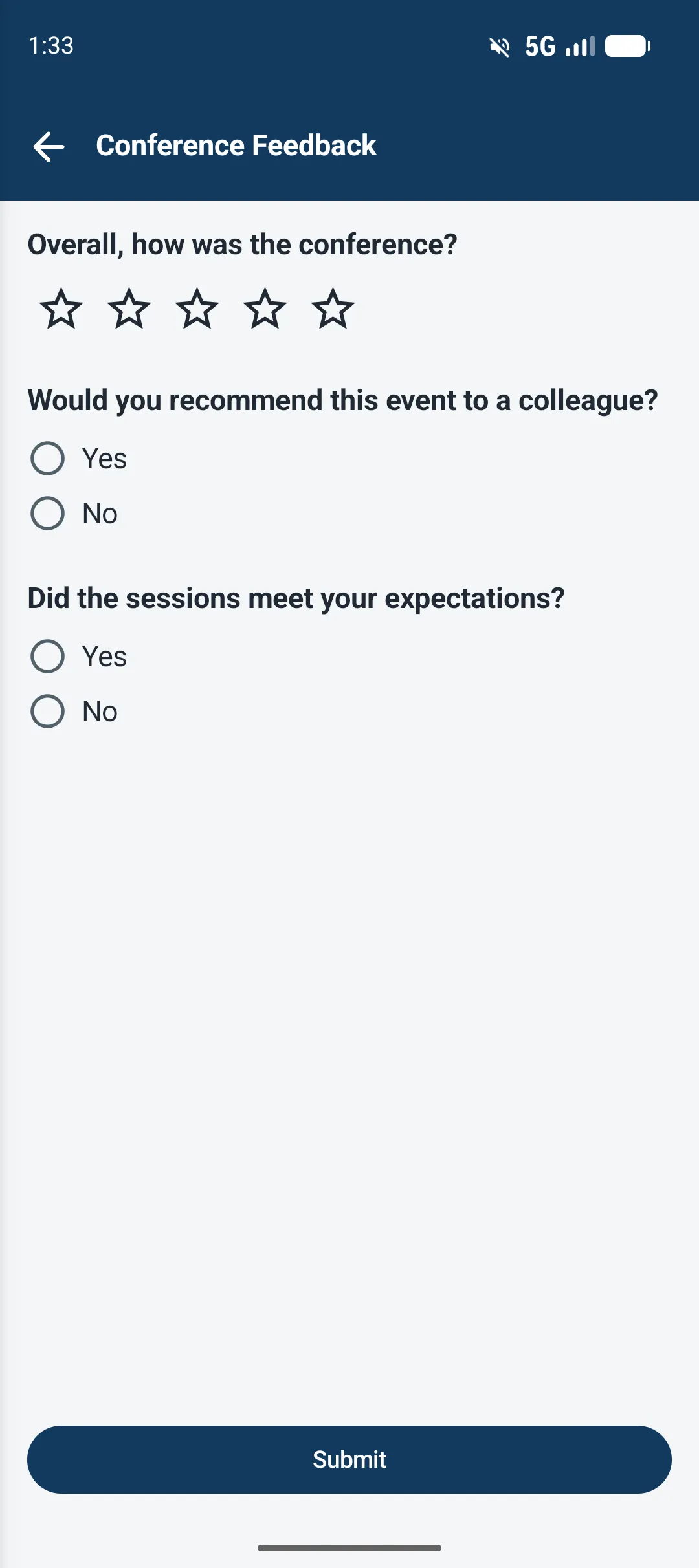
- Tap a survey. The survey opens with its name at the top and its questions under it.
- Answer the questions. A survey can have these types of question:
- A list of choices. Tap one choice to select it. To clear your choice, tap it again.
- Yes or No. Tap one to select it. To clear it, tap it again.
- A rating from one to five stars. Tap a star to set the rating. You can change the rating, but you cannot clear it.
- A comment. Tap the field and type your answer.
- Tap Submit at the bottom of the screen.
No question is required. You can submit a survey with some questions, or all questions, not answered. The app saves your answers on your device and then sends them to your event. The survey shows as submitted at once, before the app sends your answers. The app shows no message when you submit, and no error message when it cannot send your answers. If the app cannot send them, for example when your device has no connection, it keeps them on your device and tries again later.
After you submit, the survey closes and the screen that you opened it from shows again: the Surveys list, the session, or the meeting.
If the survey has no questions on your device, it shows Survey not found and no Submit button. Tap the back arrow to go back.
The app does not ask you to log in to answer a survey. It sends your answers when you are logged in and when you are not.
Change your answers
Open the survey again. It shows the answers that you submitted. Change them and tap Submit. Your new answers replace your old answers.
The survey for a session or a meeting keeps its own answers. When the same survey shows in more than one place, for example in the Surveys list and on a session, you answer it separately in each place.
What you might not see
Your event controls these items:
- The feature itself, and its name.
- The surveys, their questions, and the order of the surveys in the list.
- Which sessions and meetings have a survey.
- The title of the surveys section on a session or a meeting.