Home
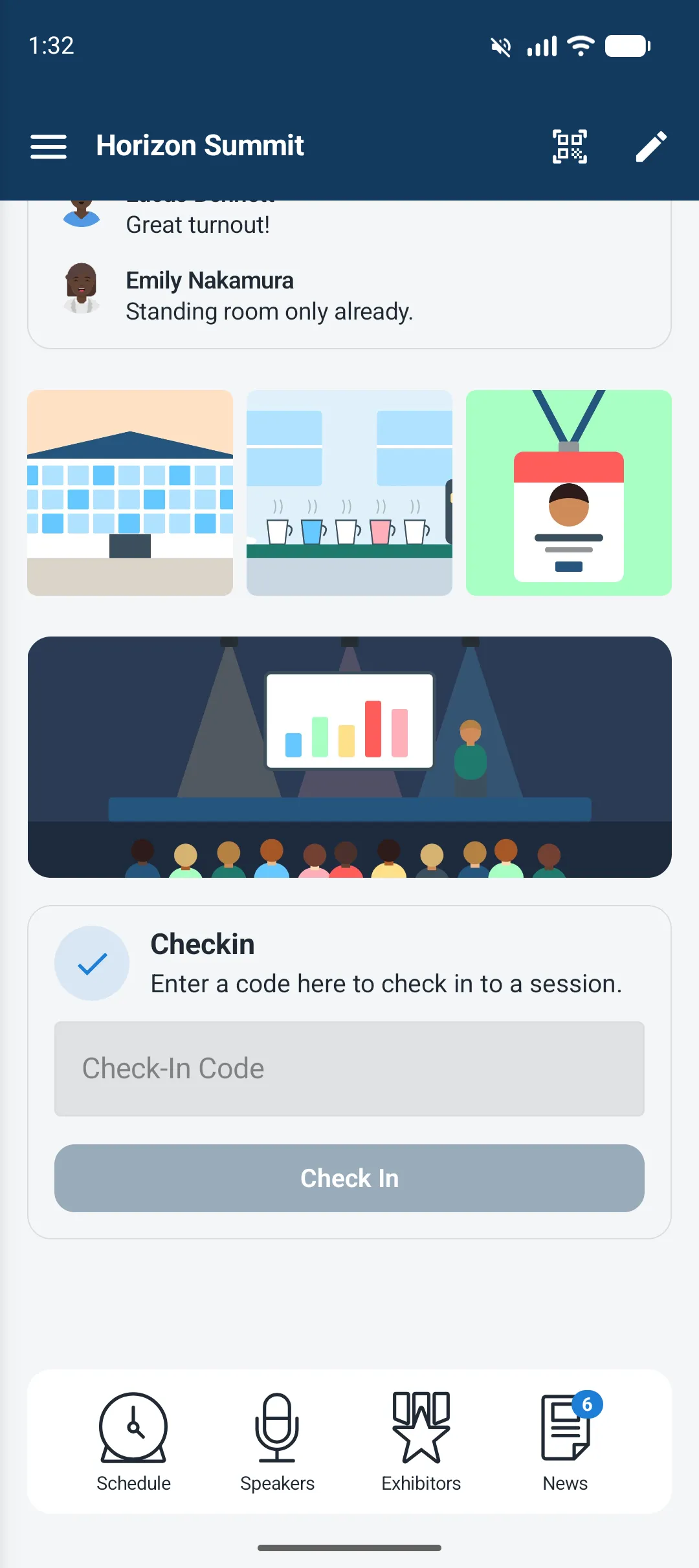
Home is the first screen you see when you open an event. It shows the panels that your event sets up, and it has the menu button that takes you to the other parts of the app.
Supported devices
The app runs on Android 10 or later.
See what is on the home screen
Your event chooses the panels on the home screen and their order. Scroll down to see all of them. The home screen can show these panels:
- A title panel with an image and up to three lines of text. If the image has a link, tap the image to open it.
- A row of up to five buttons. Each button opens a part of the app. A number on a button shows how many unread messages, unread announcements, or open tasks you have.
- The featured speakers. Tap a speaker to open their profile. See Speakers.
- The sessions that start soon. Tap a session to open it. See Agenda.
- Messages from the event. Tap a message that is part of a conversation to open the conversation. See Messages.
- The newest posts from the activity feed. Tap a post to open it, or tap a person’s photo to open their profile. See Activity Feed.
- The newest photos. Tap a photo to open it. See Photos.
- Images from your event. If an image has a link, tap the image to open it.
- A check-in panel. See “Check in to a session with a code” below.
Some panels show their items on pages. Swipe left or right to see the next page. Some panels also move to the next page on their own until you swipe.
Your event can keep some panels at the bottom of the screen, for example a row of buttons. These panels stay in place when you scroll.
Open the menu
The menu lists the parts of the app that your event uses.
- Tap the menu button at the top left of the screen.
- Tap a feature to open it. The menu closes.
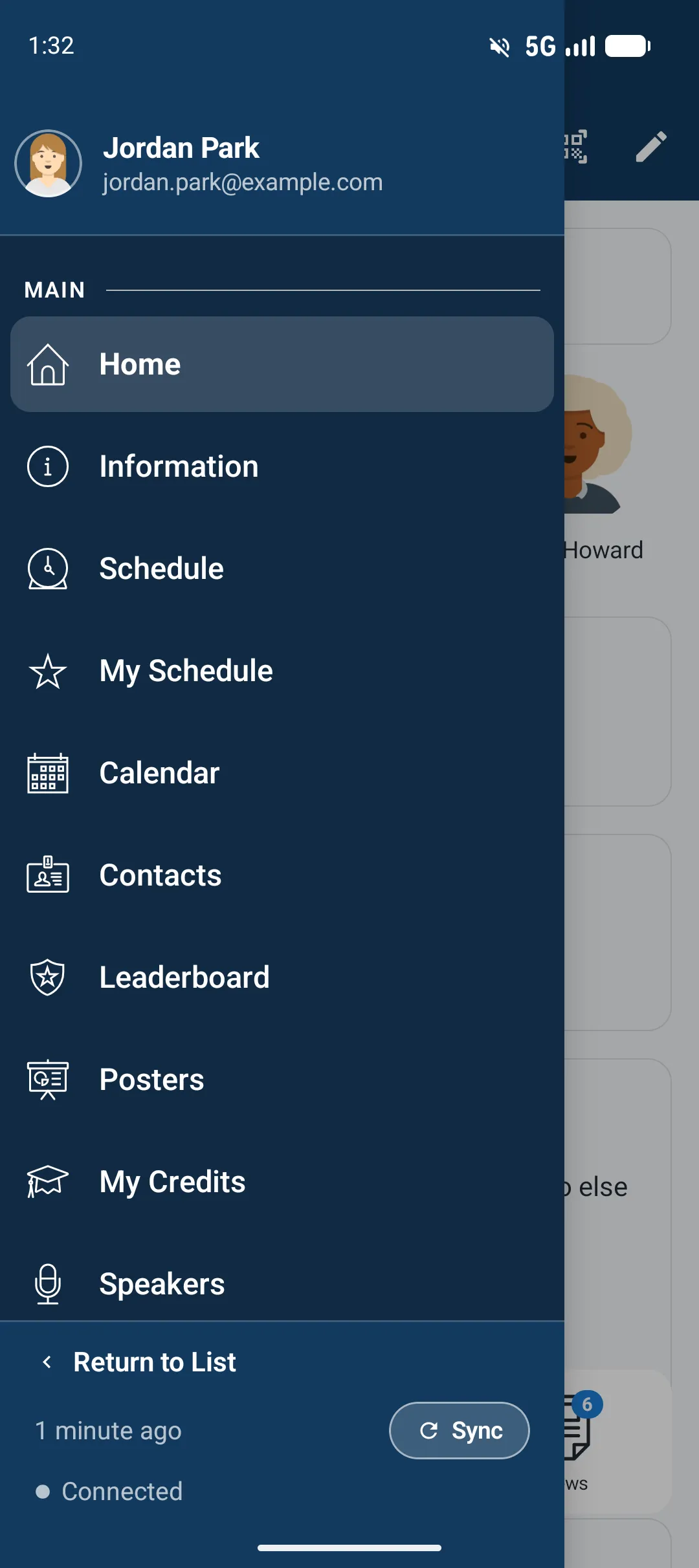
The menu shows:
- At the top: when you are logged in, your photo or initials, your name, and your email address. If your event uses My Account, tap them to open My Account. When you are not logged in, the menu can show Login. See Login.
- The features, in the sections that your event sets up. The feature that is open is highlighted. A number next to a feature shows how many unread messages, unread announcements, or open tasks you have.
- At the bottom: Return to List, the time of the last update, for example “just now”, and Sync.
Get the latest event information
- Open the menu.
- Tap Sync.
While the app gets the information, a progress indicator shows in place of Sync. After that, the menu can show Connected when the app can reach the event server, or Disconnected when it cannot. If the app has not updated yet, the menu shows Unsynchronized.
Scan a code
The scan button is at the top right of the home screen. It shows only when the scanner can do something for you at this event: your event uses Contacts, your event lets you capture leads or check in attendees, or you have a badge code to show.
- Tap the scan button. The Scan screen opens.
- Point the camera at the code.
- Tap the back arrow to close the scanner.
What happens after a scan depends on the code. For example, you can scan another attendee’s code to save a contact. See My QR Code and Contacts.
Write a post from the home screen
If the home screen shows the activity feed and your event lets attendees post, a pencil button shows at the top right. Tap it to write a post. See Activity Feed.
Use the event assistant
Your event can show the event assistant on the home screen. Then the assistant fills the screen, and you type your question in it. To start a new conversation, tap the + button at the top right. See AI Assistant.
Check in to a session with a code
If the home screen shows a check-in panel:
- Type the code for the session in Check-In Code.
- Tap Check In.
If you are not logged in, the app shows Please login before checking in and asks you to log in. If you do not have an attendee profile at the event, the app asks you to join first.
If your event asks for a pledge, the app shows the session name with the pledge. Tap Yes to check in, or No.
If the app cannot check you in, it shows one of these messages. Tap OK.
- No event has that check in code
- That event hasn’t started yet.
- That event has finished.
- You’ve already checked in to that event.
- Unable to check in. Please try again later.
Go to another event
Before the app opens an event, it shows a list of events. The app shows this list also when it has only one event. To go back to that list from an event:
- Open the menu.
- Tap Return to List at the bottom of the menu.
- Tap an event in the list to open it. Some events ask you to log in, register, or type a code before they open.
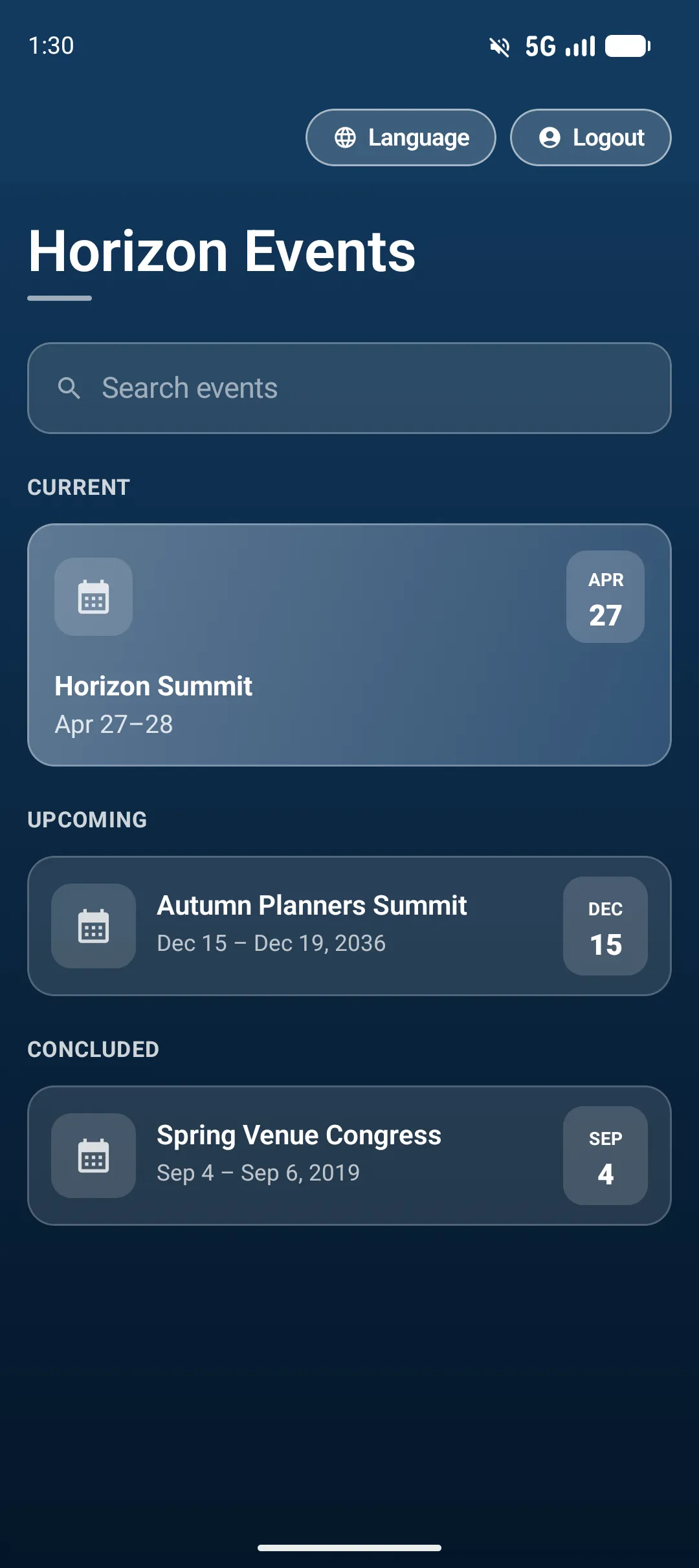
The list shows the events in sections. Featured events show first in each section, on larger cards. To find an event, type its name or a section name in Search events.
At the top of the list:
- Tap Language to change the language of the app. It shows only when the app has more than one language.
- Tap Login to log in. It shows only when the app lets you log in. When you are logged in, tap Logout to log out. When you log out, the app shows Logout and asks Would you like to log out? Tap Logout or Cancel.
What you might not see
Your event controls these items:
- The feature itself, and its name.
- The panels on the home screen, their order, and which panels stay at the bottom of the screen.
- The background color and image of the home screen.
- The buttons in a button panel, and the speakers that are featured.
- The sections and features in the menu.
- The scan button. It shows only when your event uses Contacts, lets you capture leads or check in attendees, or gives you a badge code.
- The pencil button. It shows only when your event lets attendees post to the activity feed.
- Login in the menu. It shows only when your event lets you log in.