Leaderboard
Leaderboard ranks the attendees who earn badges at the event. You can see your own place and look at the badges that you can earn.
See the leaderboard
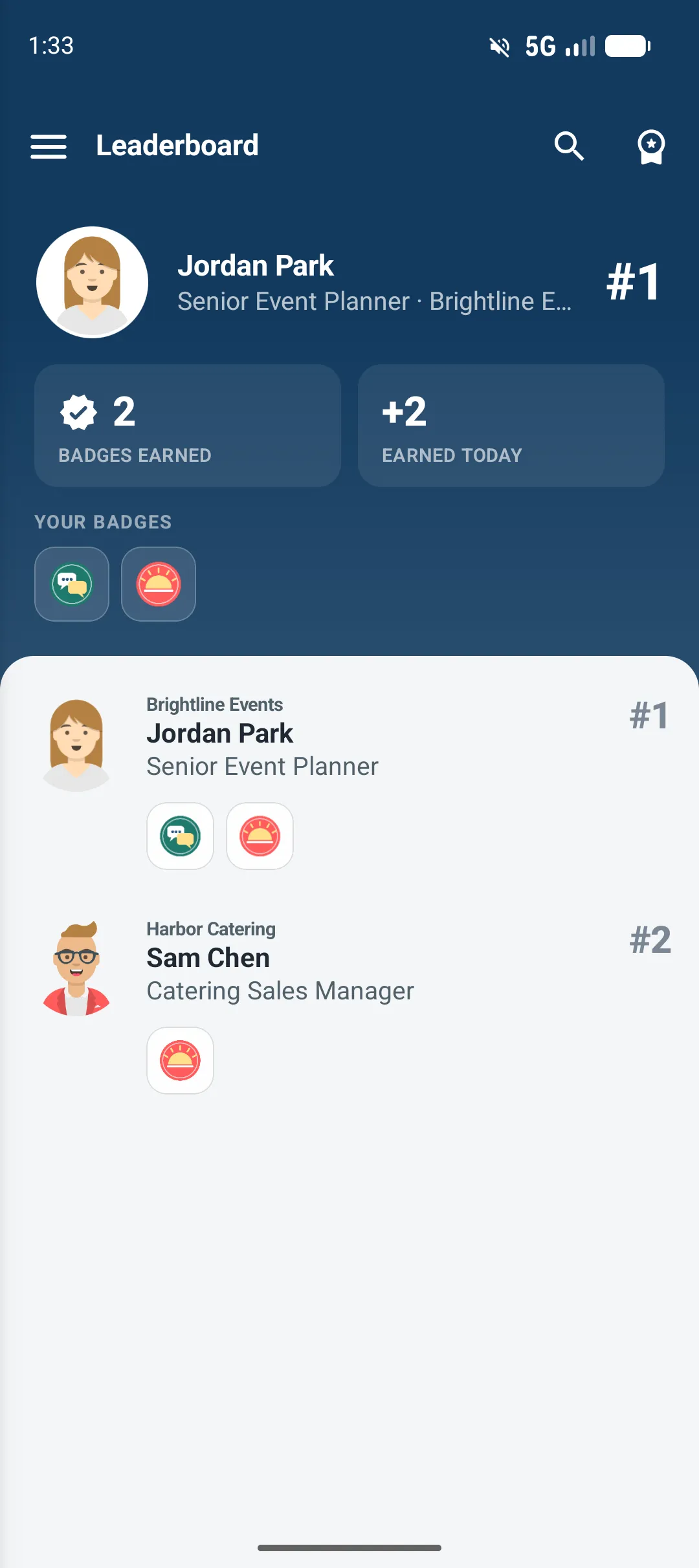
The leaderboard shows each attendee who has at least one badge. The attendee with the most badges is first. When two attendees have the same number of badges, the app puts them in order of last name, then first name.
Each row shows the person’s organization, name, and job title, their rank, for example #2, and the badges that they earned. Scroll down to see more people.
The leaderboard counts badges, not points.
See your own place
When you are logged in and have an attendee profile, your own place shows at the top of the screen:
- Your photo, name, job title, and organization, and your rank.
- BADGES EARNED: the number of badges that you have.
- EARNED TODAY: the number of badges that you earned since midnight. The app uses the time zone of the event, or the time zone of your device if your event uses device time.
- When you need more badges to move up a place, a message tells you how many, for example Earn 1 more badge to reach #1. A bar under it shows how close you are.
- YOUR BADGES: the badges that you earned. If you have no badges, the app shows No badges yet, and you have no rank.
When you have a badge, you also show in the list under it, at the same rank. When you scroll down, a bar at the top shows your name and your rank, for example Rank 1. When you have a badge, tap your name at the top to open your own profile.
If you are not logged in, or you have no attendee profile at the event, the app shows only the list.
Search the leaderboard
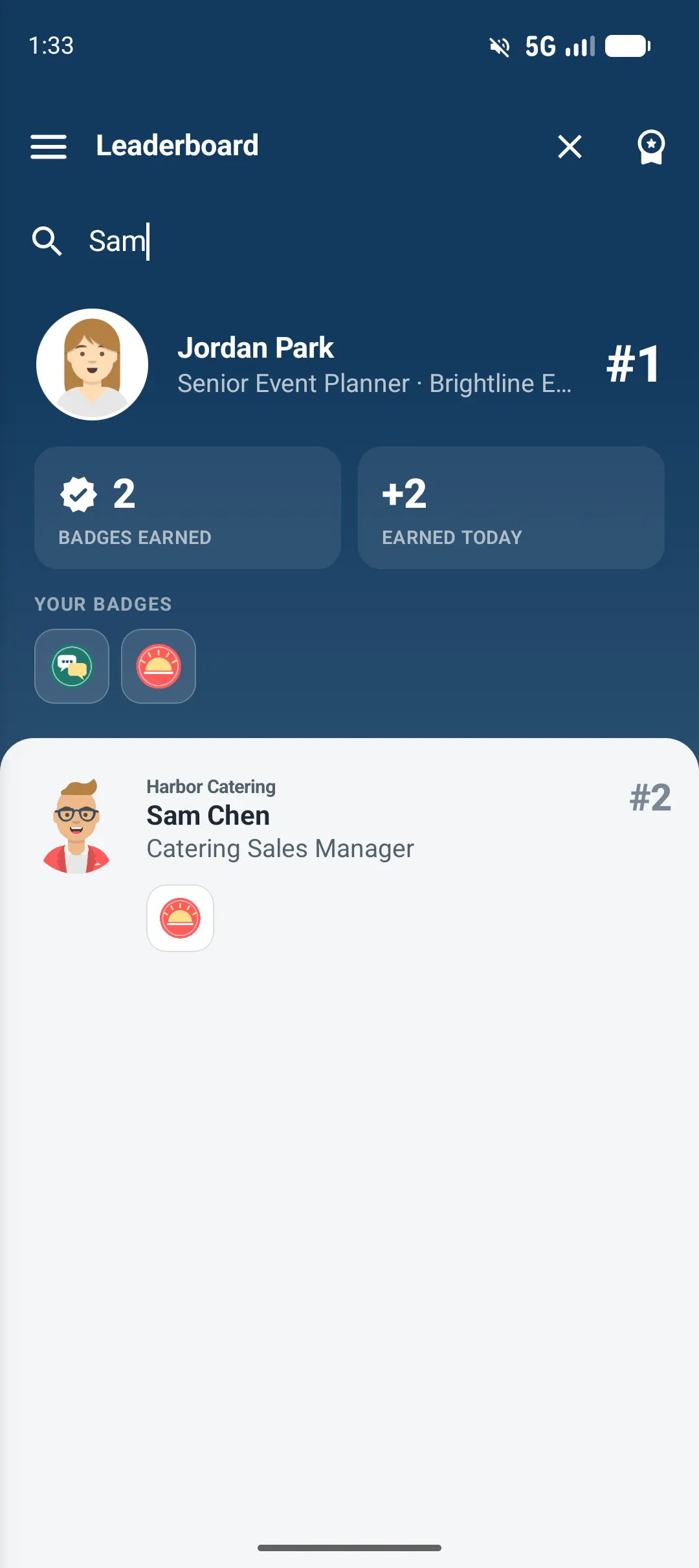
- Tap the search button at the top of the screen. A search field opens under the top bar.
- Type a name in Search attendees. The list shows the people on the leaderboard whose name, organization, or job title contains your text. Accents and capital letters do not matter.
- Tap the close button at the top of the screen to clear the search and close the field.
While you search, your own place stays at the top. Each person in the results keeps the rank that they have on the full leaderboard. The search finds only people who have a badge.
Open a person’s profile
Tap a person’s photo or name in the list. Their attendee profile opens. See Attendees. Tap the back arrow to go back to the leaderboard.
See the details of a badge
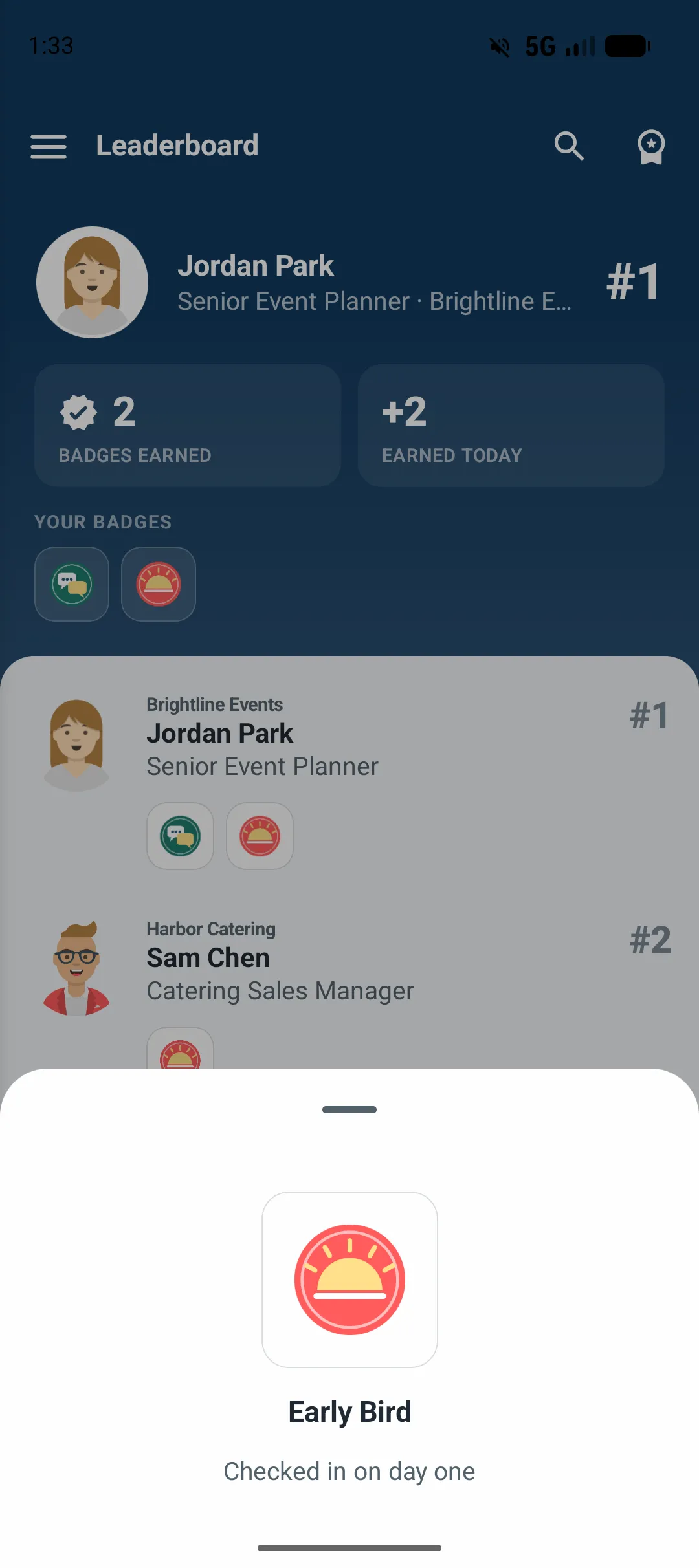
Tap a badge in a row, or a badge under YOUR BADGES. A panel opens from the bottom of the screen. It shows the badge’s picture, its name, and its description. Swipe the panel down, or tap outside it, to close it.
See all the badges
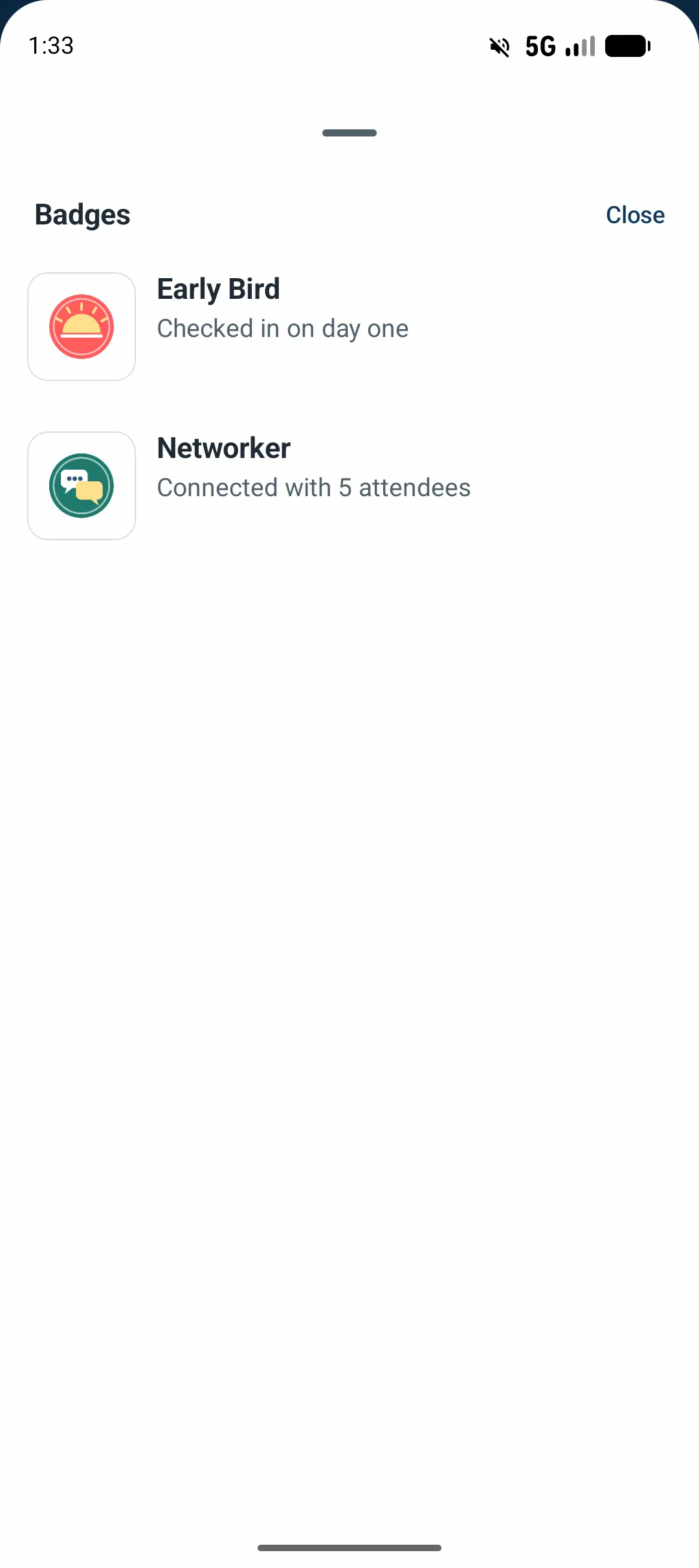
- Tap the badges button at the top right of the screen.
- Badges opens from the bottom of the screen. It shows each badge of the event in order of name, with its picture and its description. Use the description to find out how to earn the badge.
- Tap Close to go back to the leaderboard. You can also swipe the panel down.
In this list, a tap on a badge does nothing.
How you earn badges
Your event gives the badges. The app does not give badges itself. Read the description of each badge in Badges to find out what earns it. When you earn a badge, it shows on the leaderboard after the app gets the new data from the event.
See badge progress
If your event turns on badge progress, each row shows a ring around the person’s photo and a count under the rank, for example 1 of 2. The count is the number of badges that the person has, out of all the badges of the event. Your own place shows the same count in BADGES EARNED, for example 2 of 2.
When there are no rankings
- If nobody has a badge yet, the app shows No rankings yet and The leaderboard will update as attendees earn points.
- If nobody matches your search, the app shows No results and No attendees match your search.
- If the event has no badges, Badges shows No badges yet and Earn badges by participating in the event.
What you might not see
Your event controls these items:
- The feature itself, and its name.
- The badges, their pictures, and their descriptions, and who earns each badge.
- Some attendees. Your event can hide an attendee from the app. A hidden attendee is not on the leaderboard.
- Job titles. Your event can hide them.
- The badge progress rings and counts. They show only when your event turns them on.