Photos
Photos shows the photos and videos that attendees share at the event, with the newest first. You can open a photo to see it larger, like it, and comment on it, and you can share your own.
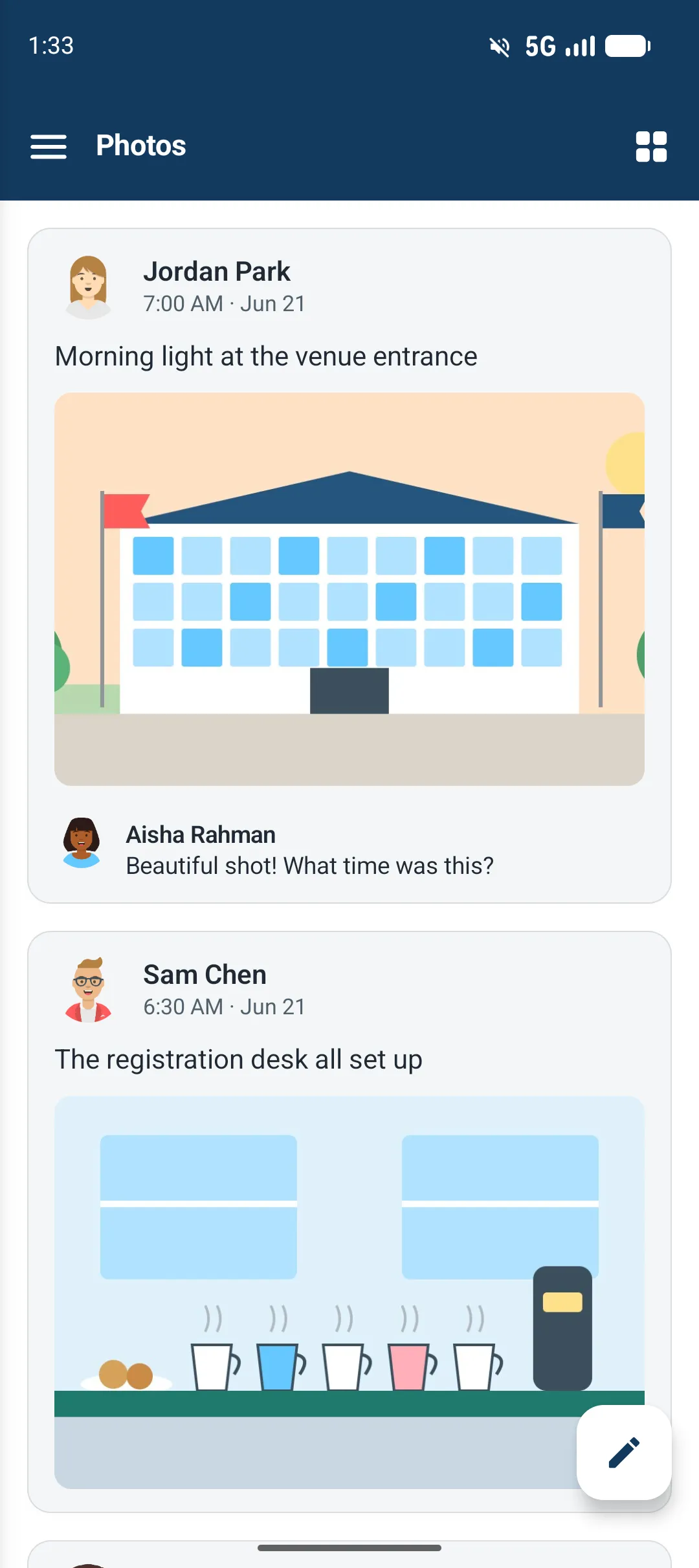
Browse the photos
Scroll down to see more photos. The app loads more when you get to the end of the list. Pull down on the list to load it again. If the app cannot load the list, it shows Could not refresh. Showing the data saved on this device. at the bottom of the screen.
Each card shows:
- The name and photo of the person who shared it, and when they shared it.
- The text that they added, if any.
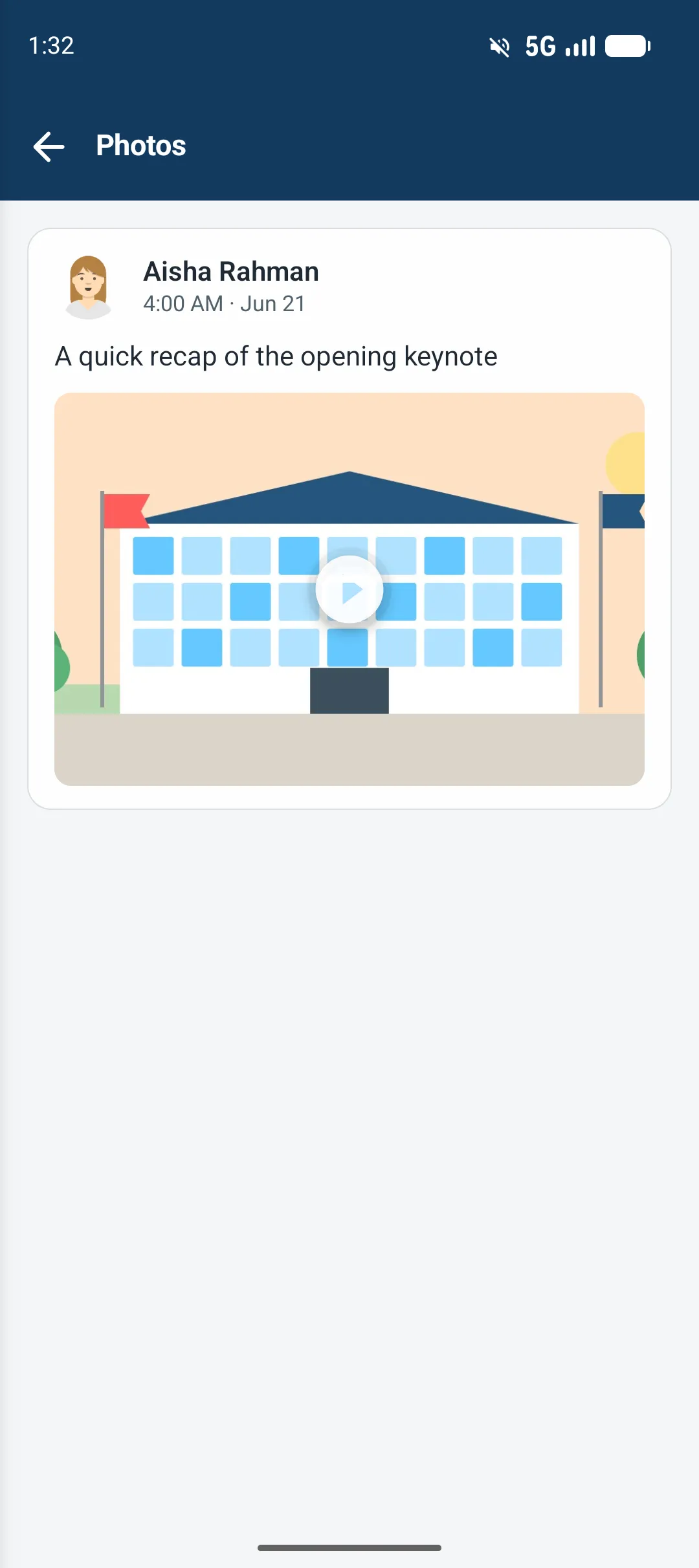
- The photo. A video shows a play button on the photo.
- The number of likes, when the photo has likes.
- Up to three recent comments. When the photo has more comments, the card shows how many more, for example 2 more comments.
Tap the photo of the person who shared it to open their profile. This works when the person is an attendee or a speaker. See Attendees and Speakers.
Open a photo
Tap a card. The photo opens with all of its comments under it. Tap the back arrow to go back to the list.
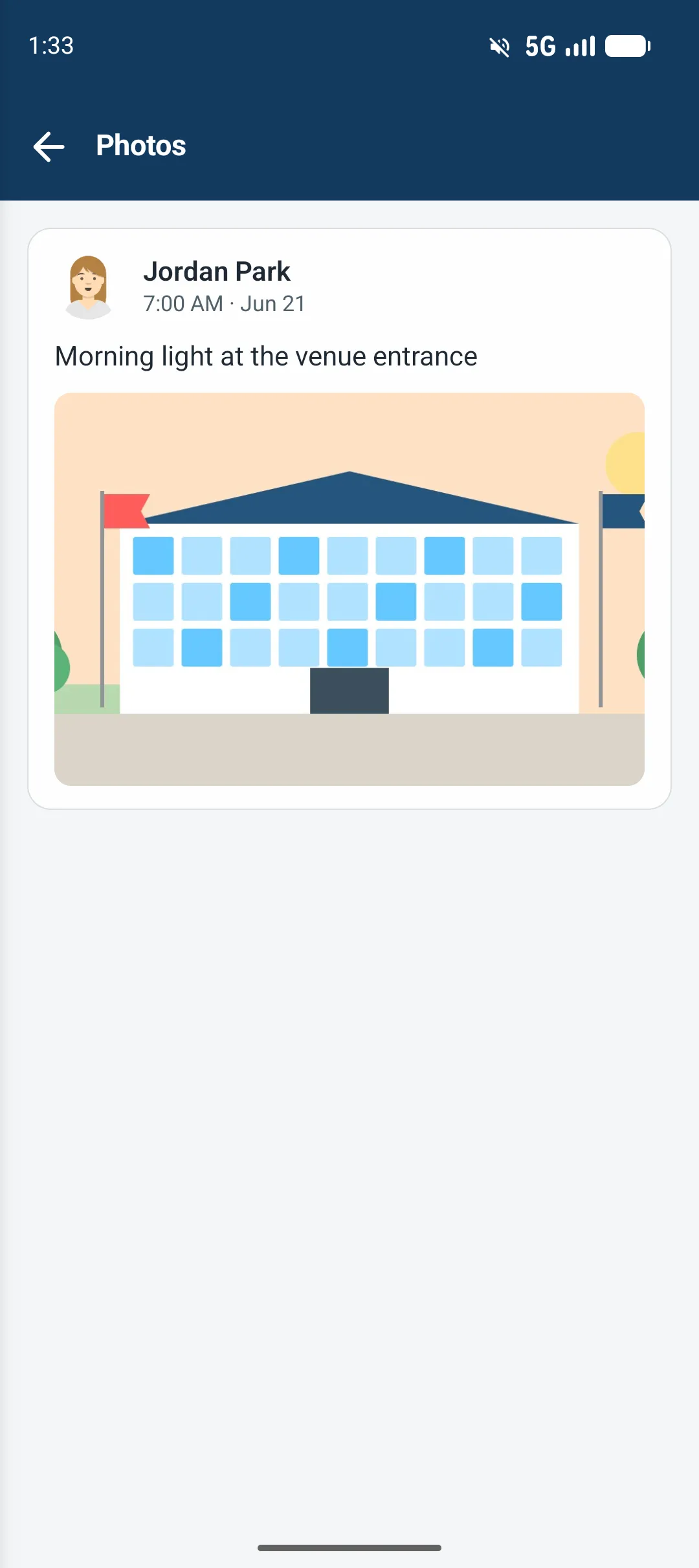
To see the photo on the full screen, tap it. On the full screen:
- Pinch to zoom in, or double-tap to zoom in and out. When you zoom in, drag to move the photo.
- Swipe down or up, tap the close button at the top of the screen, or tap the back button of your device, to close it.
Watch a video
- Open the video’s card.
- Tap the play button on the video. The video plays on the full screen, again and again, with no controls.
- Swipe down or up, or tap the close button, to close it.
If the video cannot play, the app shows This video couldn’t be played.
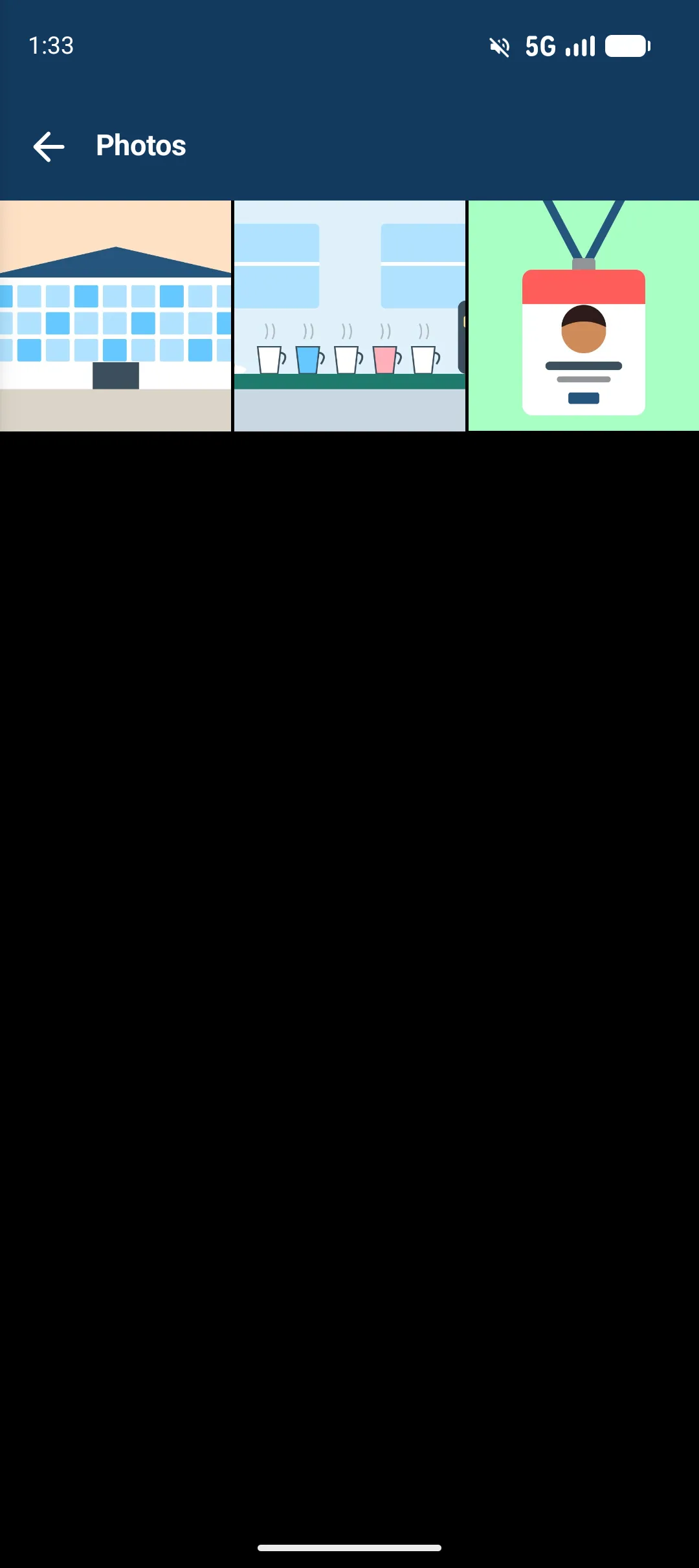
See all the photos in a grid
- Tap the grid button at the top of the list. Photos opens with the photos and videos in three columns. A video shows a play button.
- Tap a photo to see it on the full screen. Swipe left or right to see the next or the previous photo. The dots at the bottom show where you are. A video plays by itself, again and again, with no controls.
- Swipe down or up, or tap the close button, to go back to the grid.
- Tap Done or the back arrow to close the grid.
Like a photo
Open the photo, then tap the heart under the photo. The heart fills, and the number of likes goes up by one. Tap the heart again to remove your like.
Comment on a photo
- Open the photo.
- Under Comments, type in Share a thought….
- Tap the send button.
If you are not logged in, the app asks you to log in and shows Please login before commenting. Your text stays in the field. After you log in, tap the send button again. See Login.
If you are logged in but have no profile, the app shows Participate. When your event lets you create a profile, it asks To participate, you need to create a profile. Would you like to do this now? Tap Yes to create one, or Skip. When your event does not let you create a profile, it shows Sorry, but to participate you need to have been included in the list of participants. Tap OK. See Profile.
What happens next depends on your event:
- When comments show at once, your comment shows in the list.
- When your event checks comments first, the app shows Comment Submitted and Your comment has been submitted! All comments are moderated, so viewing your comment may be delayed. Tap OK. Your comment shows after your event approves it.
- If the comment cannot be sent, the app shows Error and Unable to submit your comment. Please try again later. Tap OK. Your text stays in the field, so you can try again.
The newest comments show first. Tap Newest first to show the oldest first, and tap Oldest first to change back.
When you can remove a comment, for example your own, a delete button shows next to it. Tap it. The app asks Are you sure you want to remove this comment? Tap Delete or Cancel.
When a photo has no comments, Comments shows No comments yet.
Share a photo or a video
- Tap the new post button at the bottom of the list.
- If you are not logged in, the app asks you to log in. After you log in, the new post screen opens. If you close the login screen, you go back to the list.
- Tap the add media button under the text field. Your device’s photo picker opens.
- Select one photo or video. A small preview shows, with a spinner while the app uploads it. To remove it, tap the close button on the preview.
- Type some text in What’s on your mind? if you want to.
- When the upload is done, tap Post. Post is available only when you have added a photo or a video. Tap the back arrow to stop and close the screen.
The app does not ask for permission to see your photos, because you choose each photo in the picker. It does not open the camera.
What happens next depends on your event:
- Success and Success! Your post will be displayed in a moment. Tap OK. The screen closes and your photo shows in the list.
- Success and Success! However, posts are moderated so viewing your post may be delayed. Tap OK. The screen closes. Your photo shows in the list after your event approves it.
- Error and Unable to submit your post. Please try again later. Tap OK. Your text and photo stay, so you can try again.
If the photo or video cannot be uploaded, the app shows Error and Unable to upload your media. Please try again later. Tap OK. The preview goes away, so you can select it again.
When you cannot share a photo
- If you are logged in but have no profile, the app shows Participate, as for comments. If you tap Skip, you go back to the list.
- If your profile is set to Only visible to you, the app shows Sorry and Your profile must be visible in order to participate socially. Tap OK to go back to the list. See Profile.
Remove your photo
When you can remove a photo, Remove shows under it when you open it. This is usually a photo that you shared.
- Open the photo.
- Tap Remove.
- The app shows Remove and asks Are you sure you would like to remove this item? Tap Yes to remove the photo, or No.
The app goes back to the list, and the photo is not in it.
When there are no photos
If nobody has shared a photo yet, the list shows No photos yet and Be the first to share a photo.
What you might not see
Your event controls these items:
- The feature itself, and its name.
- The new post button. It shows only when your event lets attendees share photos.
- The heart and the number of likes. They show only when your event lets attendees like photos.
- Comments. They show only when your event lets attendees comment.
- Whether your event checks photos and comments before they show.