Announcements
The Announcements feature shows the announcements that your event posts. You can read each announcement, see which announcements are new to you, and filter the list by category.
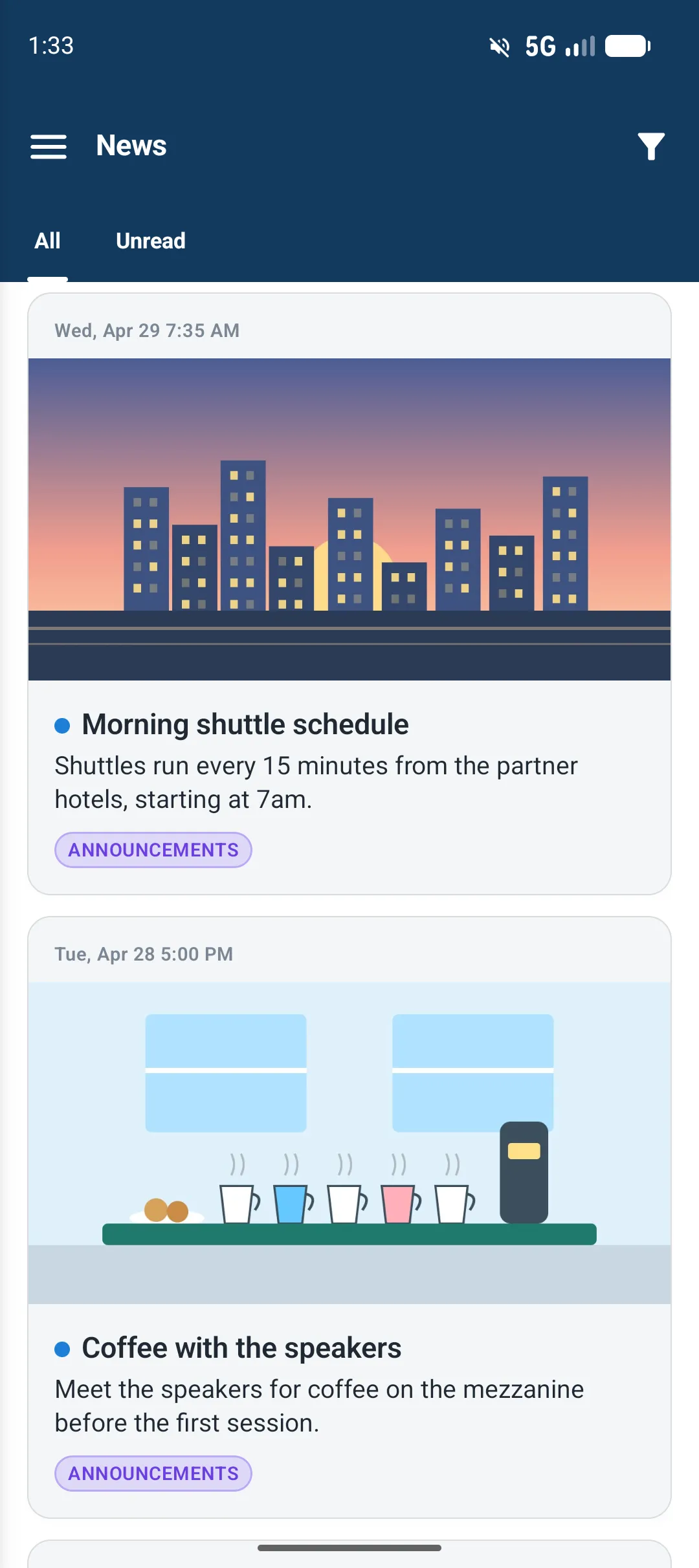
Browse the announcements
The newest announcement shows first. Each announcement shows the date it was posted, its title, and a short summary. An announcement can also show an image and its categories. Your event can feature an announcement. A featured announcement shows its image across the full width of the card.
When you have not opened an announcement yet, a dot shows next to its title.
See only the announcements you have not read
The list has two tabs:
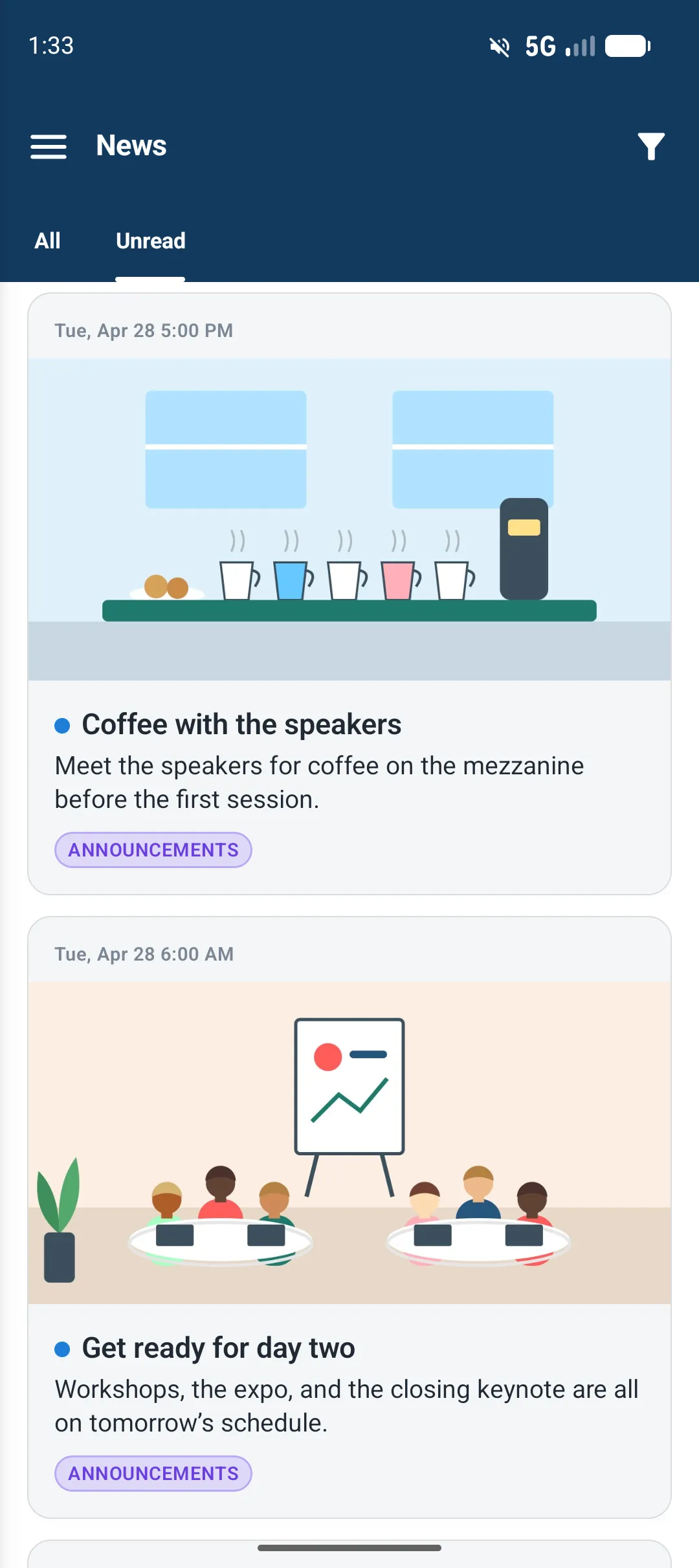
- All shows every announcement.
- Unread shows only the announcements that you have not opened.
Tap a tab, or swipe left or right to go to the other tab. The app remembers the tab that you used last and opens it the next time.
When you open an announcement, the app marks it as read. The dot goes away, and the announcement leaves the Unread tab.
The menu shows the number of unread announcements next to the feature name.
Filter the announcements
If your event puts the announcements in categories, a filter button shows at the top of the list.
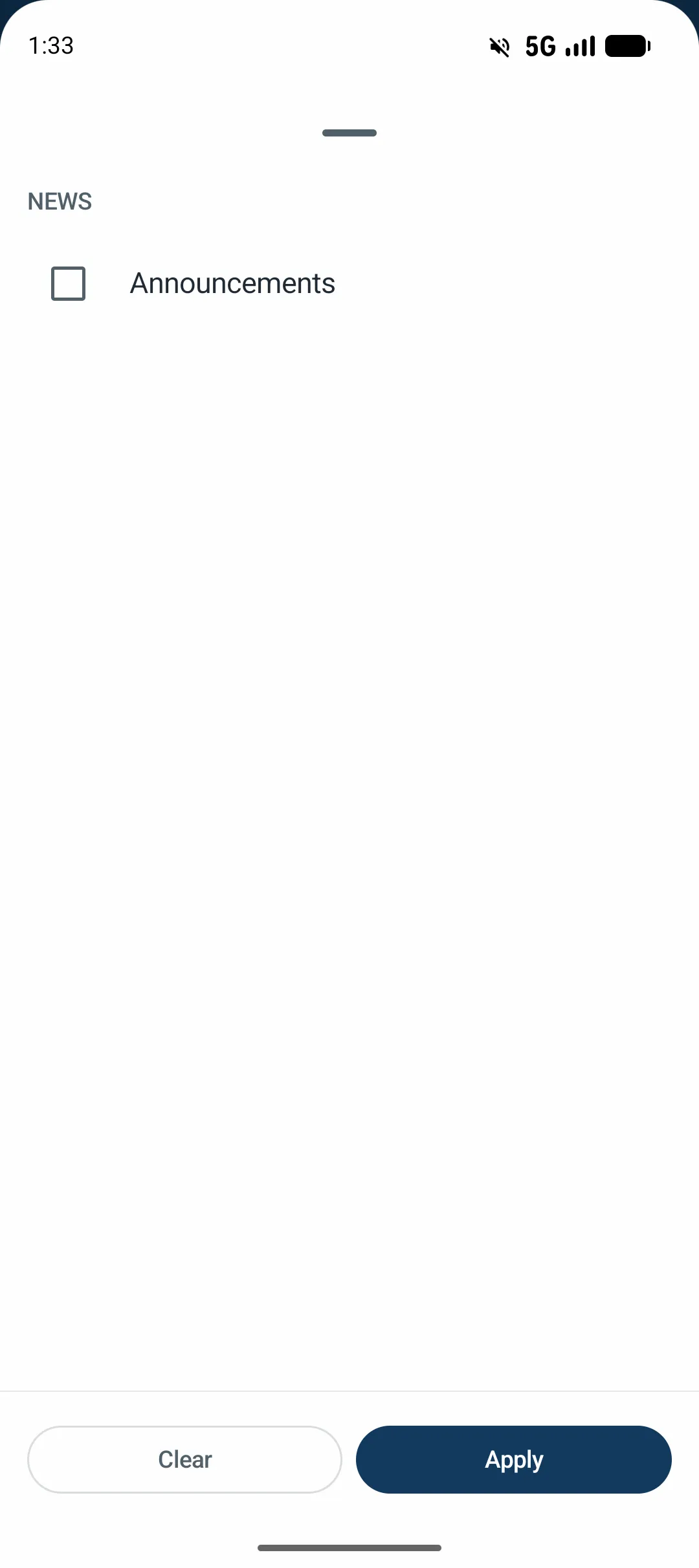
- Tap the filter button. A panel opens from the bottom of the screen.
- Under each category, select one or more items.
- Tap Apply.
The list shows the announcements that have at least one of the items that you chose. The filter applies to both tabs. Each item that you chose shows above the list. Tap an item there to remove it.
To remove all filters, open the panel again and tap Clear.
If your event has more than one list of announcements, the filters that you choose apply to all of them. The tab that the app remembers is also the same for all of them.
Read an announcement
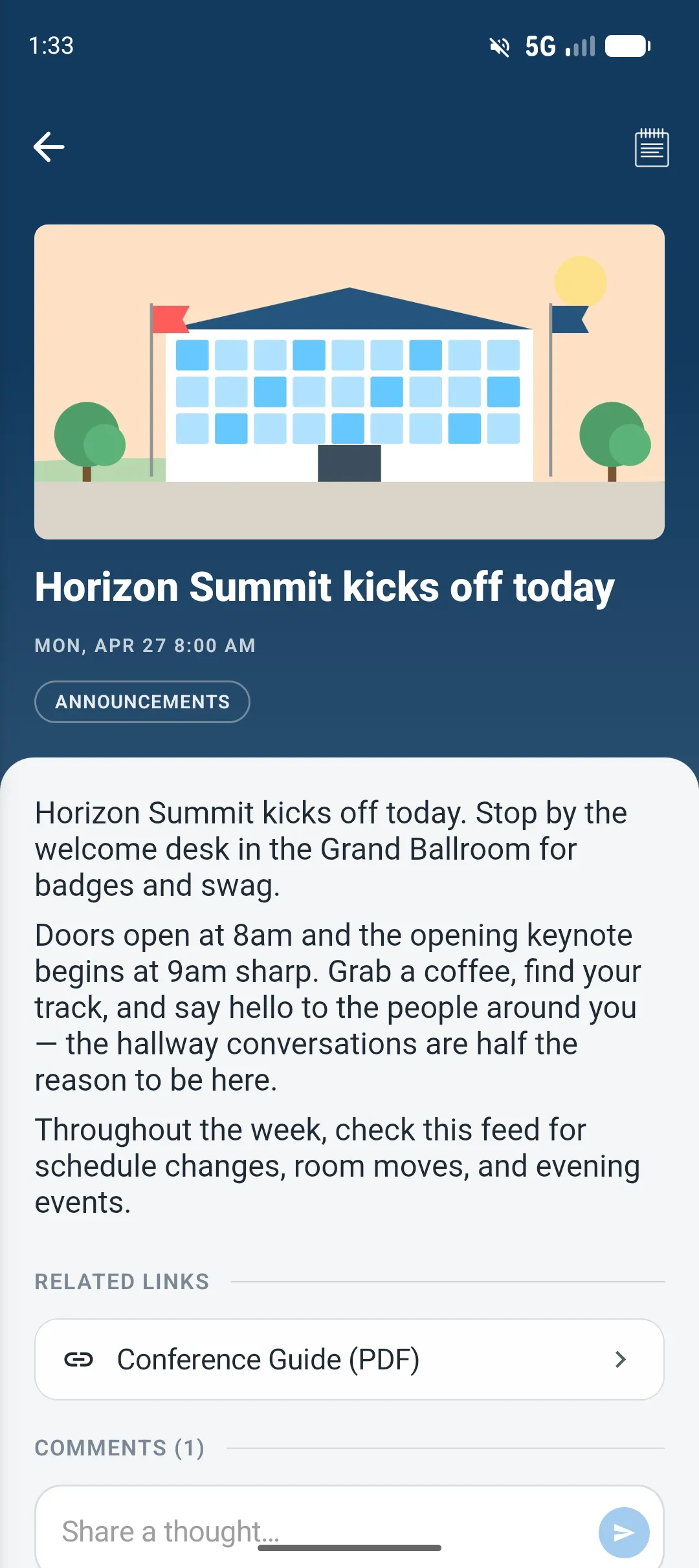
Tap an announcement in the list. The announcement shows its image, title, date, and categories at the top. Under that, it shows the full text of the announcement. Tap the back arrow to go back to the list.
If the announcement has an image, tap it. If your event adds a link to the image, the link opens in your browser. Otherwise, the image opens on the full screen. When your device has no browser, the app shows Sorry, there is not an Internet browser available to open this link at the bottom of the screen.
Open a related link
If the announcement has related links, they show under the text, under Related Links. Tap a link to open it in your browser or in the app that opens that type of link.
Comment on an announcement
If your event allows comments, Comments shows at the end of the announcement.
- Tap Share a thought… and type your comment.
- Tap the send button.
If you are not logged in, the app does not send the comment. The login screen opens from the bottom of the screen, with the name of your event and Please login before commenting. Your text stays in the field. After you log in, tap the send button again. See Login.
If you are logged in but have no profile at the event, the app does not send the comment. If your event uses profiles, the app shows Participate:
- If your event lets you create a profile, the app asks To participate, you need to create a profile. Would you like to do this now? Tap Yes to open the profile form, or Skip.
- Otherwise, the app shows Sorry, but to participate you need to have been included in the list of participants. Tap OK.
See Profile.
When your event checks comments before they show, the app shows Comment Submitted and Your comment has been submitted! All comments are moderated, so viewing your comment may be delayed. Tap OK.
If the comment cannot be sent, the app shows Error and Unable to submit your comment. Please try again later. Tap OK. Your text stays in the field, so you can try again.
To change the order of the comments, tap Newest first or Oldest first.
To remove one of your comments, tap the remove button next to it. The app asks Are you sure you want to remove this comment? Tap Delete, or Cancel.
Write a note about an announcement
If your event uses notes, a notes button shows at the top of the announcement. Tap it to write a note about the announcement.
When there are no announcements
- If the All tab has no announcements, it shows No Announcements yet, with the name that your event gives the feature, and Announcements will appear here once they’re published.
- If you have read every announcement, the Unread tab shows You’re all caught up and You’ve read every story.
What you might not see
Your event controls these items:
- The feature itself, and its name. Your event can also have more than one list of announcements, each with its own name.
- Which announcements are featured.
- The categories, and the filter button. The filter button shows only when your event puts the announcements in categories.
- The link on an announcement’s image.
- The related links.
- The comments. They show only when your event allows comments.
- Whether the app offers to make a profile for you before you comment.
- The notes button. It shows only when your event uses notes.