Contacts
Contacts keeps the cards of the people you meet at the event. Your own card has a QR code that other people can scan. You can scan their codes, or type a contact in.
Browse your contacts
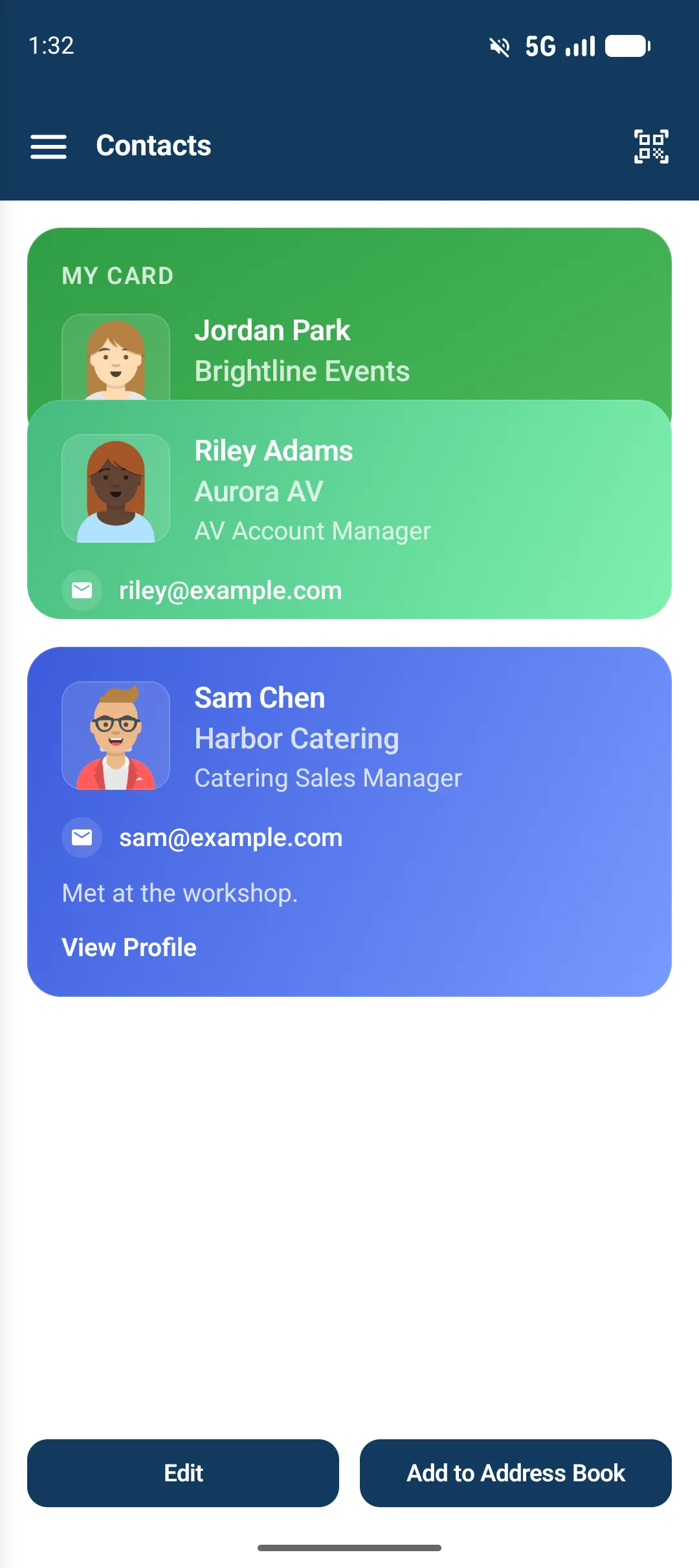
Your contacts show as a stack of colored cards. Your own card shows first, with MY CARD at the top. The other cards are in order of last name, then first name.
Each card shows the photo, the name, the organization, and the job title. Tap a card to open it. The open card also shows the email address, the phone number, and your note. Tap the card again to close it. Only one card is open at a time.
Use your own card
The app makes your card for you:
- If you have a profile at the event, your card gets your name, organization, job title, email, phone number, and photo from it. When you change your profile, your card changes too. See Profile.
- If you have no profile, your card shows the name “My Card” and the note Edit this card with your information. To share, have someone scan the QR code.
When you edit your card yourself, it stops changing with your profile.
If you are logged in, your card can show only after the app gets your contacts from the event.
Share your card
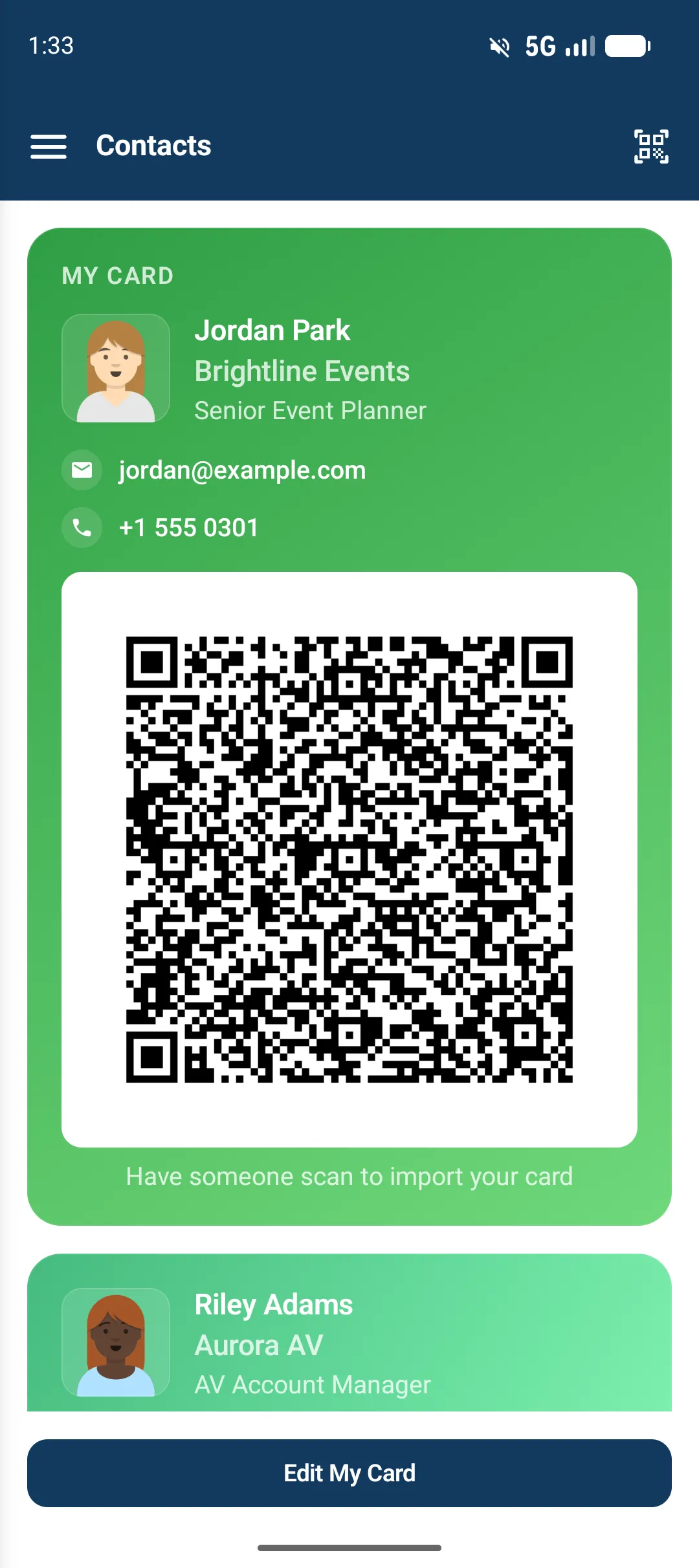
- Tap your own card to open it.
- Show the QR code on the card to the other person. Under the code, the card says Have someone scan to import your card.
The other person scans the code with their app. The code holds the details on your card.
Your QR code also shows on the scan screen, so two people can scan each other at the same time.
Scan a contact’s code
- Tap the scan button at the top of the screen. Scan QR Code opens over the list. The camera shows at the top, and your own QR code shows under it, with Attendees can scan to import your Contact card.
- Point the camera at the other person’s QR code. The screen says Point at a contact’s QR code and The contact will appear here for you to save.
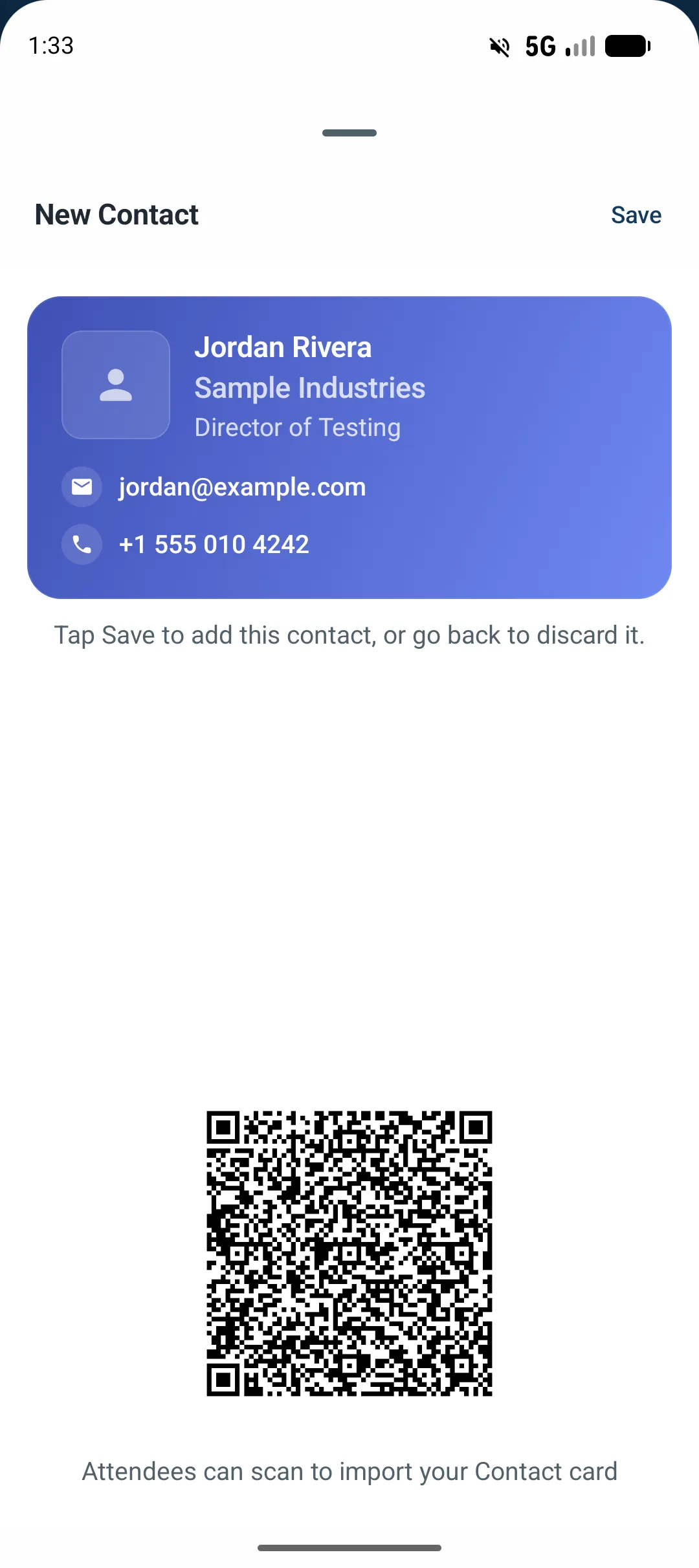
- The card of the person shows, with the title New Contact and the text Tap Save to add this contact, or go back to discard it. Tap Save to add the contact. To discard it, swipe the screen down or go back.
If you scan the card of a person that you already have, the app keeps the details you have and adds only the details that are missing. If you deleted that contact, the scan adds it again with the details from the code.
When the scan screen opens and the app does not have access to the camera, Android asks for it. If you do not allow it, the camera area shows Camera access is needed to scan badges. Open Settings to allow it. Tap Open Settings to allow it. If your device has no camera, the camera area shows No camera available.
In landscape, the camera and your QR code show side by side.
To close the scan screen, swipe it down or go back.
Add a contact by hand
- Tap the scan button at the top of the screen.
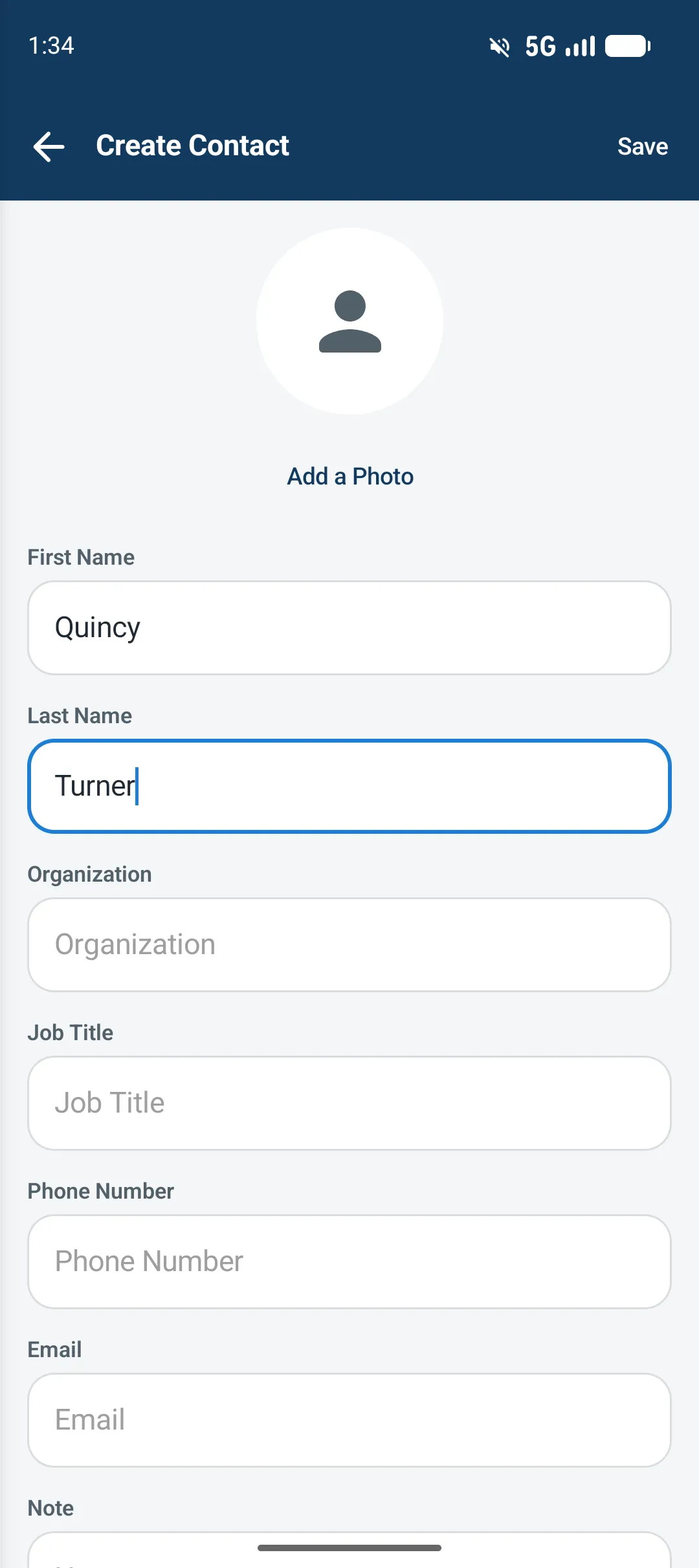
- Tap Add Manually. Create Contact opens.
- Type a first name or a last name. The other items are optional: Organization, Job Title, Phone Number, Email, and Note.
- To add a photo, tap Add a Photo and choose a photo.
- Tap Save. The app goes back to the contacts list.
If both name fields are empty when you tap Save, the app shows Name Required and Please provide a first or last name. Tap OK, and then type a name.
Edit a contact
- Tap the card to open it.
- At the bottom of the screen, tap Edit. For your own card, tap Edit My Card.
- Change the details. To change the photo, tap Change Photo. Your own card has no Note field.
- Tap Save, or tap the back arrow to leave with no change.
When you save a change to your own card, the hint note goes away.
Delete a contact
- Open the card and tap Edit.
- Tap Delete Contact.
- The app shows Delete Contact and asks Are you sure you want to delete this contact? Tap Delete Contact, or Cancel.
You can also delete your own card. The app then makes a new card for you, for example the next time you open Contacts. The new card gets the details from your profile, or it is the “My Card” card when you have no profile. Until then, the scan screen shows no QR code of your own.
Save a contact to your phone
- Tap a card to open it.
- At the bottom of the screen, tap Add to Address Book.
- Your contacts app opens a new contact, with the name, organization, job title, phone number, and email filled in. The photo is not added. Save the contact there, or cancel.
The app does not ask for access to your contacts. Your own card has no Add to Address Book button.
If your phone has no app that can add a contact, the app shows Contact failed to export at the bottom of the screen.
Open a contact’s profile
When a card belongs to an attendee or a speaker at the event, the open card shows View Profile. Tap it to open the person’s profile. See Attendees and Speakers.
Get in touch with a contact
On an open card:
- Tap the email address to write an email in your email app.
- Tap the phone number to open it in your phone app.
- Tap the photo to see it on the full screen. If the contact has no photo, the app shows No photo available.
When your device has no app to do this, the app shows a message:
- Email: Sorry, there is not an app available to send an email
When your device cannot make a call, nothing happens.
When something goes wrong
- If the app cannot read the contact card, or the card has no first name and no last name, the app shows Error and There was an error importing the contact. Tap OK to scan again.
- A code that is not a contact card, for example a badge or a link, does not add a contact. The app does with the code what the other scanners in the app do, for example open the link. See My QR Code.
- If you have no contacts, the list shows No contacts yet and Scan a badge or QR code to save a contact.
What you might not see
Your event controls these items:
- The feature itself, and its name.