Calendar
The Calendar shows the event’s sessions in one long list, grouped by day. It does not show one day at a time, as the Agenda does. Instead, it puts the sessions under Upcoming and Previous. Sessions that are part of a larger session show only inside that session, unless you search or filter.
See the upcoming sessions
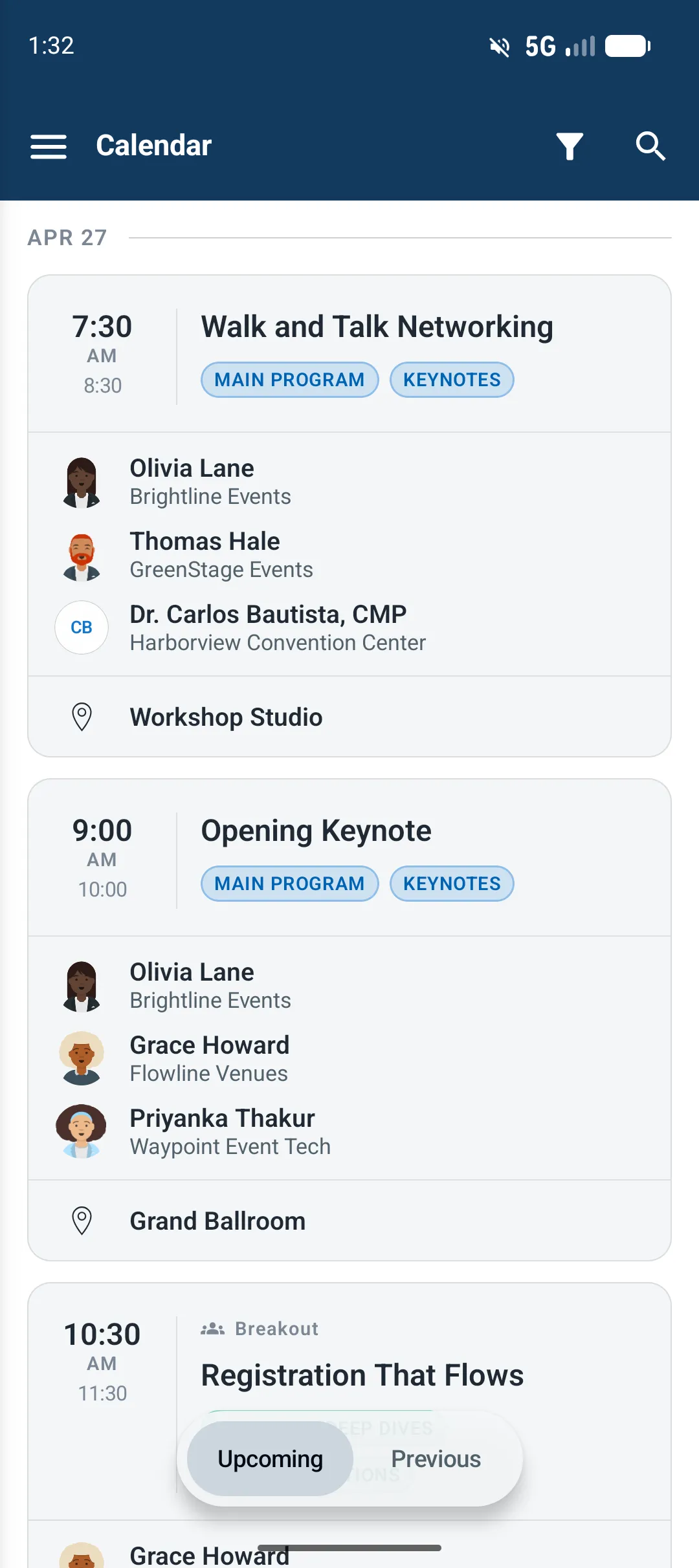
When you open the Calendar for the first time, it shows Upcoming. Scroll down to see more sessions.
Upcoming shows the sessions in time order, with the next ones first. Each day has a heading with its date.
Each session shows its start and end times, its name, and its tracks and topics. A session can also show its speakers and its room.
A label above the name of a session can show the kind of session: Working Session, Social, Poster, Food, Break, or Breakout. Your event chooses which sessions show a label.
Your event can also show a tag about the seats of a session. The tag is at the top right of the session. With a large text size, it shows with the other details of the session. Your event writes the text of the tag. The tag is filled with color when the session has no more seats.
A session stays under Upcoming until about one day after it ends. A session with no end time uses its start time.
See the previous sessions
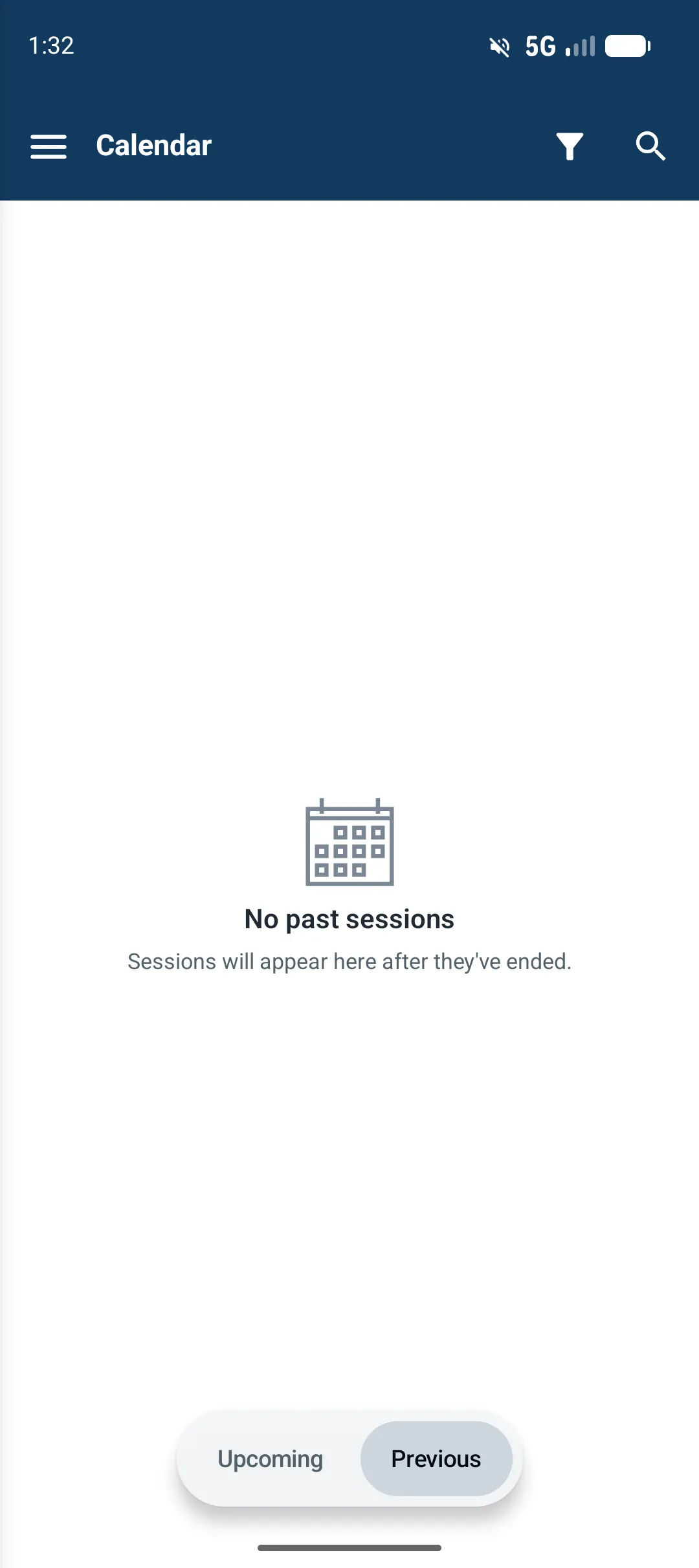
Tap Previous at the bottom of the screen, or swipe left. Previous shows the sessions that ended more than about one day ago, with the most recent ones first. To go back, tap Upcoming or swipe right.
The app remembers which list you looked at last, and opens on it the next time.
Search for a session
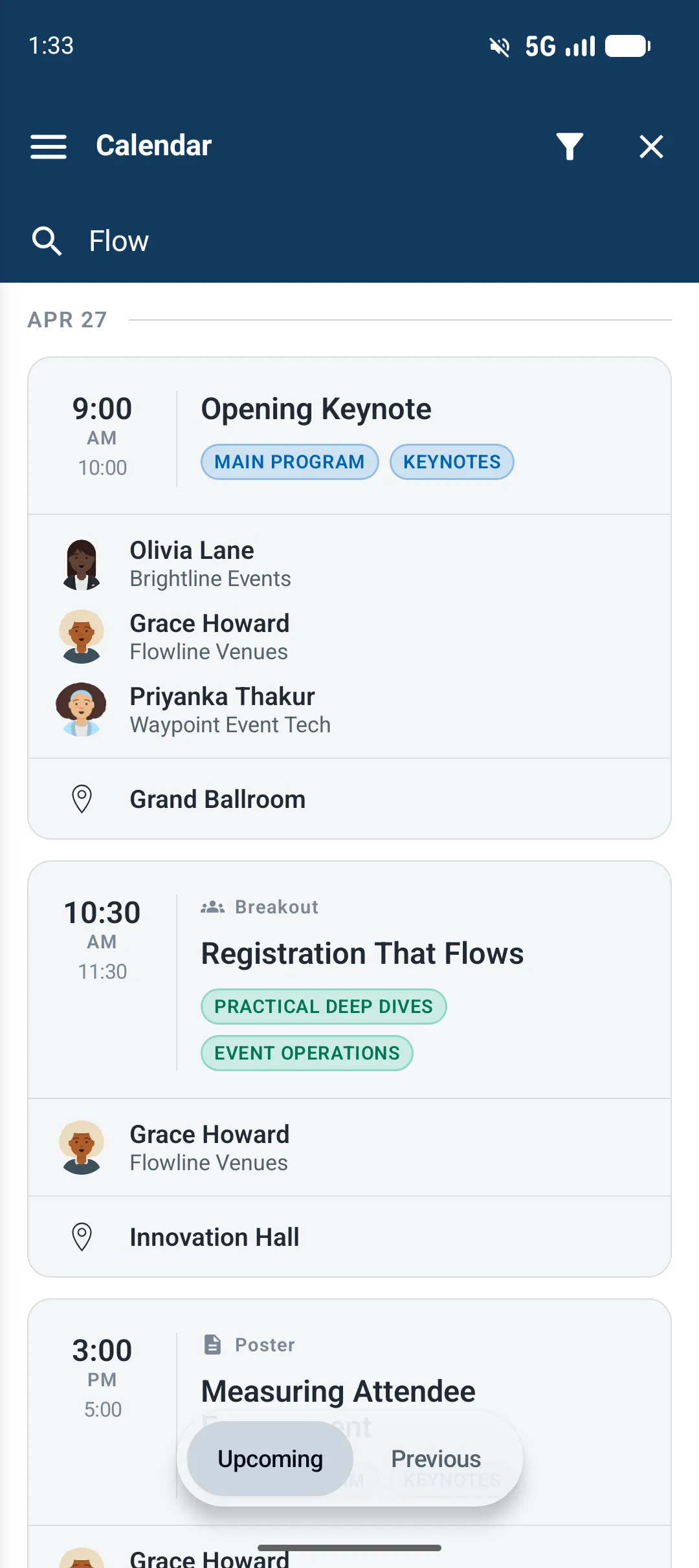
- Tap the search button at the top of the screen. A search field opens under the top bar.
- Type a word in Search events. The field is ready for your text when it opens. The list shows the sessions whose name or details, speakers, room, or topics match it.
- Tap the close button at the top of the screen to clear the search and close the search field.
The search applies to Upcoming and Previous. Tap the other one to see its matching sessions.
Filter the sessions
- Tap the filter button at the top of the screen. The filters open at the bottom of the screen.
- Tap each track or topic that you want. A check mark shows in its box.
- Tap Apply.
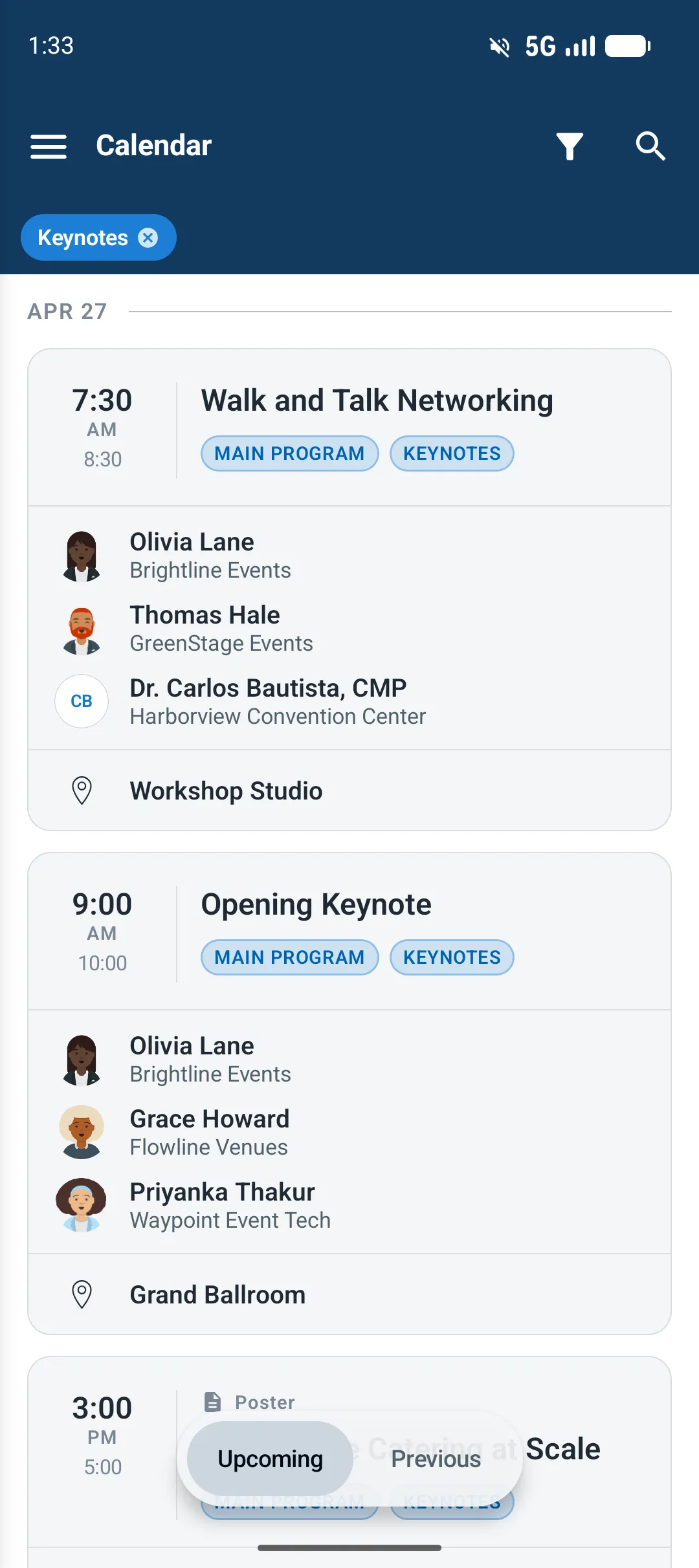
The list shows the sessions that have all of the tracks you selected and at least one of the topics you selected. Your filters show under the top bar. Tap a filter there to remove it. To remove all filters, open the filters and tap Clear. The app keeps your filters when you leave the Calendar. The Calendar and the Agenda keep different filters.
The Calendar asks you to choose a track first when your event’s Agenda does. Then, if you have not selected a track, the filters open when you open the Calendar. Apply is not available until you select at least one track. You can close the filters without a track. The list then shows the sessions with no filter, and the filters open again the next time you open the Calendar.
Open a session
Tap a session. Its details are the same as in the Agenda. There you can read about the session and, when your event allows it, add it to your schedule or your calendar, register, check in, join a webinar, or share it. See Agenda and My Schedule.
Tap the back arrow to go back to the Calendar.
When there are no sessions
- If Upcoming has no sessions, it shows No sessions yet and Sessions will appear here once they’re scheduled.
- If Previous has no sessions, it shows No past sessions and Sessions will appear here after they’ve ended.
- If no session matches your search or filters, it shows No results and No sessions match your search. Change the search or the filters.
What you might not see
Your event controls these items:
- The feature itself, and its name.
- The filter button. It shows only when the event has tracks or topics to filter by.
- Whether the filters open first and ask you to choose a track. This follows the Agenda.
- The buttons and items on a session’s details. They follow the Agenda’s settings. See Agenda.