Posters
Posters shows the poster sessions at the event, one day at a time. A poster session is a session where people present their research. You can search and filter the posters, and open a poster to read about it.
See the posters for a day
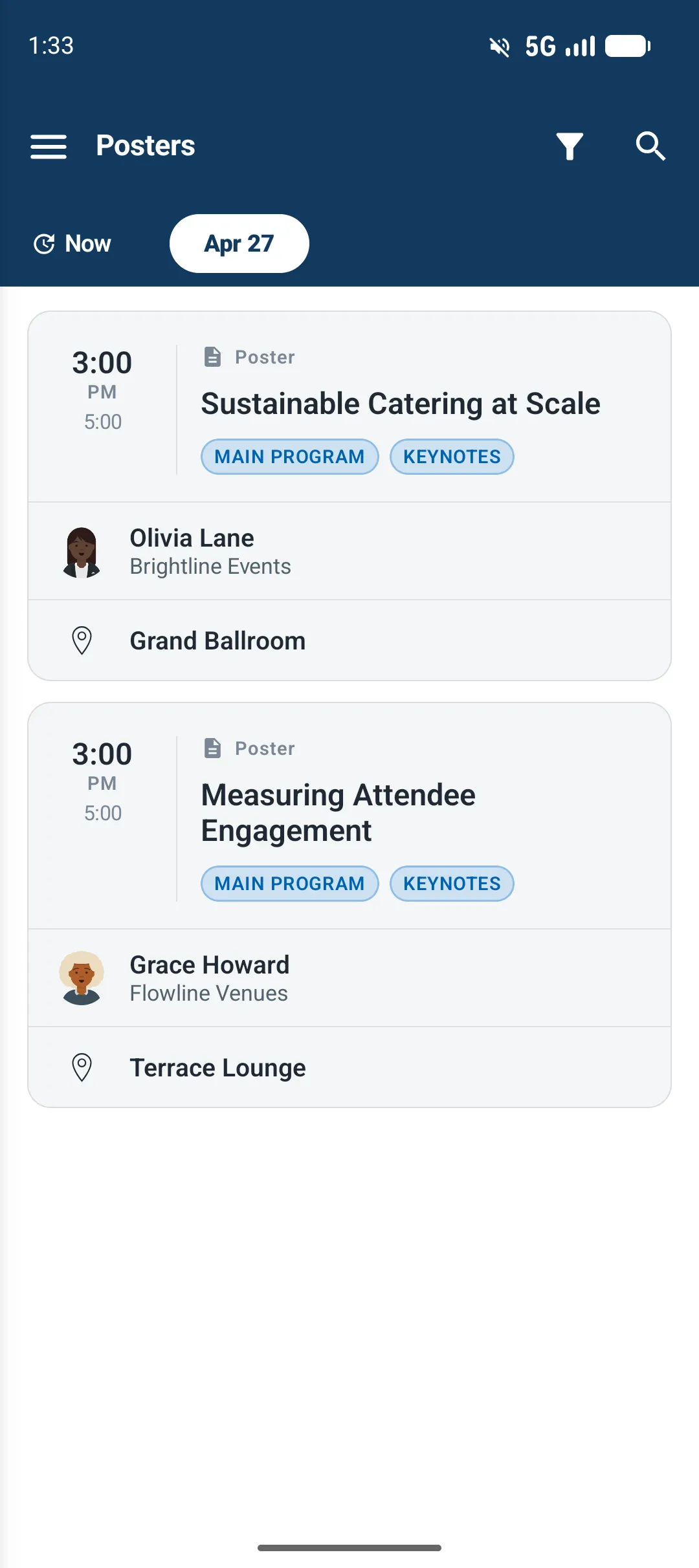
Each day that has posters has a button at the top of the screen. The posters for that day show in time order.
- Tap a day to see its posters. You can also swipe left or right to go to the next or previous day.
- Scroll down to see more posters.
Each poster shows its start and end times, its name, and its tracks and topics. A poster can also show its speakers and its room. The list shows all posters, also the posters that are part of a larger session.
The app remembers the last day you looked at. When you open Posters for the first time, it opens on today if today is a day with posters.
Go to the posters that are on now
When today is a day with posters, a Now button shows before the days. Tap Now. The list goes to today and scrolls to the first poster that has not ended. When all of today’s posters have ended, it scrolls to the last one.
Search for a poster
- Tap the search button at the top of the screen. A search field opens under the top bar.
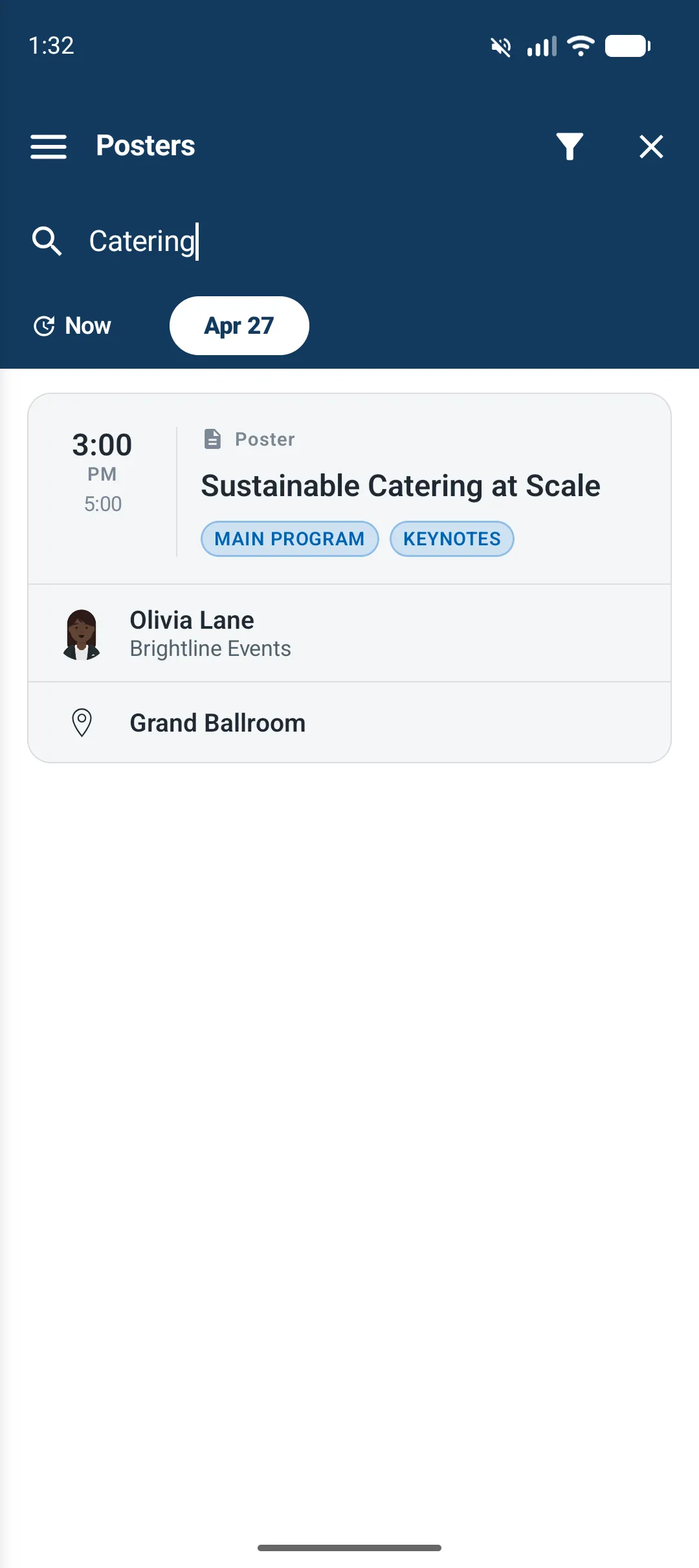
- Type a word in Search posters. The list shows the posters whose name or details, speakers, room, or topics match it.
- Tap the close button at the top of the screen to clear the search and close the field.
If you go to a different feature while a search is on, the app keeps the search, but the field is closed when you open Posters again from the menu. The list then shows only the posters that match. To clear the search, tap the search button and then the close button.
Filter the posters
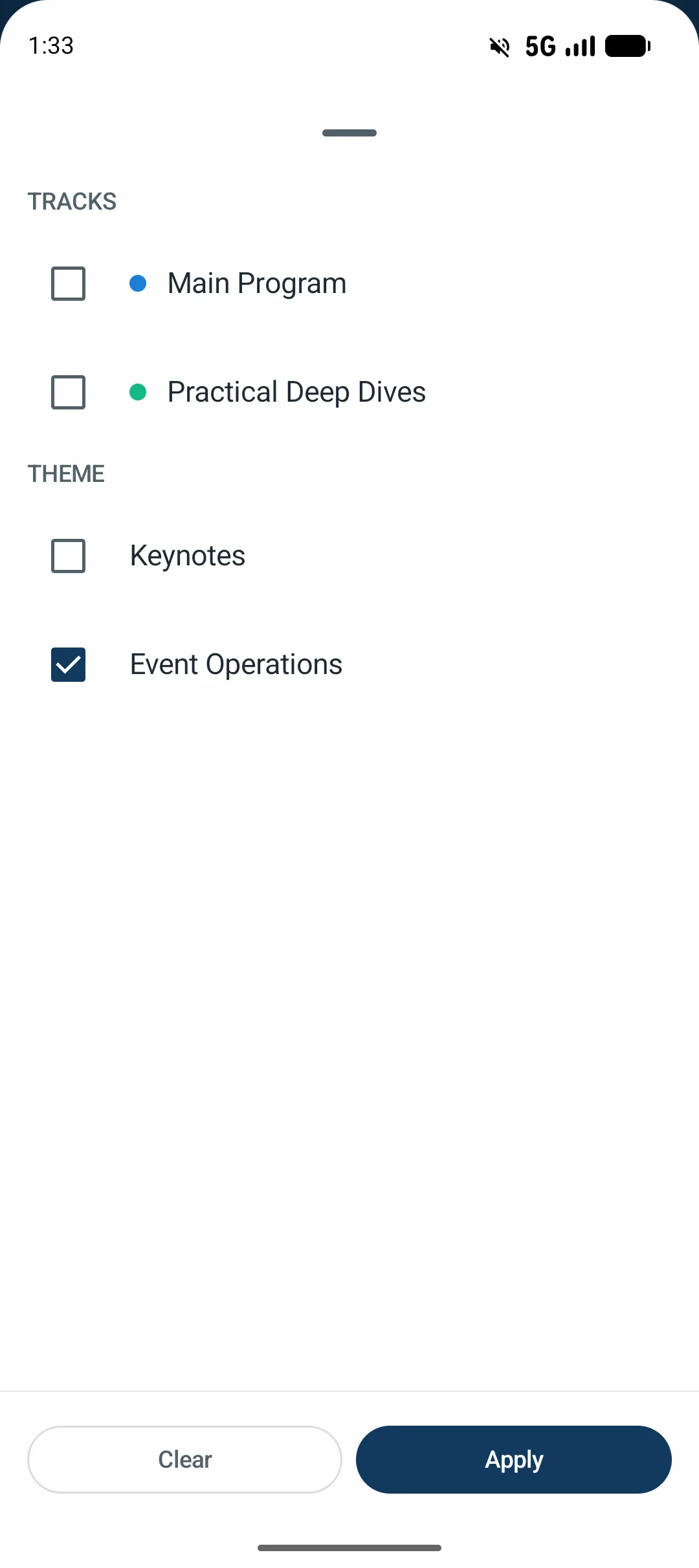
- Tap the filter button at the top of the screen. The filters open at the bottom of the screen.
- Tap each track or topic that you want. A check mark shows in its box.
- Tap Apply.
The list shows the posters that have all of the tracks you selected and at least one of the topics you selected. Your filters show under the days. Tap a filter there to remove it. To remove all filters, open the filters and tap Clear. The app keeps your filters when you leave Posters. These filters are separate from the filters in the Agenda.
Read about a poster
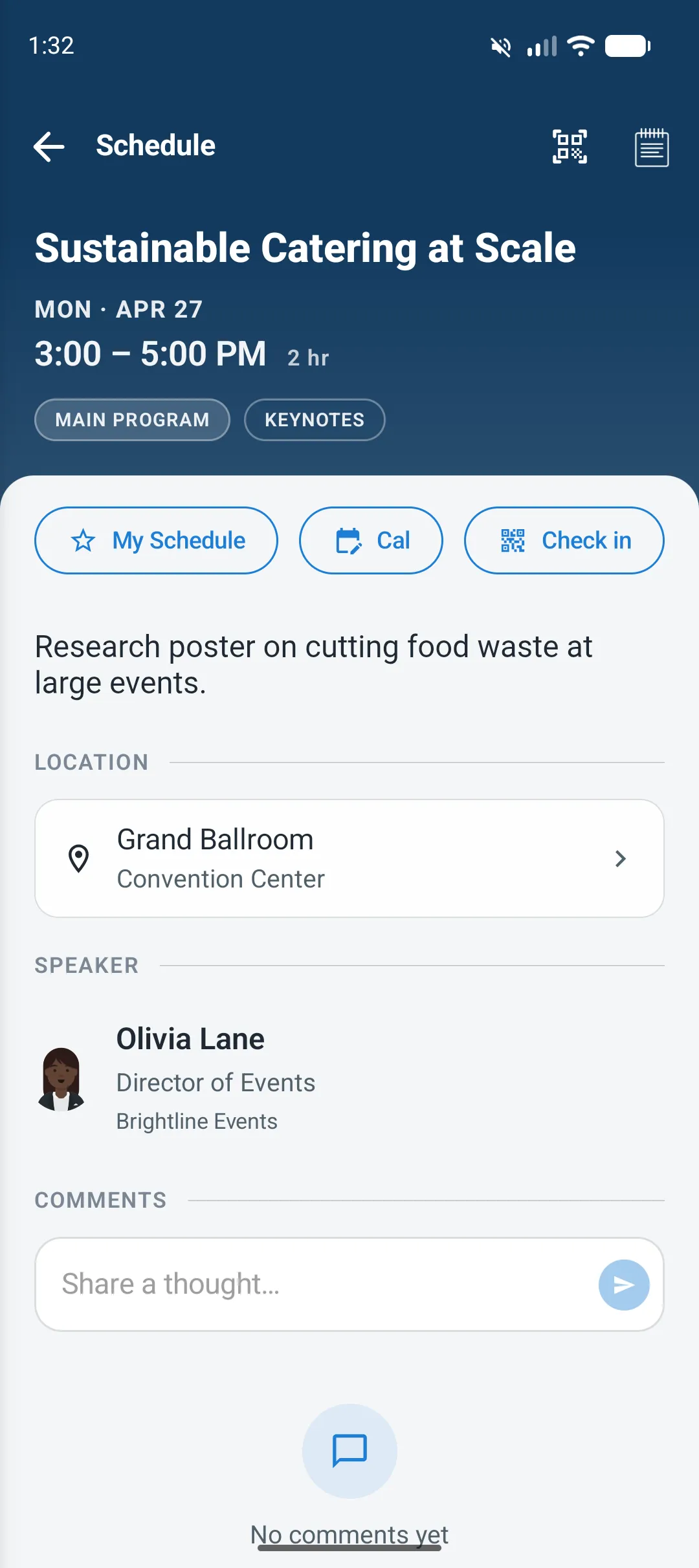
Tap a poster. It opens on the same screen as a session in the Agenda. The screen shows the date and time, the description, and other items that the event adds, for example the room and the speakers. The top bar of this screen shows the name of the Agenda, not the name of Posters. Tap the back arrow to go back to the list.
On this screen, you can do the same tasks as for a session. For example, you can add the poster to My Schedule or to your calendar, check in, open a speaker, or see the room on a map. See “Read about a session” and the tasks after it in Agenda. Also see Speakers and Maps.
When there are no posters
- If there are no posters yet, the list shows No events yet and Events will appear here once they’re scheduled.
- If no poster matches your search and no filter is on, it shows No results and No posters match your search.
- If no poster matches your filters, also with a search, it shows No results and a message that no items match your filters. The message uses the name of the feature, for example No Posters match your filters.
What you might not see
Your event controls these items:
- The feature itself, and its name.
- Which sessions are posters.
- The filter button. It shows only when the event has tracks or topics to filter by.
- The items on a poster’s screen, for example the My Schedule and Cal buttons, the check-in button, and the comments. The event sets them for the Agenda, and they apply to posters too. When the event has no Agenda, the poster still opens, but the top bar shows no name and the screen shows fewer items. See Agenda.