My Credits
My Credits shows the credits that you earned at the event. It shows your total, a chart of your credits by day, and a list of each session that gave you credits.
You earn the credits of a session when you check in to the session, when you answer the session’s survey, or when you do both. Your event chooses which. The event staff can also give you the credits of a session.
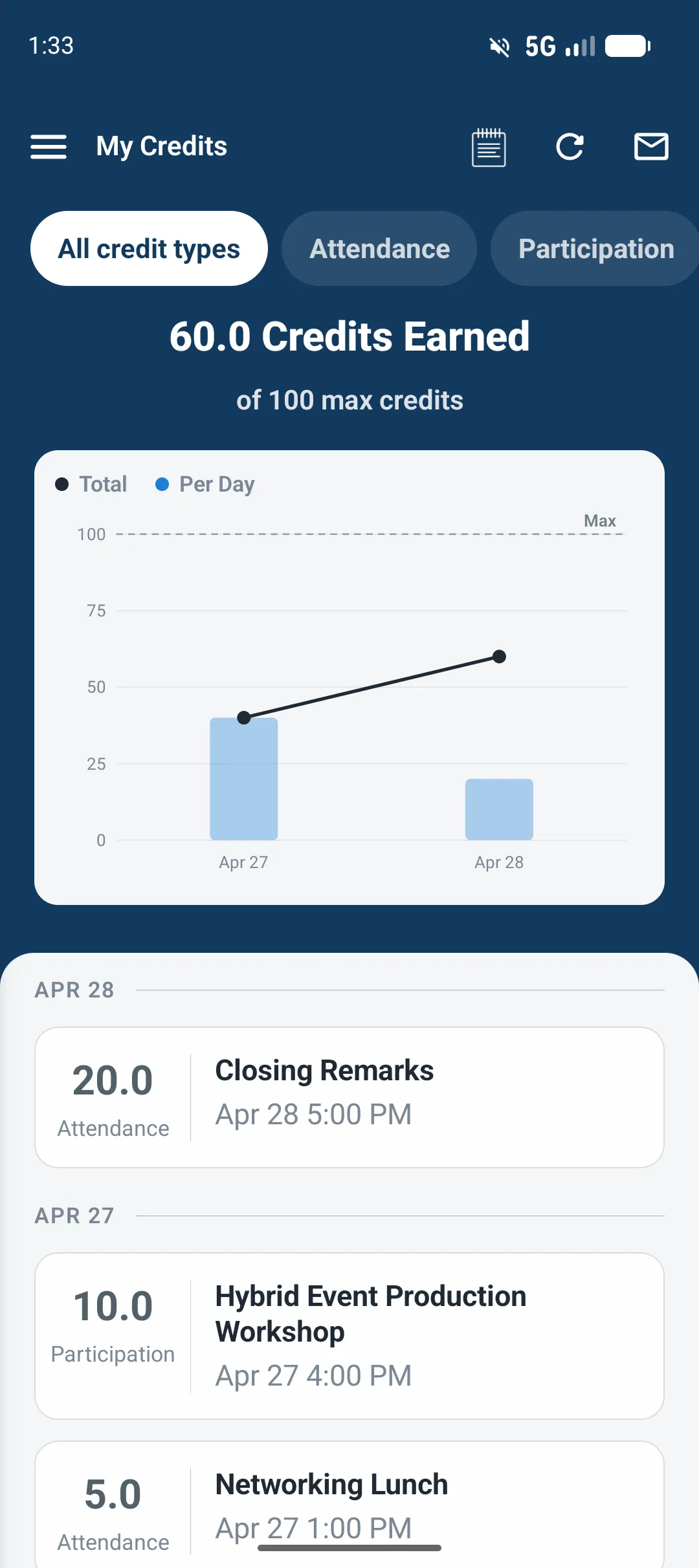
See your total and the chart
The top of the screen shows the credits you earned, for example 60.0 CE Credits Earned. If your event sets a maximum, the line under it shows the maximum, for example of 100 max credits.
Under the total, a chart shows each day of the event:
- Per Day shows as a bar: the credits that you earned on that day.
- Total shows as a line: all the credits that you earned up to that day.
- If your event sets a maximum, a dashed line labeled Max shows it.
When you open My Credits, the app gets your new credits. If the app got them less than a minute before, it does not get them again.
See the sessions that gave you credits
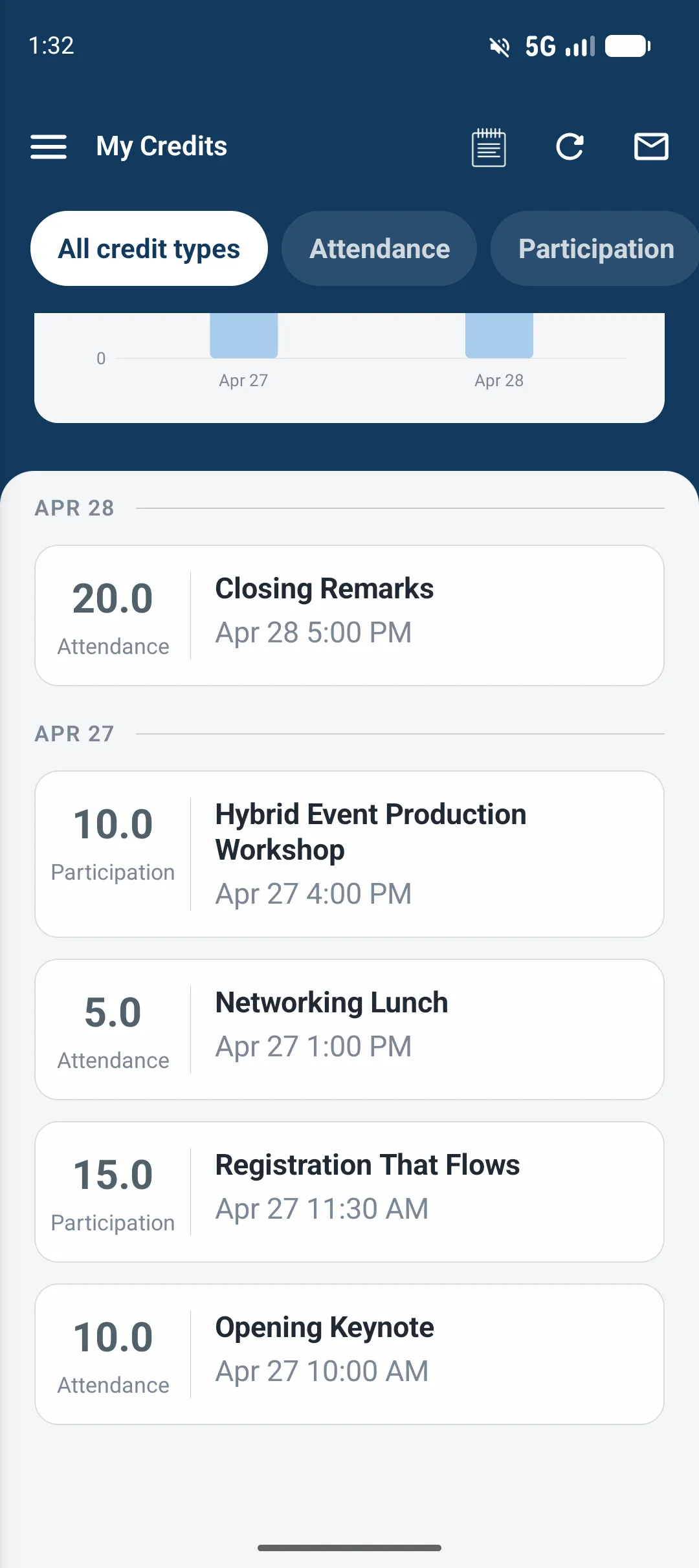
Scroll down to see the list. Each card is a session that gave you credits. The cards are grouped by day, and the most recent day shows first.
Each card shows:
- The number of credits, with the name of a credit type under it, for example “Attendance”.
- The name of the session.
- The date and time when you got the credits.
- When the session gave you more than one type of credit, one line for each type, with its number of credits.
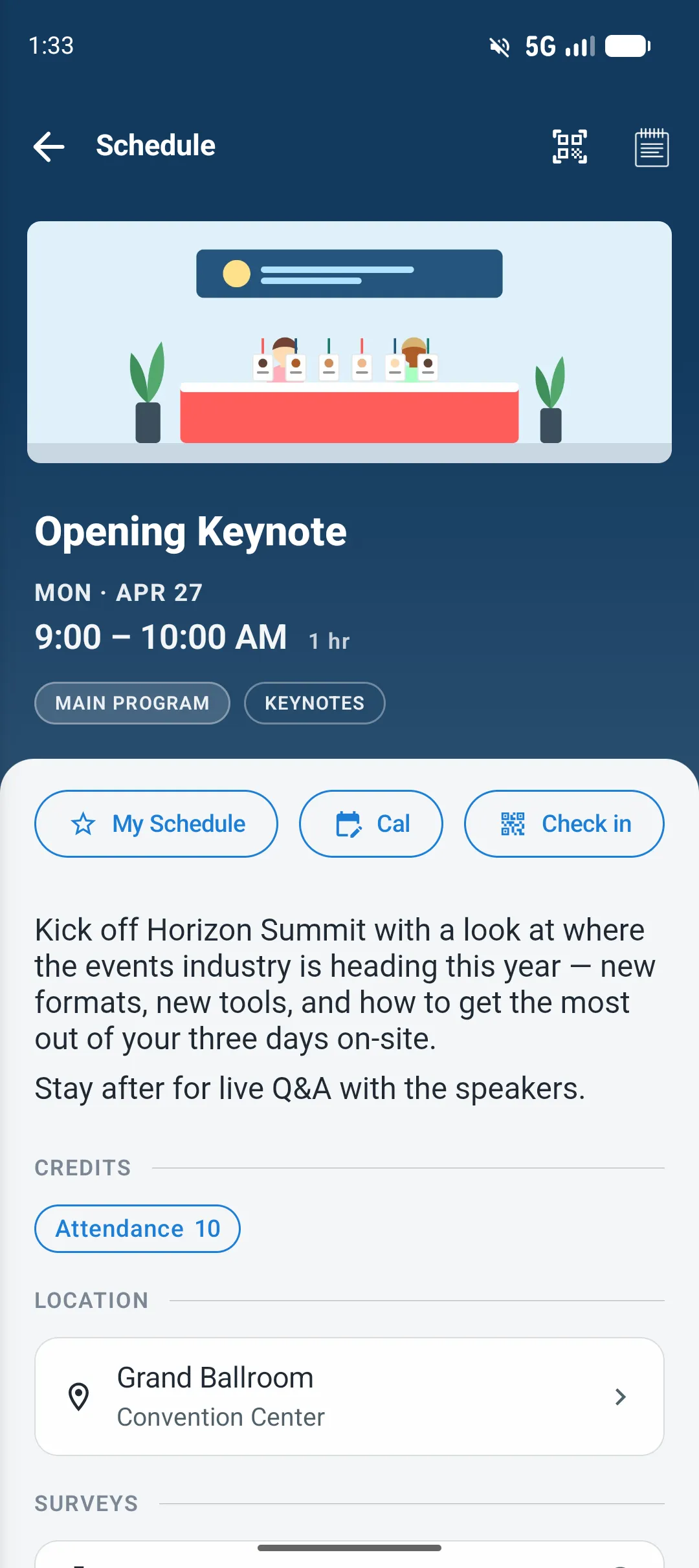
Open a session
Tap a card to open the session. Tap the back arrow to go back to My Credits. See Agenda.
You can tap a card only when the session is in the app. A card for a session that is not in the app does not open.
The session shows the credits that it gives, with the type and the number of credits. It does not show which credits you earned.
See one type of credit
Your event can give more than one type of credit, for example “Attendance” and “Participation”. You can see one type at a time.
When you have credits of two or more types, a row of buttons shows at the top of the screen: All credit types, then one button for each type.
- Tap a type to see only the credits of that type. You can also swipe left or right to go to the next type.
- Tap All credit types to see all your credits again.
Each type shows its own total, chart, and list. When a session gave you more than one type of credit, each type shows only its part of the session’s credits. All credit types shows the sum.
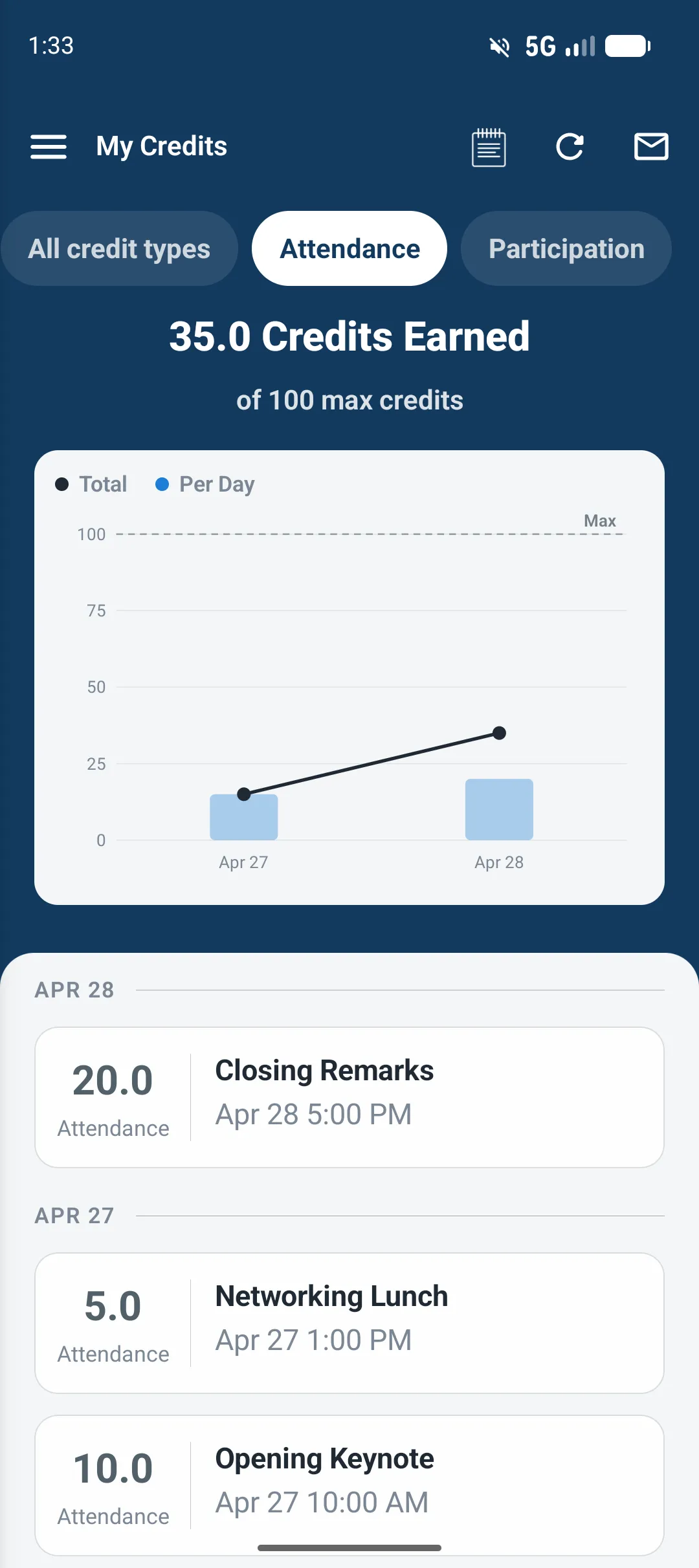
The row shows only the types that you have credits in. The app remembers the type that you chose for this event. The next time you open My Credits, it opens on that type. If that type is not in the list, it opens on All credit types.
When you have credits of one type only, the name of the type shows above the total, and there is no row of buttons.
Get your latest credits
Tap the refresh button (the circle arrow) at the top of the screen. The app gets your credits again, and the total, the chart, and the list update.
If the app cannot get your credits, for example when you are offline, no message shows. The screen keeps the credits that it showed before.
Email your credit report
- Tap the email button (the envelope) at the top of the screen. The button is off until the app gets an answer.
- When the event accepts the request, the app shows Report Sent and Your report has been sent to your email address! Tap Done. My Credits closes, and the app goes back to the screen before it.
The event sends the report to the email address that you log in with. The email can come some minutes later.
If the app cannot send the request, it shows Error and Sorry, we were unable to email that report. Tap OK. My Credits stays open. For example, this message shows when you are offline, or when you have no attendee profile at the event.
Write a note about your credits
If your event uses notes, a notes button shows at the top of the screen. Tap it to write a note about your credits. See Notes.
When you have no credits
If you have no credits yet, the chart shows No credits yet, the total shows 0.0, and no sessions show under the chart.
What you might not see
Your event controls these items:
- The feature itself, and its name.
- The word for credits in the total, for example “CE Credits”.
- The maximum, the line under the total, and the Max line on the chart.
- The credit types, their names, and their order.
- Which sessions give credits, and how many.
- How you earn credits: a check-in, a survey, or both.
- Whether two sessions at the same time can both give you credits.
- The PDF certificate in the email of your credit report.
- The notes button. It shows only when your event uses notes.