Info
Info is a short list of topics that your event publishes, for example Wi-Fi details, parking, or a code of conduct. Each topic opens its own page.
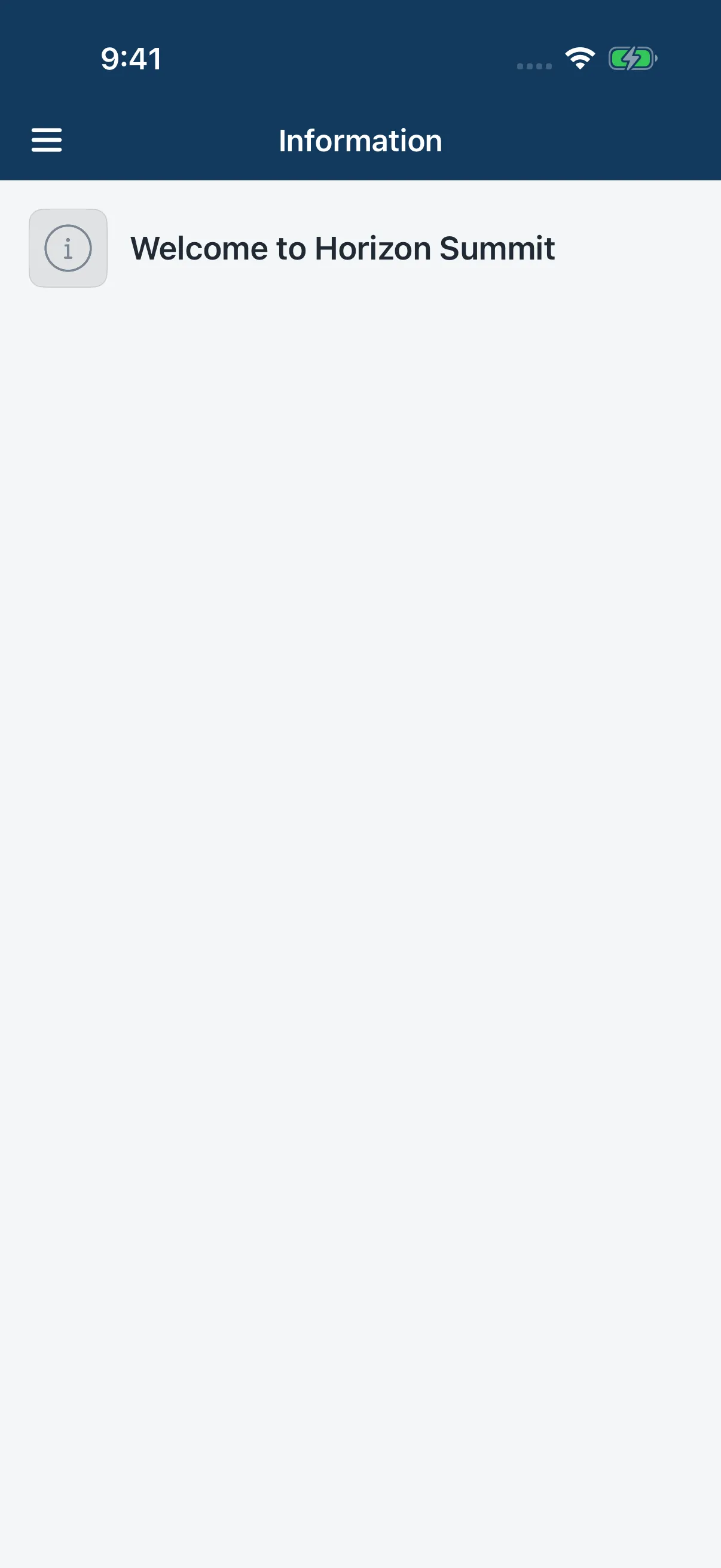
Find a topic
The list shows each topic with its icon and its name. Your event sets the order of the topics. The list has no search.
Your event can have more than one Info list, for example one for the venue and one for travel. Each list shows in the menu with its own name and its own topics.
Read a topic
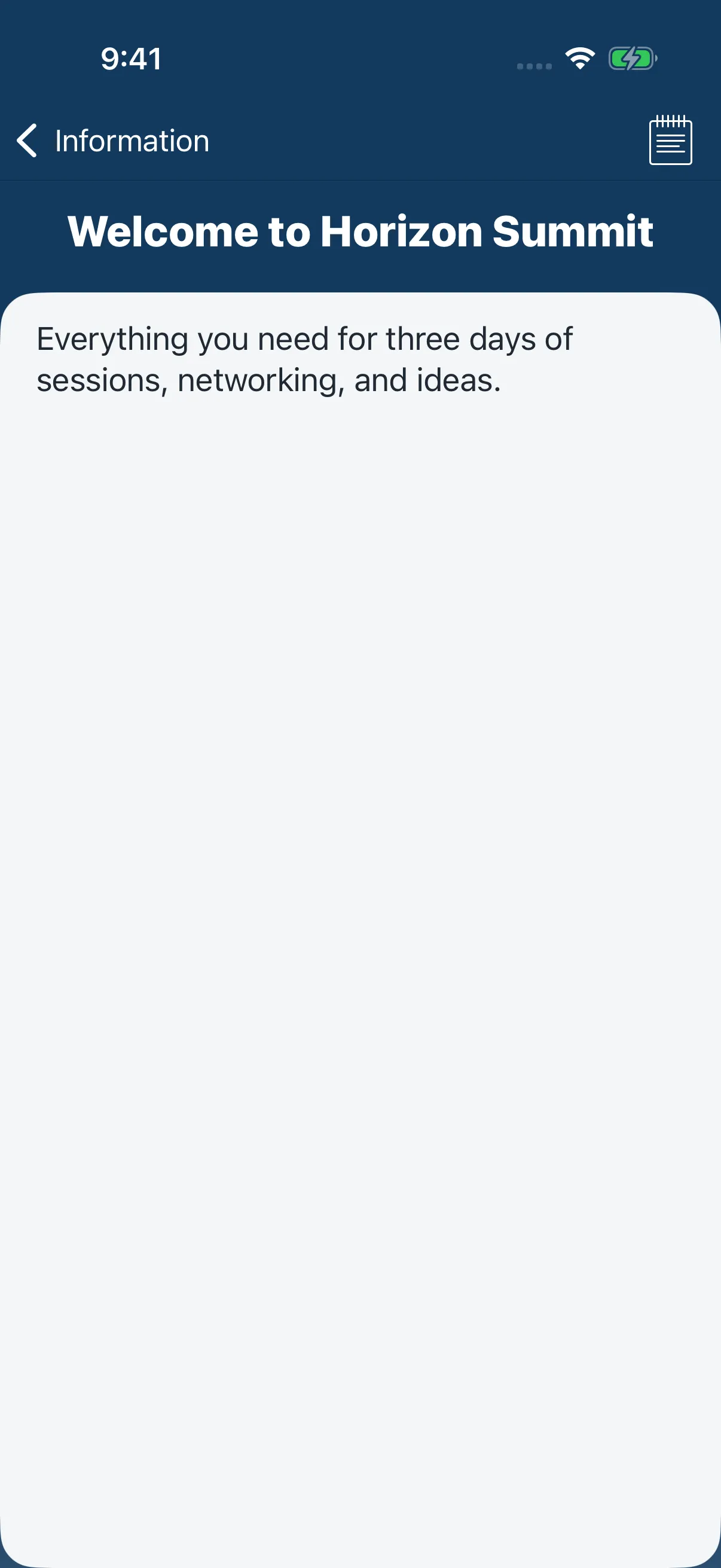
Tap a topic in the list. Its page shows the name of the topic at the top, and the content that your event adds under it.
If the content is wider than the screen, for example a large table, swipe left or right in the content to see all of it.
The content can include details from your attendee profile, for example your name or your organization. If you are not logged in, or you do not have an attendee profile, these details are empty.
In portrait, the page opens on the full screen. Tap the back button to go back to the list.
Open a link in a topic
A topic can have links. Tap a link:
- A link to another part of the app opens that part of the app.
- A link to a web page opens on a sheet over the topic. Tap the close button (X) at the top left to go back to the topic. To open the page in your browser, tap the open-in-browser button at the top right. If the page cannot load, the sheet shows the error and Retry.
- An email link shows Send Email with the address. Tap Send to write an email, or Cancel. If you tap Send and your device cannot send an email, the app shows Unable to Send Email and The email address has been copied to your clipboard. Tap OK.
- A phone link shows Dial Phone Number with the number. Tap Dial to call, or Cancel. When your device cannot call, Copy Phone Number shows the number. Tap Copy to copy it, or Cancel.
- A text message link shows Send Text Message with the number. Tap Send to write a text message, or Cancel. When your device cannot send a text message, the app shows Unable to Send Message and The phone number has been copied to your clipboard. Tap OK.
Write a note about a topic
If your event uses notes, a notes button shows at the top right of the topic page. Tap it to write a note about the topic. See Notes.
When there are no topics
If the list has no topics, it shows No information yet and Details will appear here once they’re published.
What you might not see
Your event controls these items:
- The feature itself, and its name.
- The topics in each list, their order, their icons, and their text.
- How many Info lists show in the menu, and the name of each one.
- The notes button. It shows only when your event uses notes.