Meetings
Meetings let you invite the people in a conversation to a meeting at the event. The invitation shows in the conversation, and each person answers it there. The forms and the invitation cards come from your event’s meeting service. Meetings are part of Messages.
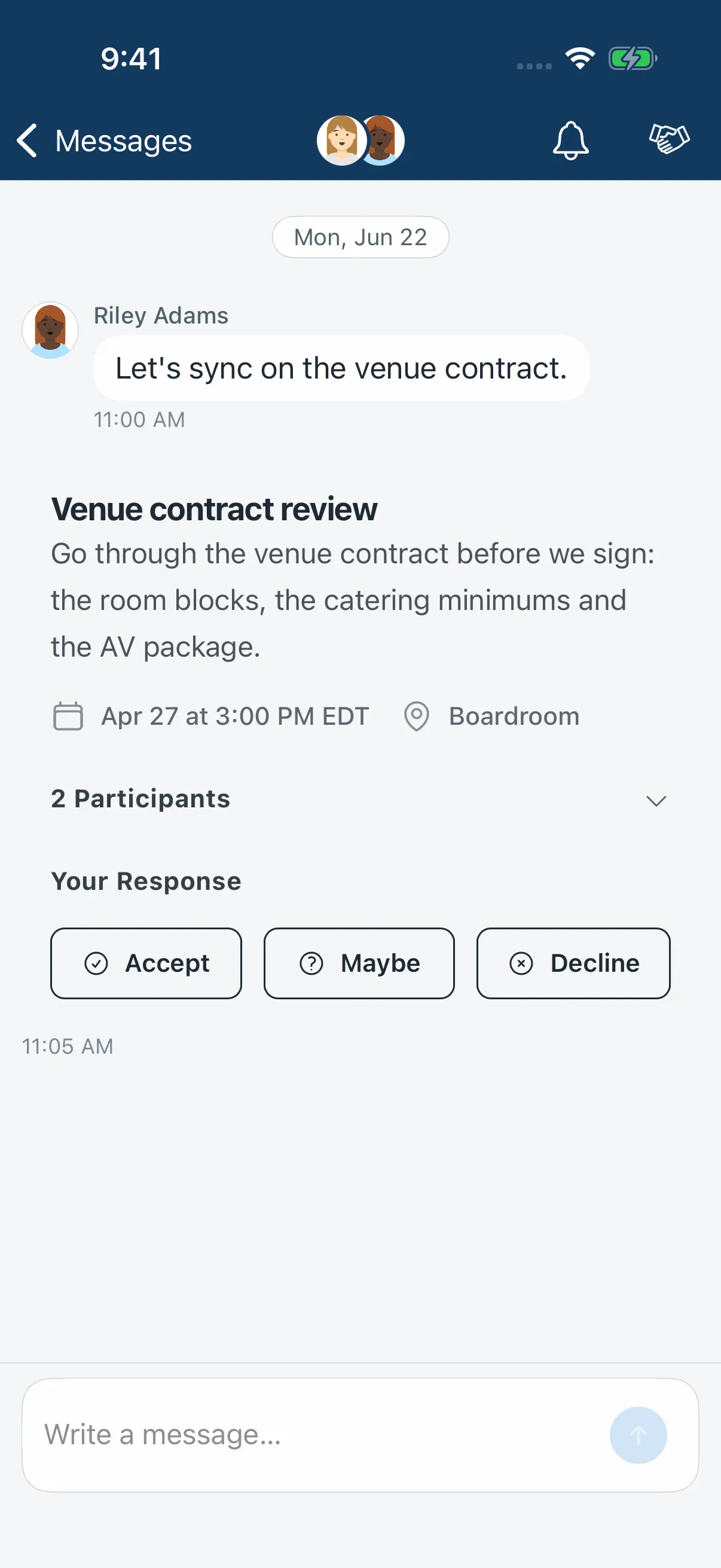
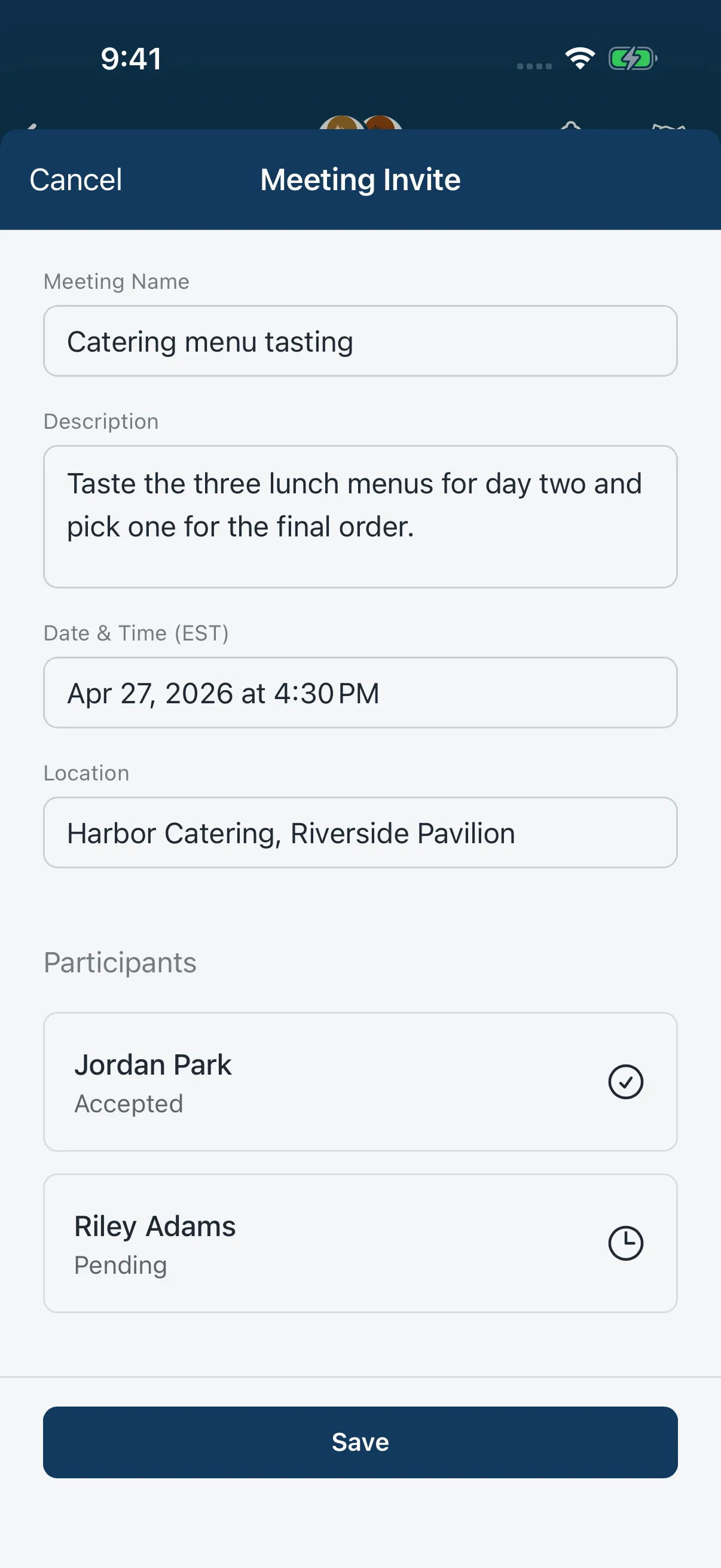
Invite people to a meeting
- In Messages, open the conversation with the people that you want to invite.
- Tap the meeting button at the top of the screen. Your event chooses its icon. The form opens.
- Type the Meeting Name, the Description, and the Location.
- Choose the Date & Time. You must choose a date and a time. The label shows your time zone.
- Tap Save.
The app sends the invitation to the conversation, and the form closes after a moment. To close the form without an invitation, tap Cancel.
Participants shows you and the other people in the conversation. You are the organizer, so your answer is Accepted. Each other person is Pending until they answer. To invite different people, start the meeting from a different conversation.
You can also start a meeting request from a person’s profile. See Attendees.
Answer an invitation
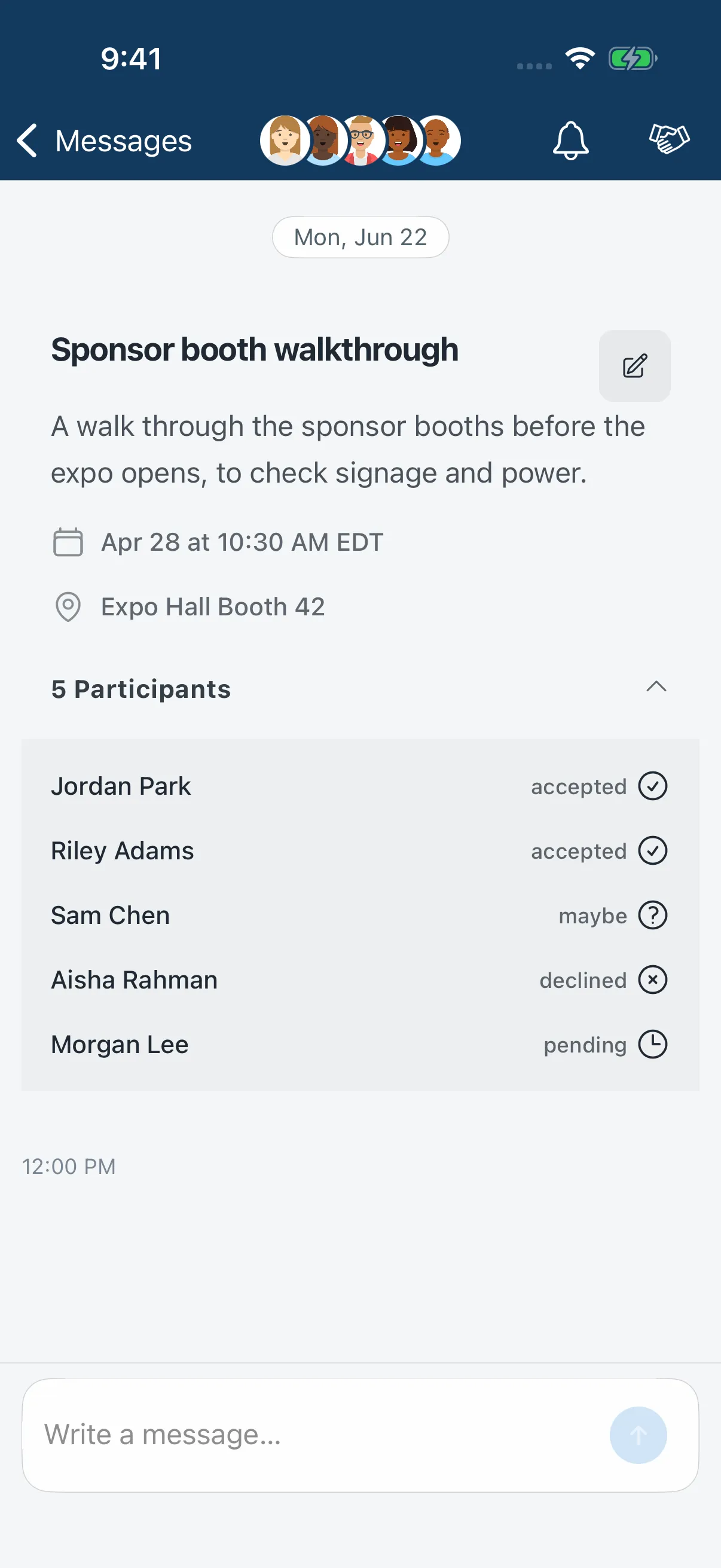
The invitation card shows the meeting name, the description, the date and time, and the location.
- Open the conversation with the invitation.
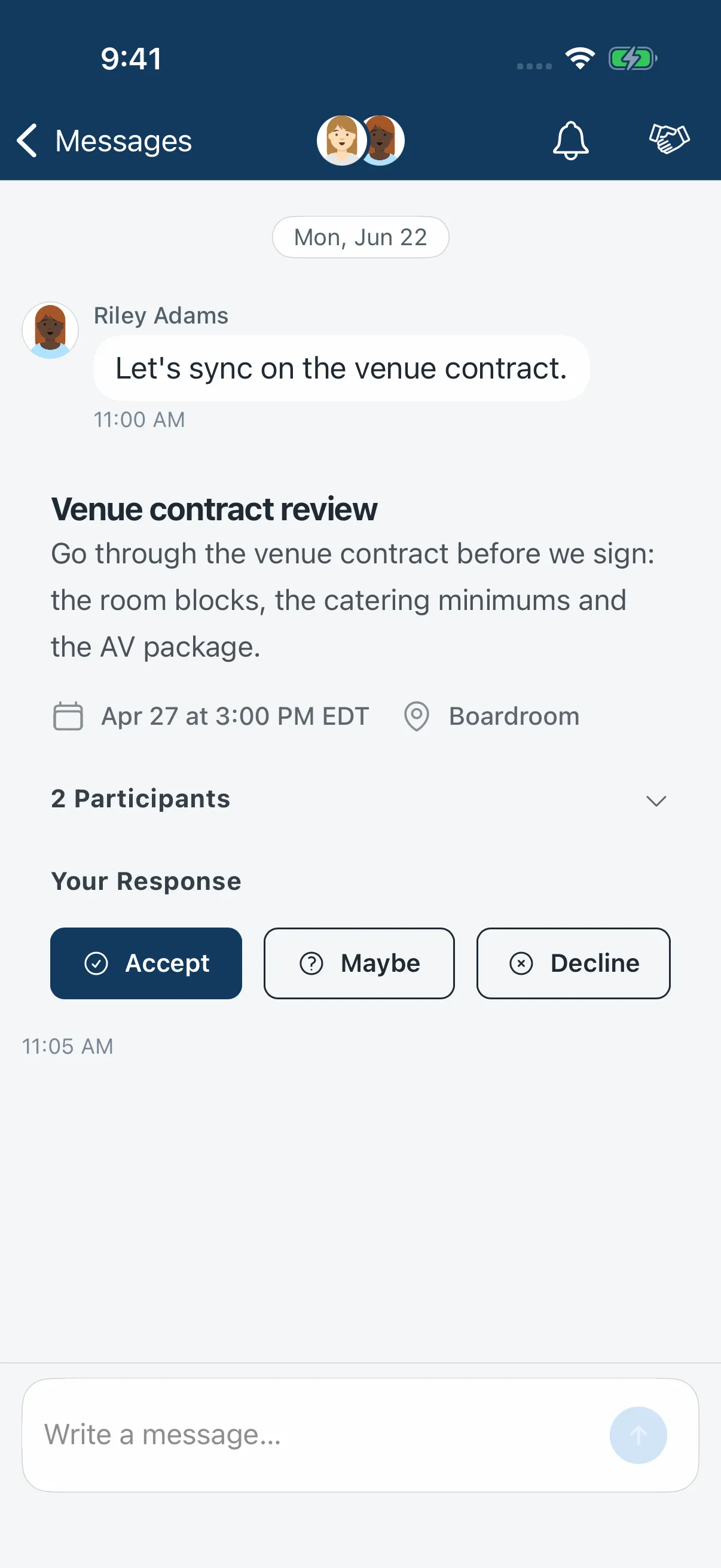
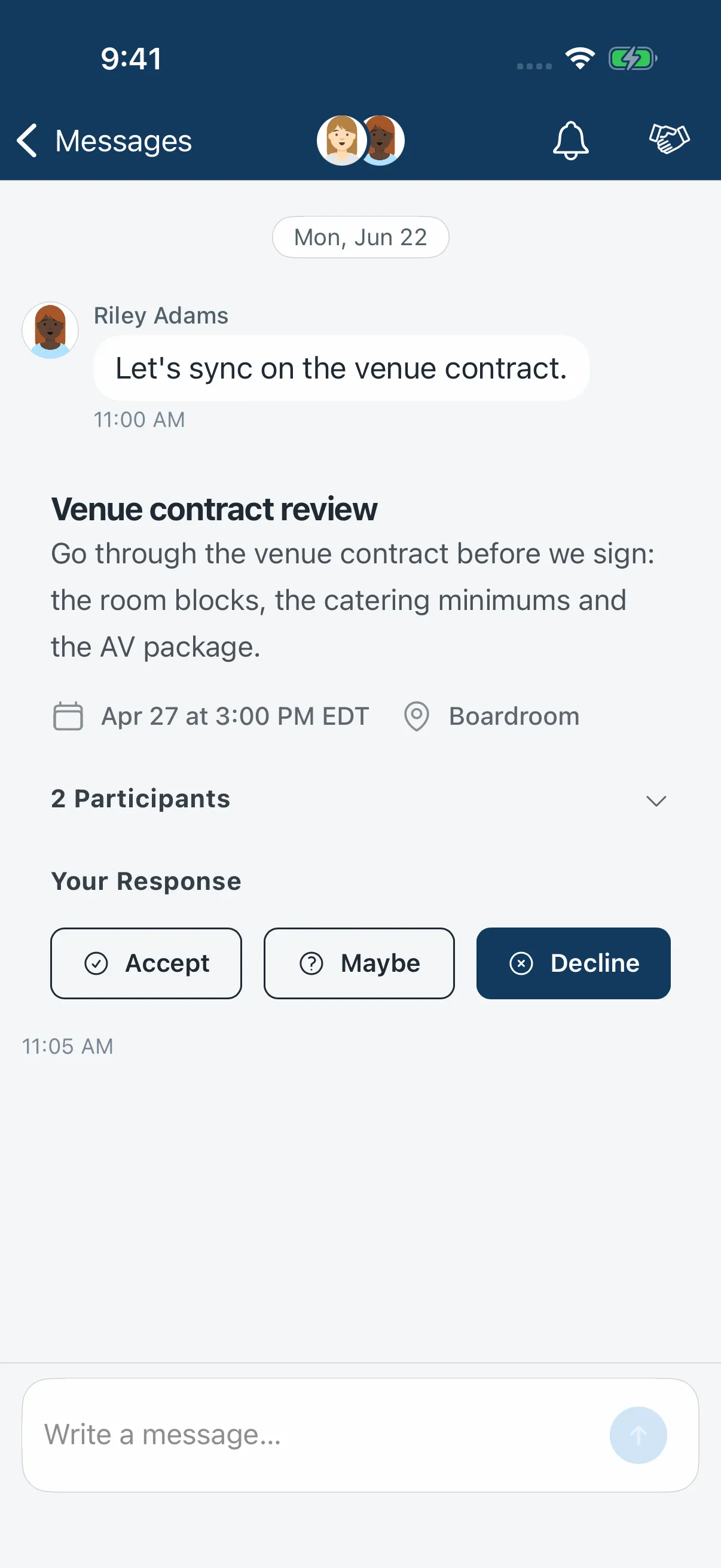
- Under Your Response, tap Accept, Maybe, or Decline.
A check mark shows for a moment, and your answer is highlighted. To change your answer, tap a different button.
See who is coming
The card shows the number of participants, for example 5 Participants. Tap it to show each person and their answer: accepted, maybe, declined, or pending. Tap it again to hide the list.
When you set up the meeting, the card shows no Your Response buttons. It shows an edit button (a pencil and square) next to the meeting name.
Change a meeting
Only the person who set up the meeting can change it.
- Open the conversation with the meeting.
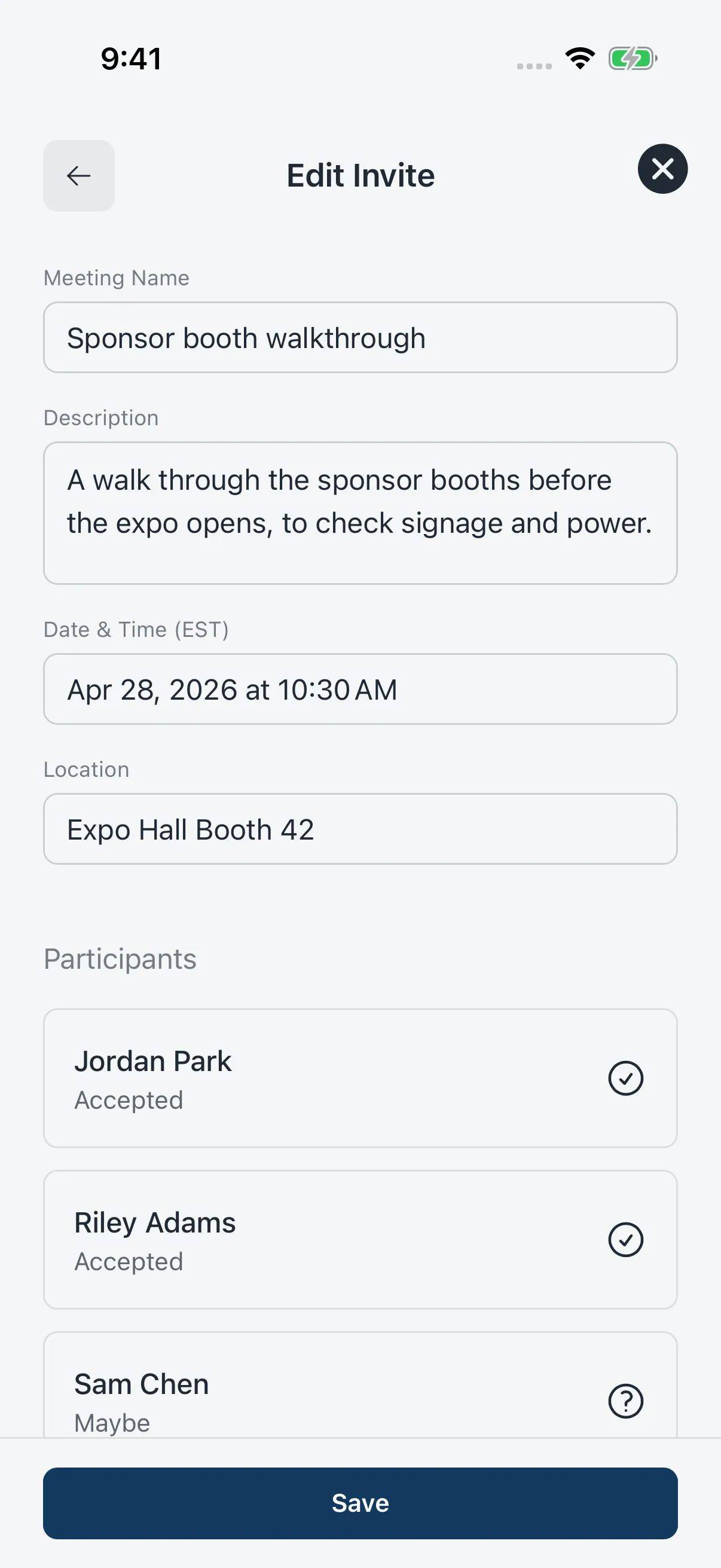
- Tap the edit button (the pencil and square) on the card. Edit Invite opens.
- Change the Meeting Name, the Description, the Date & Time, or the Location.
- Tap Save.
The form opens on the full screen.
To close the form without changes, tap the back arrow at the top of the form or the close button (the X).
Cancel a meeting
Only the person who set up the meeting can cancel it.
- Open Edit Invite (see “Change a meeting”).
- Scroll down and tap Cancel Invite.
- The app asks Are you sure you want to cancel this invite? This action cannot be undone. Tap OK, or tap Cancel to keep the meeting.
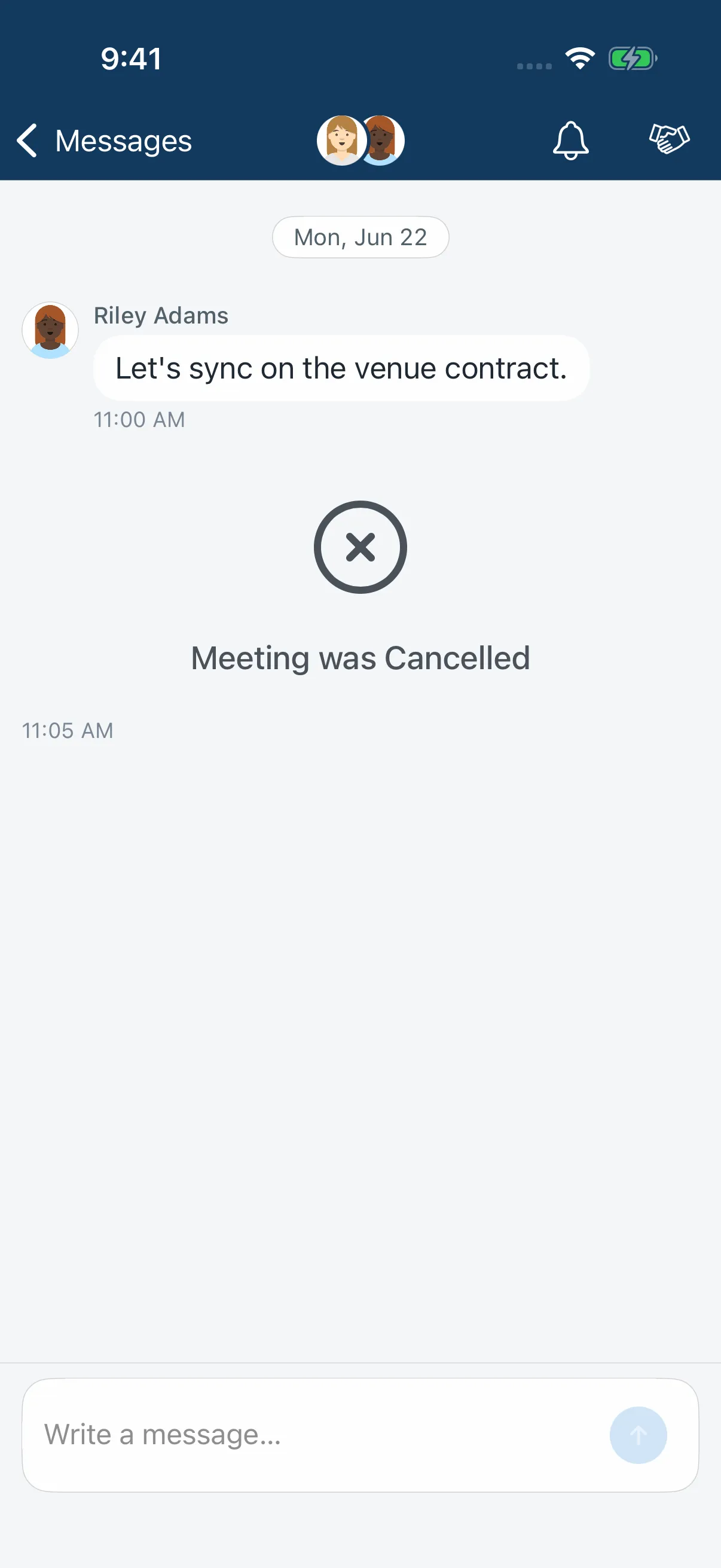
The form closes. The card shows Meeting was Cancelled to everyone in the conversation, and nobody can answer it.
What you might not see
Your event controls these items:
- The feature itself, and its name.
- The meeting button, its icon, and its name.