Activity Feed
Activity Feed shows the newest posts and photos at the event in one list, with the comments on them. You can like an item, comment on it, and add your own post or photo. The posts and photos can come from Discussion Board and Photos, or be added in the feed itself.
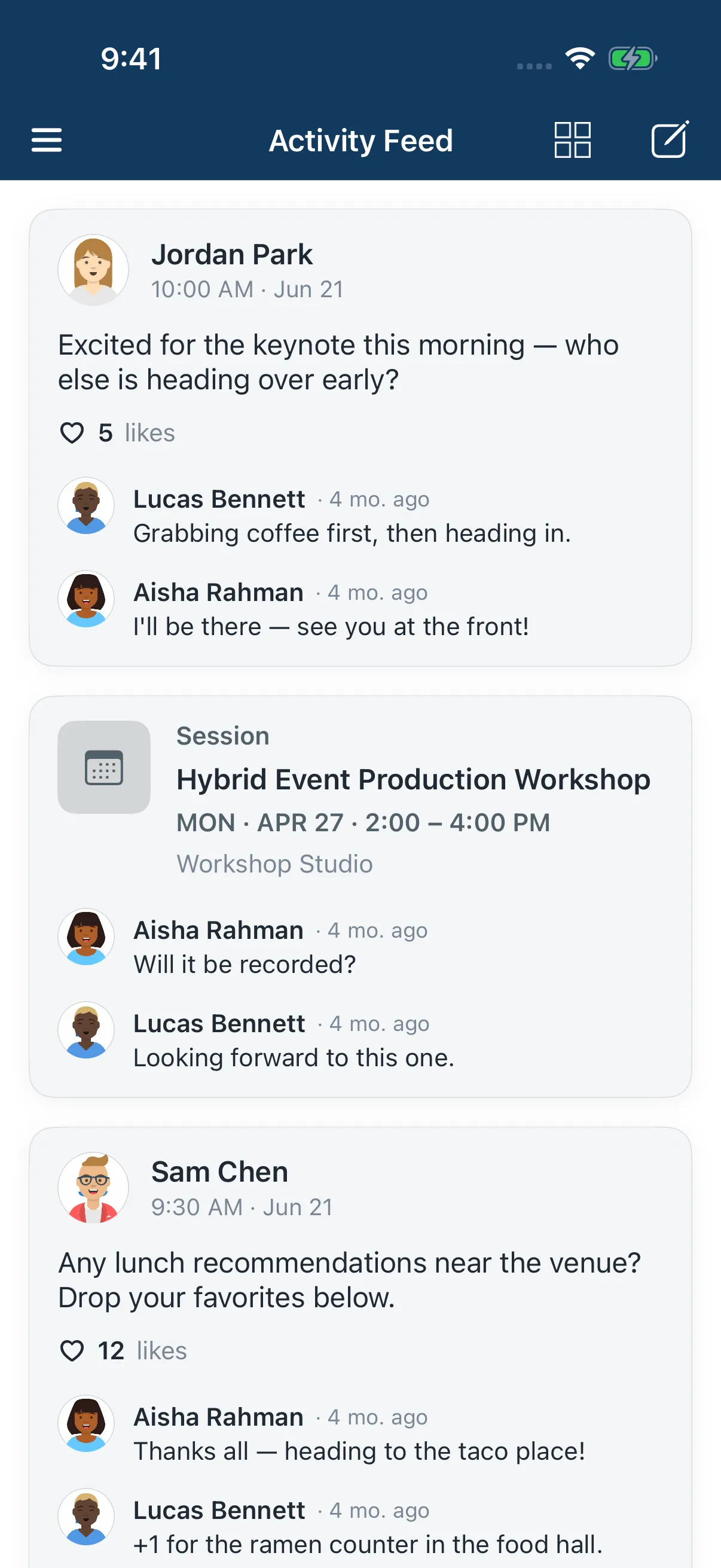
Browse the feed
The newest items show first. Scroll down to load older items.
Each post or photo shows the author’s photo and name, the time, and the text or the photo. Under that, it shows the number of likes when the item has likes, and up to three of the newest comments. When an item has more comments, a line such as 2 more comments shows under them. A video shows a play button on its picture.
The feed can also show a card for a session, a speaker, an exhibitor, a video, or an announcement that people comment on. The card shows Session, Speaker, Exhibitor, Video, or Announcement above its name, and the newest comments under it.
If the author is an attendee or a speaker, tap their photo to open their profile. See Attendees.
Open an item
Tap a post or a photo to open it. The item shows at the top, and the comments show under it.
Tap a card for a session, a speaker, an exhibitor, a video, or an announcement to open that item. See Agenda, Speakers, Showcase, Videos and Announcements.
In an open photo, tap the photo to see it on the full screen. Pinch to zoom. Swipe down or tap the close button to go back. In an open video, tap the play button to play it on the full screen.
In portrait, the item opens on the full screen. Tap the back button to go back to the feed.
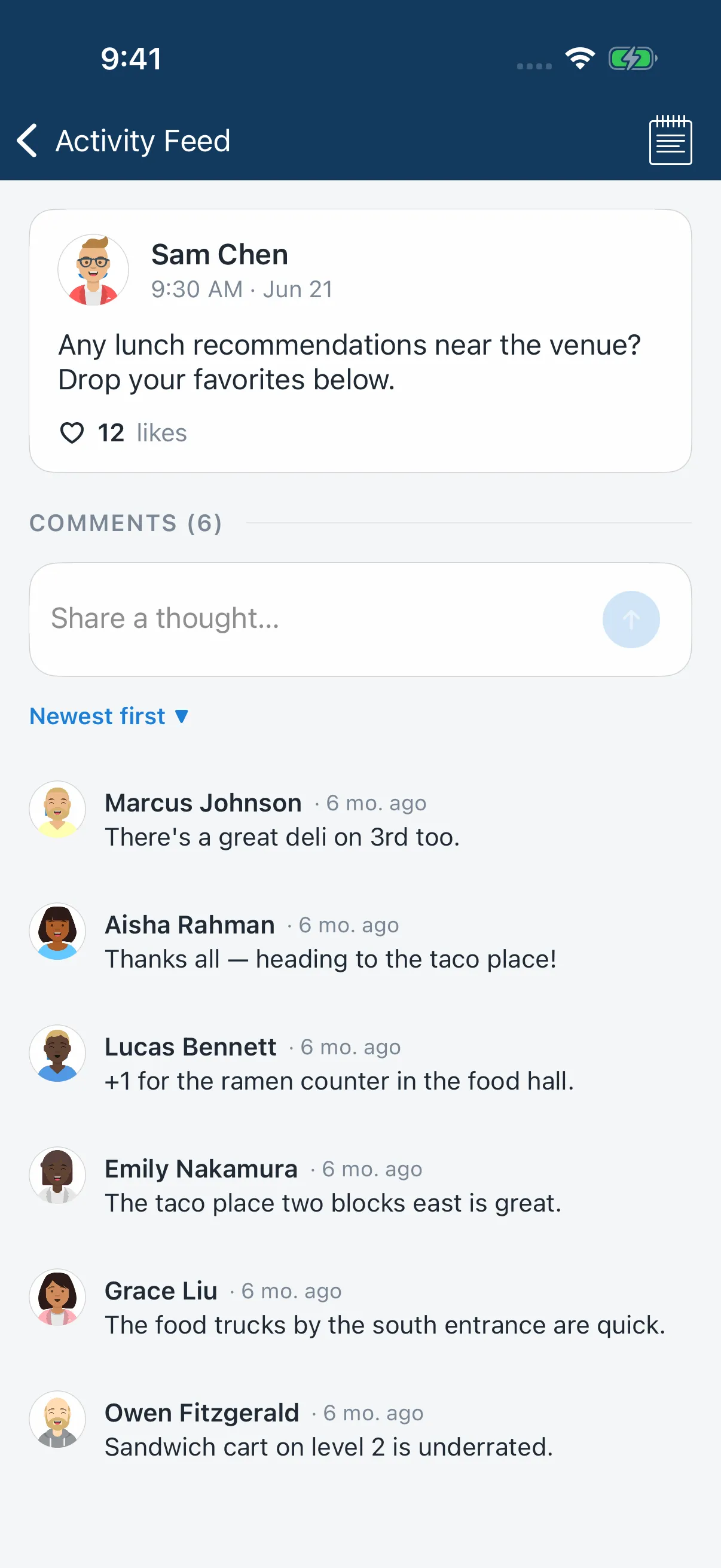
Like a post or a photo
- Open the post or the photo.
- Tap the heart. The heart turns red, and the number of likes goes up by one.
- To remove your like, tap the heart again.
In the feed, the heart only shows the number of likes. You like an item when it is open.
You do not need to log in to like an item.
Comment on a post or a photo
- Open the post or the photo.
- Tap Share a thought… and type your comment.
- Tap the send button.
If you are not logged in, the app opens the login screen first. See Login. After you log in, tap the send button again.
The result depends on your event:
- If your event shows comments at once, your comment shows in the list.
- If your event checks comments first, the app shows Comment Submitted and Your comment has been submitted! All comments are moderated, so viewing your comment may be delayed. Tap OK.
- If the comment cannot be sent, the app shows Error and Unable to submit your comment. Please try again later. Tap OK. Your text stays in the field, so you can try again.
The heading shows the number of comments, for example Comments (6). The newest comments show first. Tap Newest first to show the oldest first, and tap Oldest first to change back. If there are no comments, the item shows No comments yet.
If a person who commented is an attendee or a speaker, tap their name or photo to open their profile.
If the app cannot connect when you open an item, it shows Network Unreachable and Sorry, but your network access appears to be unavailable. Tap OK.
Remove your post, photo, or comment
To remove a post or a photo:
- Open the post or the photo.
- Tap Remove.
- The app shows Remove and asks Are you sure you would like to remove this item? Tap Yes to remove it, or No.
The item goes out of the feed.
In portrait, the app goes back to the feed. When the feed and the item show side by side, the item stays open next to the feed until you tap another item.
To remove a comment:
- Tap the remove button next to your comment.
- The app asks Remove this comment? Tap Remove, or Cancel.
Remove and the remove button show only on items that you can remove.
Add a post or a photo
- Tap the new post button at the top of the feed.
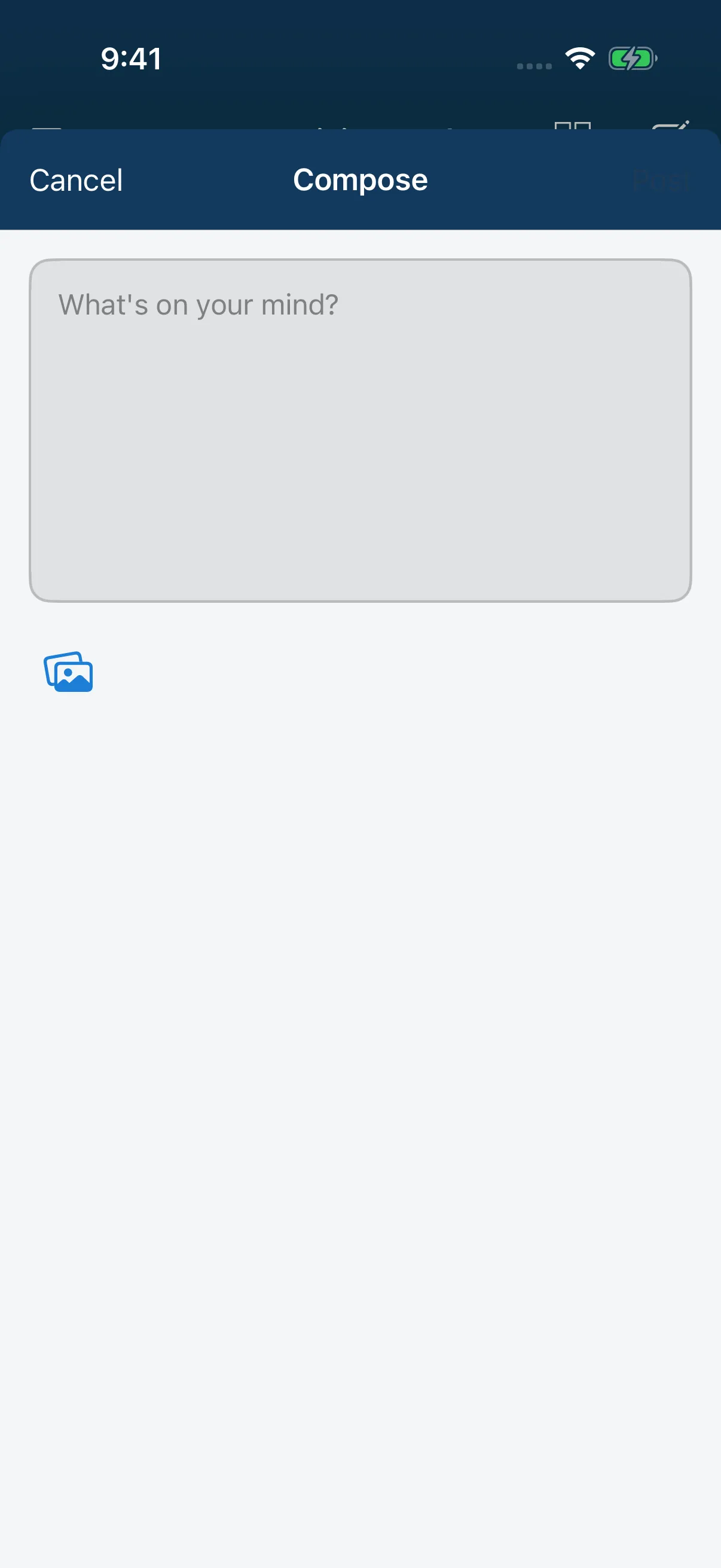
- Type your text in What’s on your mind?
- To add a photo or a video, tap the media button under the text. Choose one from your library. A small picture of it shows while it uploads. To add more, tap the media button again. To take one out, tap the close button on its picture.
- Tap Post. Post is available when you add text or media and all media has uploaded.
To stop, tap Cancel.
Before the new post screen opens:
- If you are not logged in, the app opens the login screen. See Login. After you log in, tap the new post button again.
- If you have no profile, or your profile is set to Only visible to you, the app shows Your profile must be visible in order to participate socially. Tap OK. See My Account.
After you tap Post, the app shows one of these messages. Tap OK.
- Success and Success! Your post will be displayed in a moment. The new post screen closes, and the feed loads again.
- Success and Success! However, posts are moderated so viewing your post may be delayed. The new post screen closes. Your post shows after your event approves it.
- Error and Unable to submit your post. Please try again later. The new post screen closes. The app does not keep your text.
If a photo or a video cannot upload, the app shows Error and Unable to upload your media. Please try again later. Tap OK. The app takes that item out of the post.
See all the photos
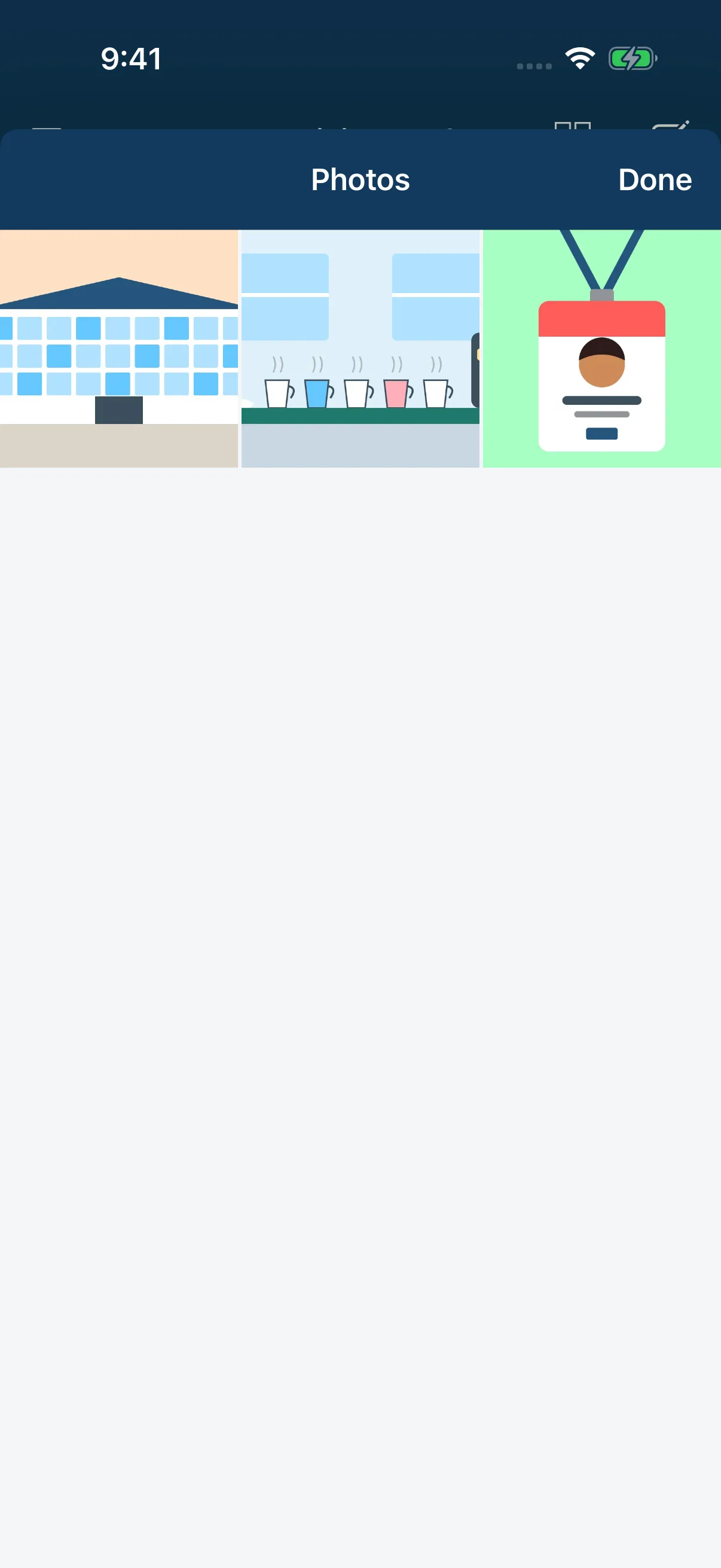
- Tap the grid button at the top of the feed. Photos opens with the photos in the feed in a grid.
- Tap a photo to see it on the full screen. Swipe left or right to see the other photos.
- Tap Done to go back to the feed.
The grid shows the photos that the feed has loaded. Scroll down the feed to load older photos.
Write a note about a post or a photo
If your event uses notes, a notes button shows at the top of an open post or photo. Tap it to write a note about the item. See Notes.
When the feed is empty
If the feed has no items, it shows No activity yet and Activity will appear here as people engage.
What you might not see
Your event controls these items:
- The feature itself, and its name.
- Which posts, photos, and other items show in the feed.
- The new post button.
- The heart and the comments on an open post or photo. Your event can turn off likes or comments. Each item follows the settings of the feature that it came from: Discussion Board, Photos, or Activity Feed for a post that was added in the feed.
- Whether your event checks posts and comments before other people see them. A post that you add in the feed follows the Activity Feed setting.
- The notes button. It shows only when your event uses notes.