To Do List
To Do List is the list of tasks that your event gives you, for example “Pick up your badge”. You can open a task to read about it, and mark it complete when you finish it.
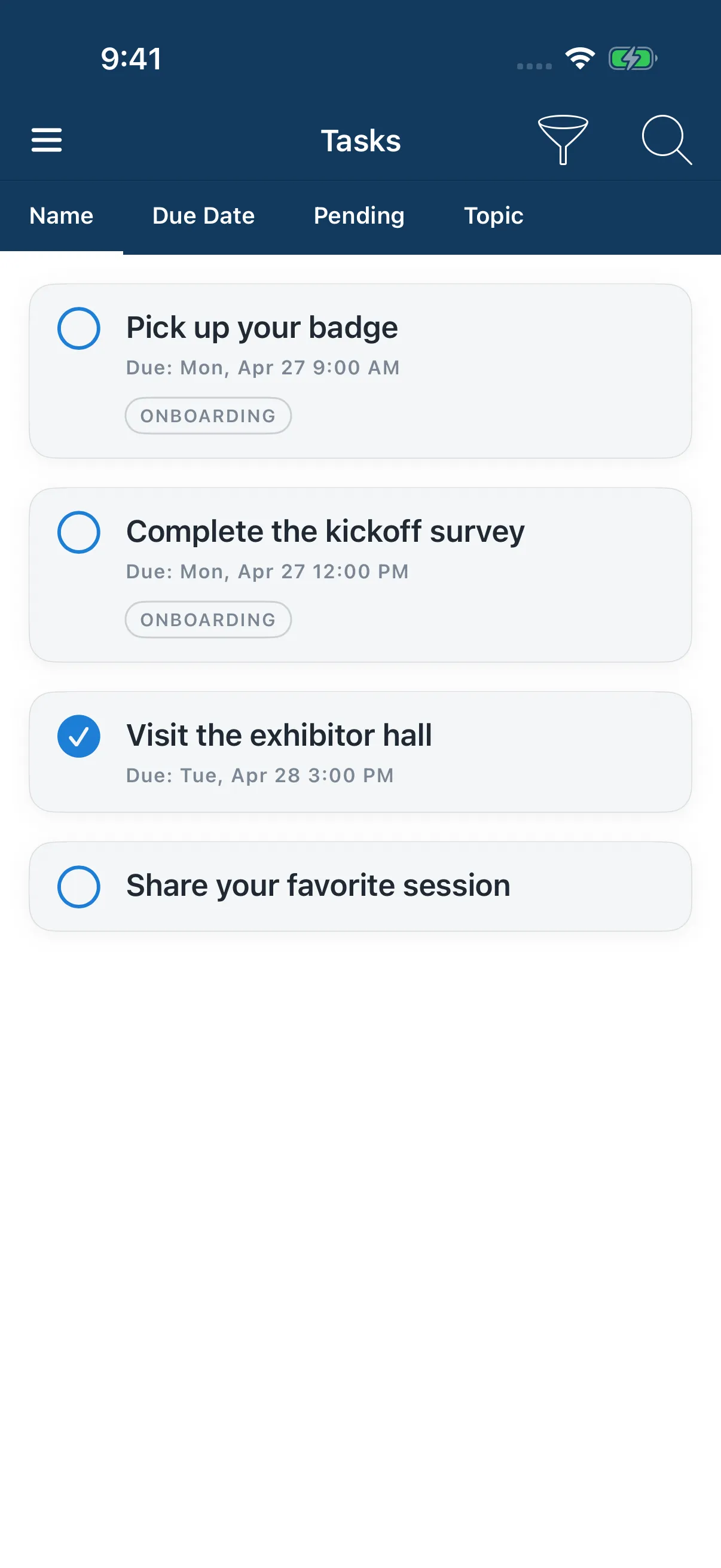
Browse your tasks
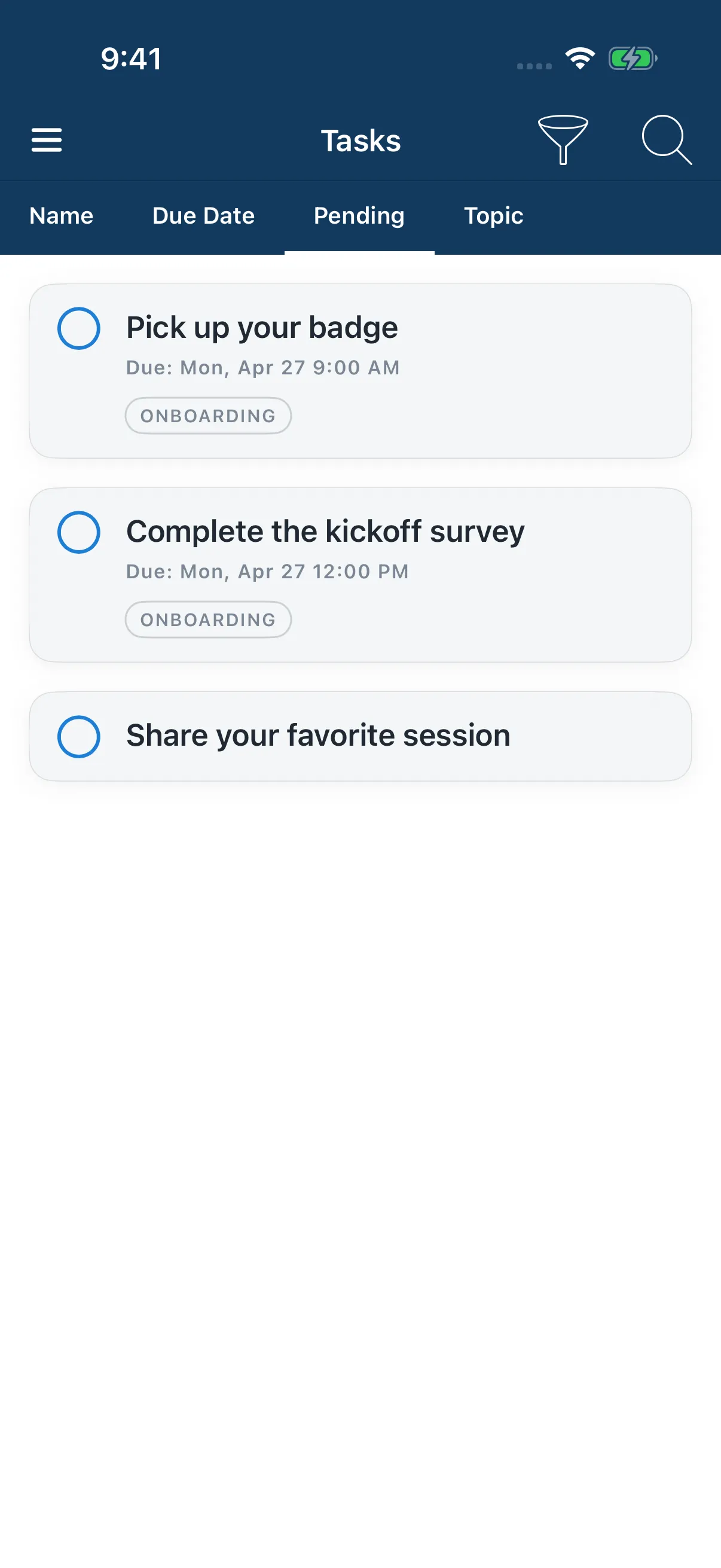
The tabs at the top of the list come from your event, and your event names them. The default tabs are Name, Due Date, and Pending, and one tab for each group of tags. The tabs show only when there is more than one.
- Tap a tab, or swipe left or right to go to the next tab.
- Scroll down to see more tasks.
Each task shows a check circle, its name, the due date after Due:, and up to four tags. A task with no due date shows no date.
- On a name tab, all tasks show in order of their name.
- On a due date tab, all tasks show in order of their due date. Tasks with no due date show at the end.
- On a pending tab, only the tasks that you did not complete show, in order of their due date.
- On a tab for a group of tags, tasks are grouped by their tag. Tasks with no tag in that group do not show on that tab.
The app remembers the last tab you looked at.
Mark a task complete
In the list, tap the empty circle next to the task. The circle fills with a check mark.
You can also open the task and tap Complete. The button changes to Completed.
To mark the task as not complete again, tap the filled circle, or tap Completed on the task.
When you complete a task, it goes off the pending tab. The app saves the change on your device and sends it to your event.
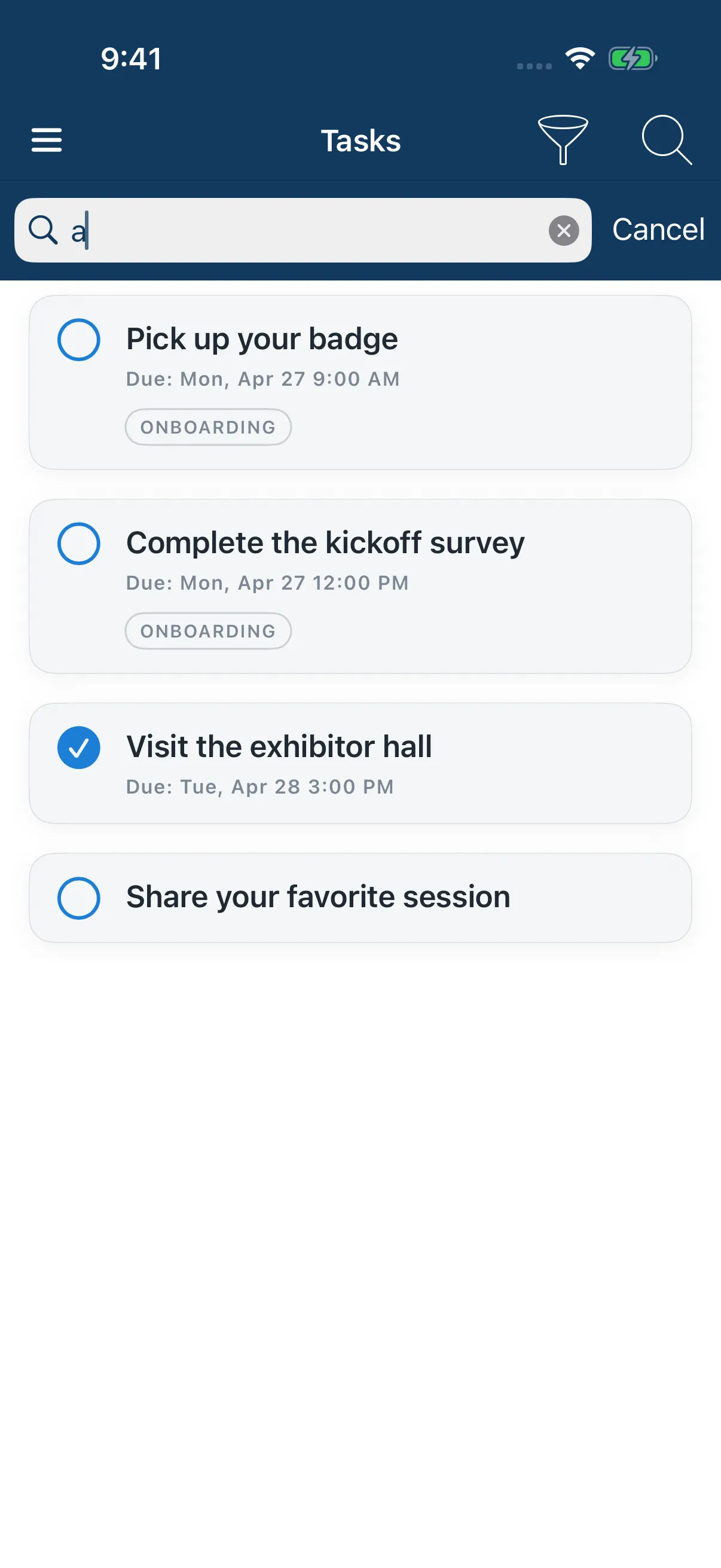
Search for a task
- Tap the search button at the top of the screen.
- Type a word. The list shows the tasks whose name or description contains your text. In a name, accents and capital letters do not matter.
- Tap a task to open it, or tap its circle to mark it complete.
- Tap Cancel to clear the search and go back to the tabs.
While you search, the results show in one list, in order of the task name. The list shows complete tasks and tasks that are not complete.
Filter your tasks
The filter button shows only when your event has tags that you can filter by.
- Tap the filter button at the top of the screen. Filters opens.
- Tap each tag that you want. A check mark shows next to it.
- Tap Apply.
Your filters apply to every tab and to your search results. A list shows the tasks that have at least one of the tags you selected. Your filters show under the tabs and under the search field. Tap a filter there to remove it.
To remove all filters, open Filters and tap Clear. If you close Filters without tapping Apply, your filters do not change.
Open a task
Tap the name of a task in the list. The task shows its name, the due date after Due:, and its tags. Under that, it shows the Complete button, the description of the task, and the links that your event adds under Related Links. Tap a link to open it.
In portrait, the task opens on the full screen. Tap the back button to go back to the list.
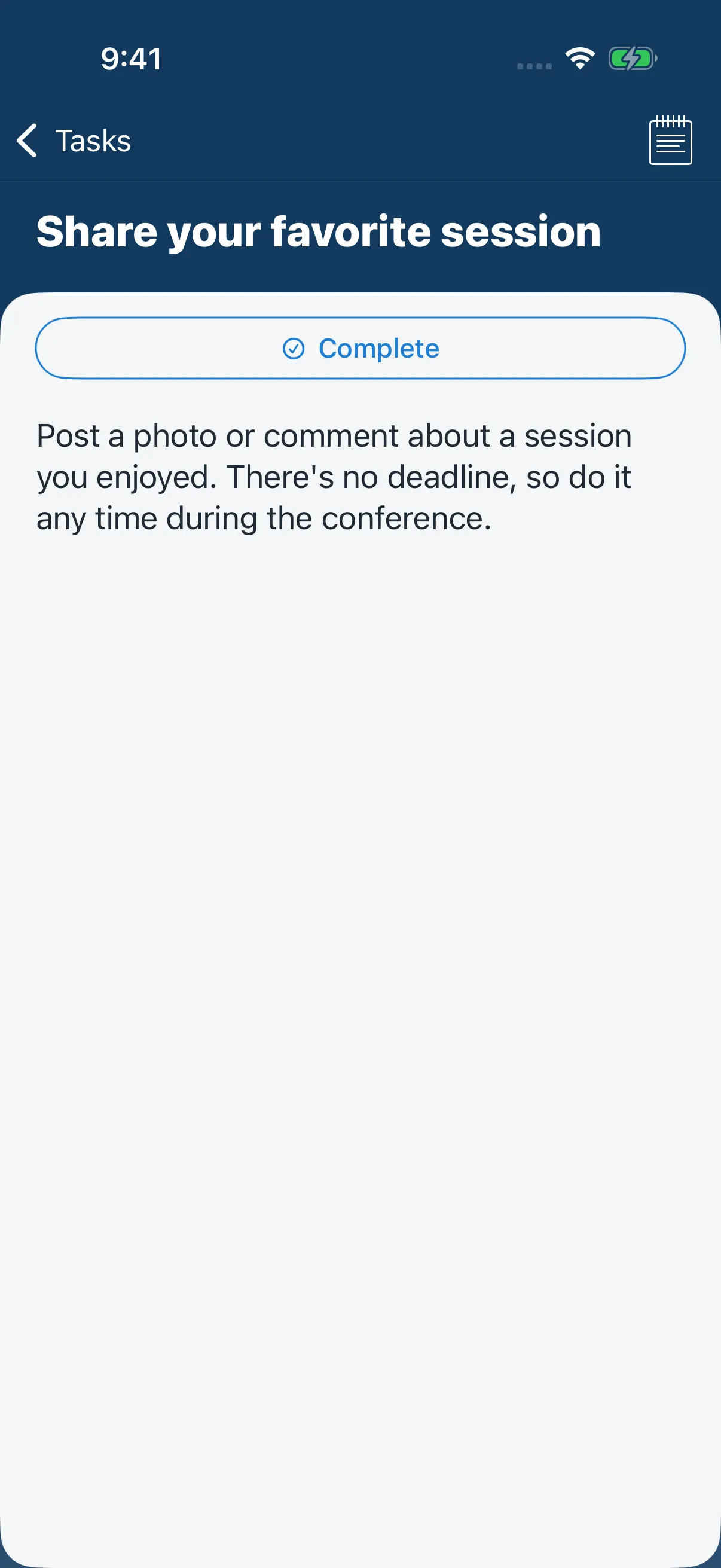
Write a note about a task
If your event uses notes, a notes button shows at the top of the task. Tap it to write a note about the task.
See how many tasks are left
When you open the menu, a number next to the feature name shows how many tasks you did not complete. The number goes away when you complete all your tasks.
When there are no tasks
- If a tab has no tasks, it shows No tasks yet and Tasks assigned to you will appear here. This also shows on the pending tab when you complete all your tasks.
- If no task matches your search, it shows No results and No tasks match your search.
What you might not see
Your event controls these items:
- The feature itself, and its name.
- The tasks in the list, and their due dates, descriptions, and links.
- The tabs, their names, and their order.
- The tags on each task, and the filter button. The filter button shows only when your event has tags that you can filter by.
- The notes button. It shows only when your event uses notes.