AI Assistant
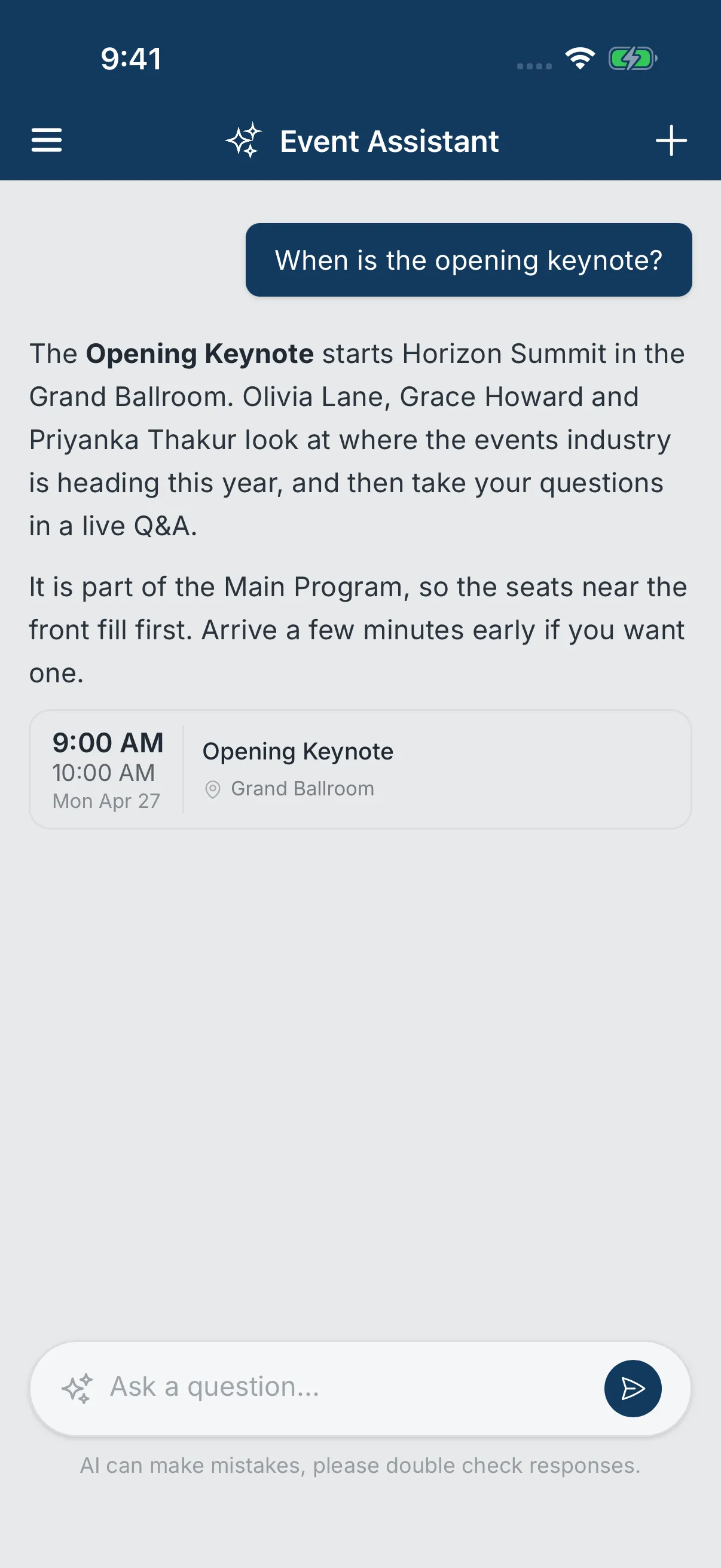
AI Assistant is a chat page that your event provides. You type a question, and the assistant answers. The app shows the assistant page and adds a title bar, a new-session button, and a loading and error screen around it.
Open the assistant
Open the menu and tap AI Assistant. The assistant opens on the full screen. The title bar shows the name and icon of the feature.
Your event can also put the assistant on the home screen.
The assistant then fills the home screen. Other items that your event pins to the home screen show in a bar under it.
While the page loads, the app shows Loading….
Ask a question
Type your question on the assistant page and send it. The assistant page controls what you can type and what the answer shows.
If the assistant page asks you to confirm an action, the app shows a dialog with OK and Cancel. If the assistant page shows a message, the app shows it with OK.
Open a link in an answer
An answer can contain links. What happens when you tap one depends on the link:
- A link to an item in the app, for example a session or a speaker, opens that item on a sheet over the assistant. Tap Done to go back to the assistant. Some links, for example a link to your profile, open in the app in place of the assistant.
- A link to a web page opens on a sheet in the app. Tap the close button to go back. Tap the open-in-browser button to open the page in your browser.
- A phone number or an email address opens in the app on your device that can call or send email. If no app on your device can open it, nothing happens.
When you come back from a sheet, the app reconnects the assistant page. The page can reload.
Start a new session
Tap + at the top of the screen. The app tells the assistant page to start a new session. The app does not ask you to confirm. If the assistant page asks you to confirm, the app shows the dialog that “Ask a question” describes.
When the assistant is on the home screen, + is at the top of the home screen.
If the assistant does not load
When the page cannot load, the app shows a warning, a message, and Retry. The message can be one of these:
- No URL available: the app could not get the address of the assistant page from the event, for example because you are offline.
- Connection lost: the page stopped, and the app could not connect again.
- A message from your device that tells why the page did not load, for example that you are offline.
Tap Retry. The app gets the address of the assistant page again and loads the page.
When you come back to the app after some time, the app can reload the assistant page.
What you might not see
Your event controls these items:
- The feature itself, and its name.
- The assistant page, its content, and its answers.
- The icon in the title bar.
- The assistant on the home screen.