Attendees
Attendees is the directory of people at the event. You can browse it, search it, filter it by tag, and open a person’s profile.
Browse the attendees
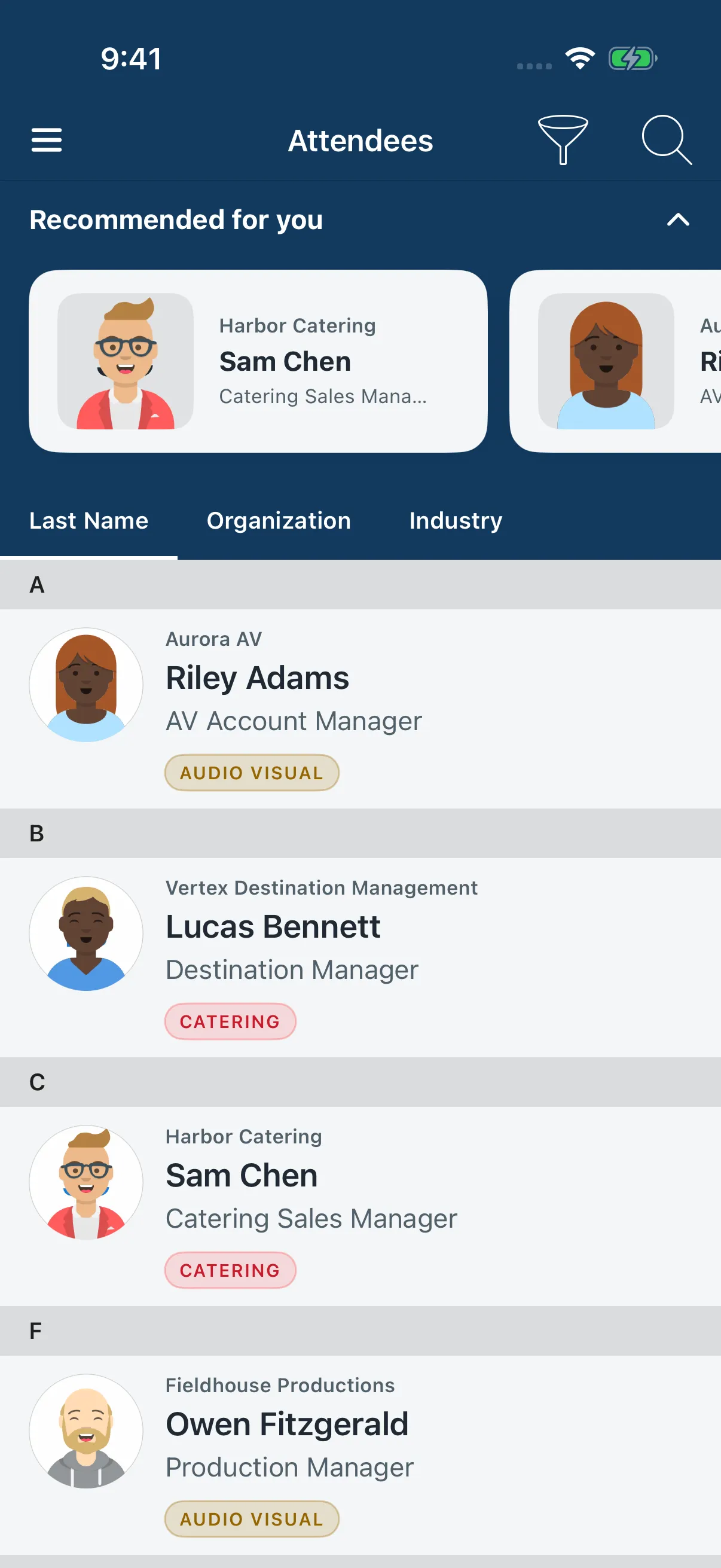
The tabs at the top of the list come from your event, and your event names them. For example, there can be a tab for last names, a tab for organizations, and one tab for each group of tags. The tabs show only when there is more than one.
- Tap a tab, or swipe left or right to go to the next tab.
- Scroll down to see more people.
Each person shows their organization above the name, the job title under it, and up to four tags. When a person has more tags, a chip such as +2 MORE shows the rest.
- On a last name tab, people are grouped by the first letter of their last name.
- On an organization tab, people are grouped by the first letter of their organization. People with no organization show at the end, under a band with no letter.
- On a tab for a group of tags, people are grouped by their tag. People with no tag in that group do not show on that tab.
The app remembers the last tab you looked at.
See recommended people
Your event can recommend people to you. Then a row of people shows above the tabs, under Recommended for you or a heading from your event. Tap a person to open their profile. Tap the heading to hide or show the row. The row closes to its heading when you scroll down the list, and it does not show while you search. See Recommendations.
Search for a person
- Tap the search button at the top of the screen.
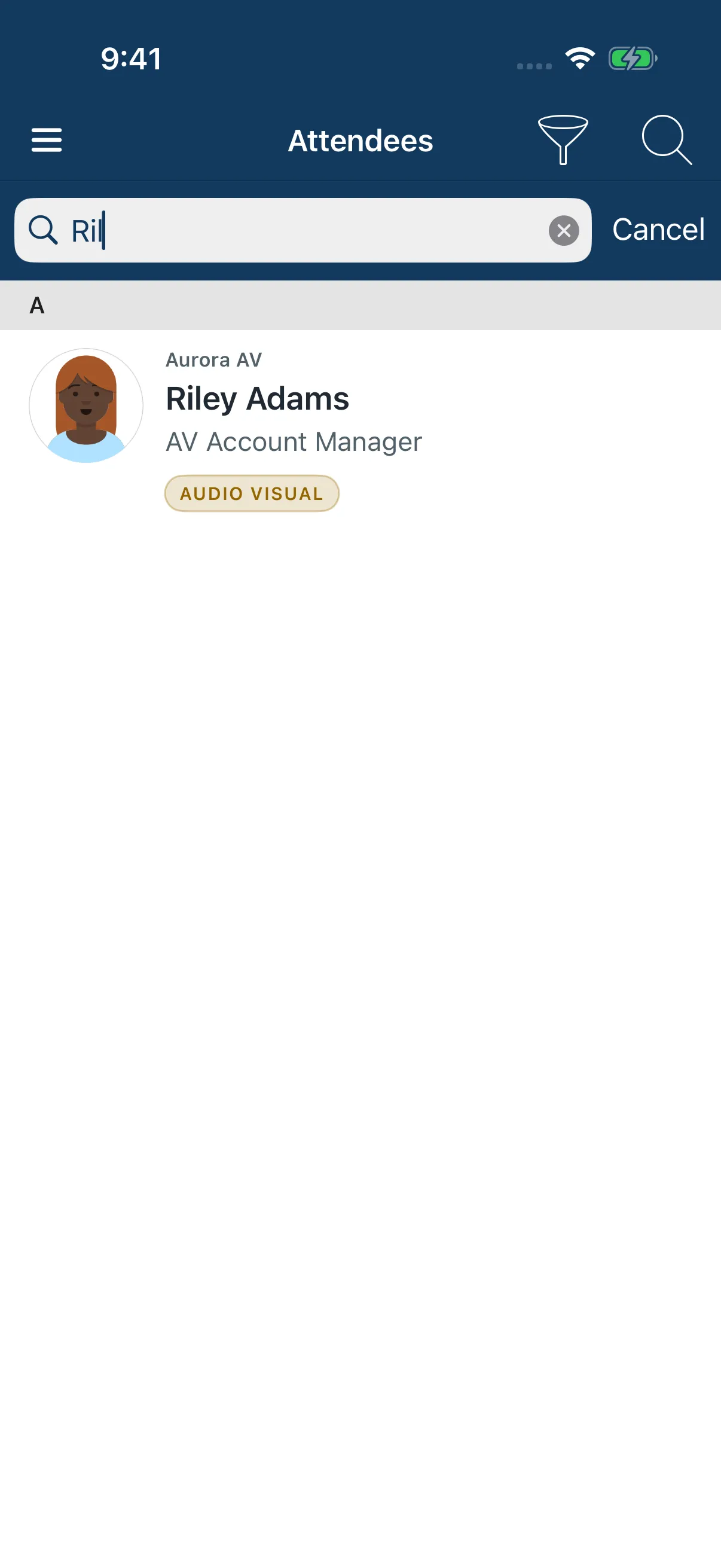
- Type a name. The list shows the people whose name, organization, job title, or tags contain your text. In a name, organization, or job title, accents and capital letters do not matter.
- Tap a person to open their profile.
- Tap Cancel to clear the search and go back to the tabs.
While you search, the results show in one list, grouped by the first letter of the last name. People whose name starts with your text show first.
Filter the attendees
The filter button shows only when your event has tags that you can filter by.
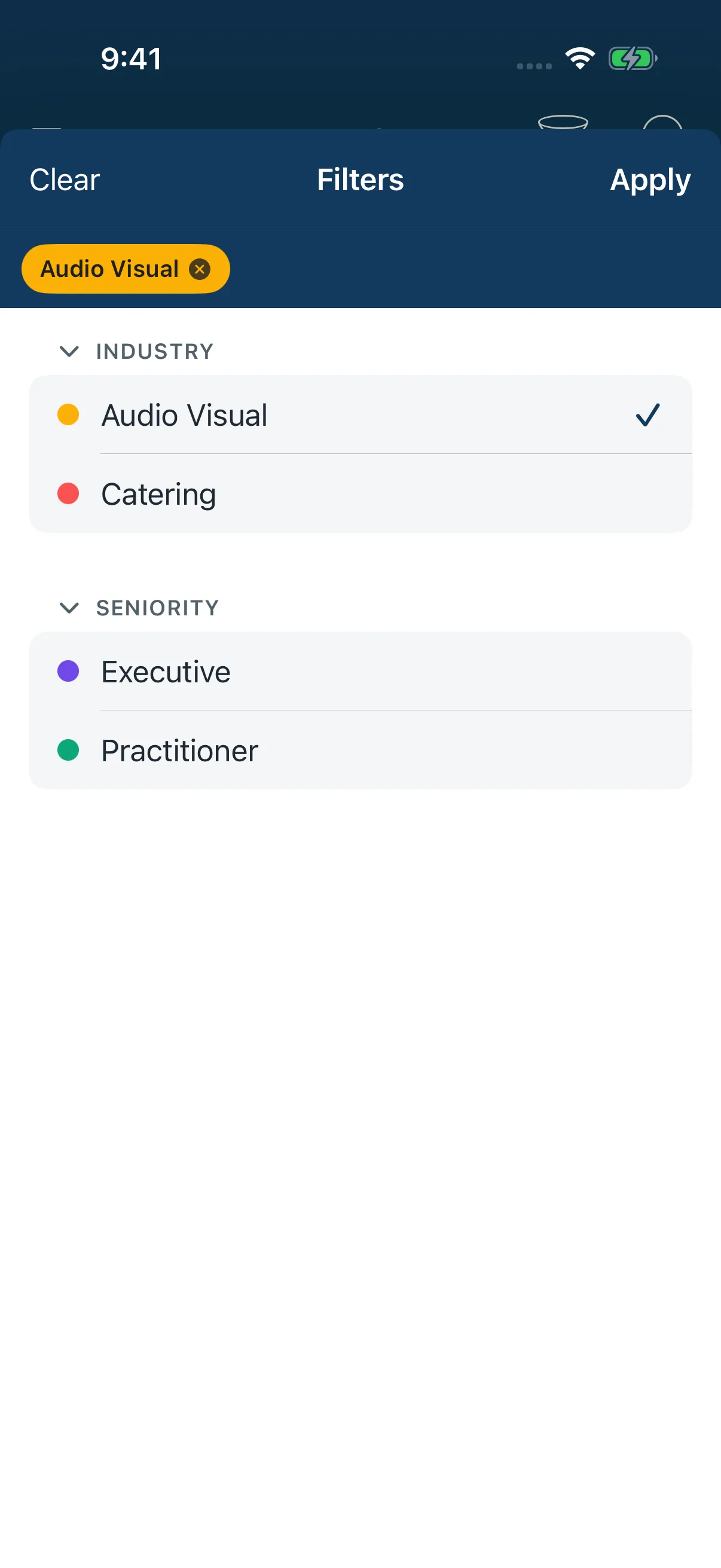
- Tap the filter button at the top of the screen. Filters opens.
- Tap each tag that you want. A check mark shows next to it, and the tag shows at the top of Filters. Tap a group name to hide or show its tags.
- Tap Apply.
The list shows the people who have at least one of the tags you selected. The filters apply to every tab and to your search. Your filters show under the tabs. Tap a filter there to remove it.
To remove all filters, open Filters and tap Clear. If you close Filters without tapping Apply, your filters do not change.
Open a person’s profile
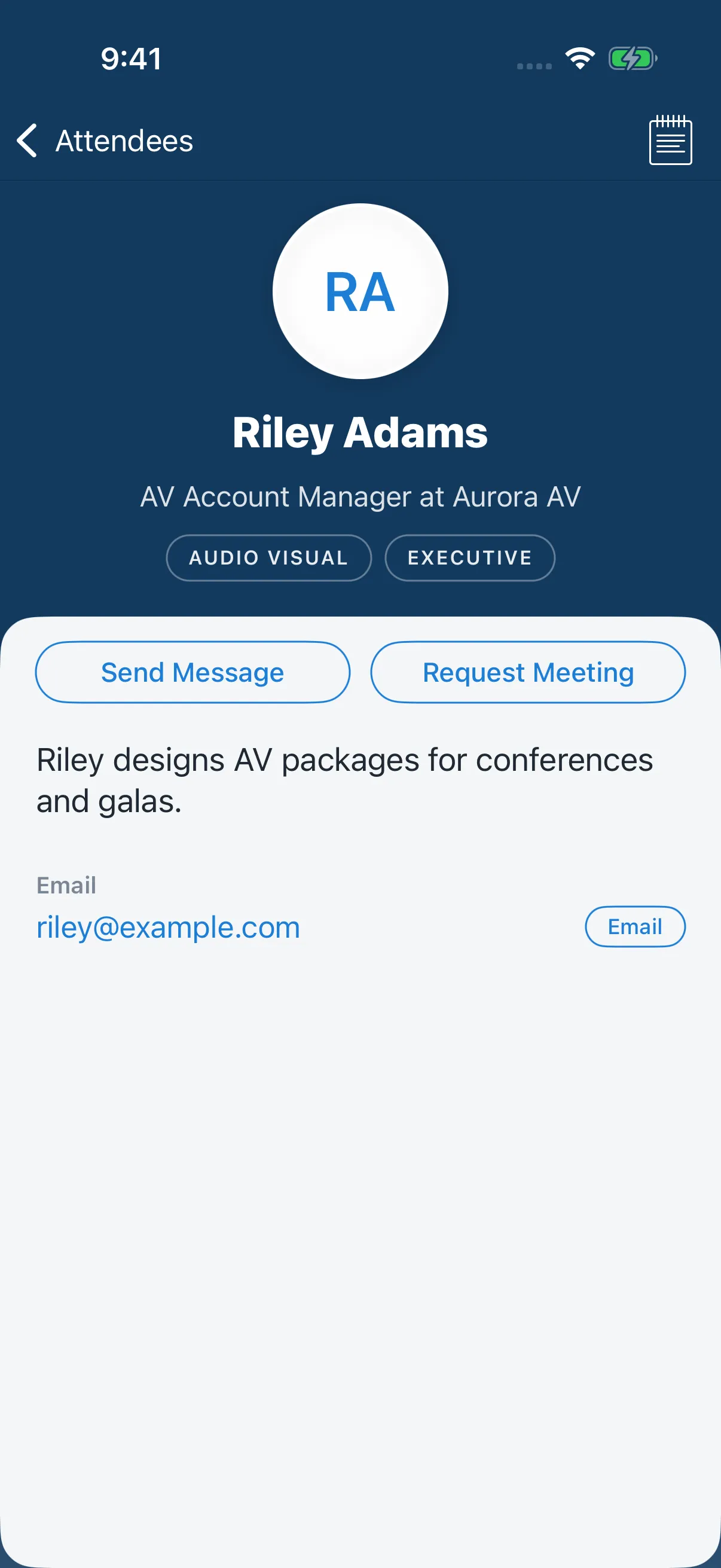
Tap a person in the list. The profile shows their photo, name, job title, and organization, and their tags. Under that, it shows the items that the person and your event add, for example:
- A biography.
- Email, Phone, Website, and Address, and links to the person’s social media.
- Other fields that your event adds.
- Related Links, or a heading from your event.
- Badges that the person has earned. Tap a badge to see what it is. See Leaderboard.
- Activity: the photos that the person posted or commented on, and the person’s other comments. Tap a photo to open it. Tap a comment to open the item it replies to.
Tap the photo to see it on the full screen.
In portrait, the profile opens on the full screen. Tap the back button to go back to the list.
Get in touch with a person
On the profile:
- Tap Email. Send Email shows the address. Tap Send to write an email, or Cancel. The subject is “Hello from” and the name of the event.
- Next to the phone number, tap Call. Dial Phone Number shows the number. Tap Dial to call the person, or Cancel.
- Next to the phone number, tap Text. Send Text Message shows the number. Tap Send to write a text message, or Cancel.
- Tap the website or a social media link to open it in the app.
- Tap the address to open it in Maps.
When your device cannot send an email, call or send a text message, the app shows a message:
- Email: Unable to Send Email and The email address has been copied to your clipboard. Tap OK.
- Call: Copy Phone Number shows the number. Tap Copy to copy it, or Cancel.
- Text: Unable to Send Message and The phone number has been copied to your clipboard. Tap OK.
Send a message or request a meeting
- Open the person’s profile.
- Tap Send Message, or tap Request Meeting to send a meeting request.
- If your event lets a conversation have more than two people, the screen to select people opens with this person already selected. Select more people if you want, then tap Done.
The conversation opens. For Request Meeting, the conversation starts with a meeting request. See Meetings.
The buttons show only when you are logged in, your profile accepts messages, and the other person accepts messages. They do not show on your own profile. See Messages.
Write a note about a person
If your event uses notes, a notes button shows at the top of the profile. Tap it to write a note about the person. See Notes.
Share a profile
Tap the share button at the top of the profile to share a message that says you are talking to the person at the event.
When there are no attendees
- If the list has no people, it shows No attendees yet and Attendees will appear here once they’ve joined. The list also shows this when your filters match nobody.
- If no person matches your search, it shows No results and No attendees match your search.
What you might not see
Your event controls these items:
- The feature itself, and its name.
- The tabs, and their names.
- Whether the list shows people who staff an exhibitor booth.
- The recommended people, and the heading above them.
- The filter button and the tags you can filter by.
- Which tags show in the list and on a profile, and their colors.
- The other fields on a profile, and the heading above the related links.
- The Send Message button. It needs messages between attendees to be on.
- The Request Meeting button. It needs meeting requests to be on in messages.
- The Activity section. It shows only when your event uses the activity feed or photos.
- The notes button. It shows only when your event uses notes.
- The share button.