My Account
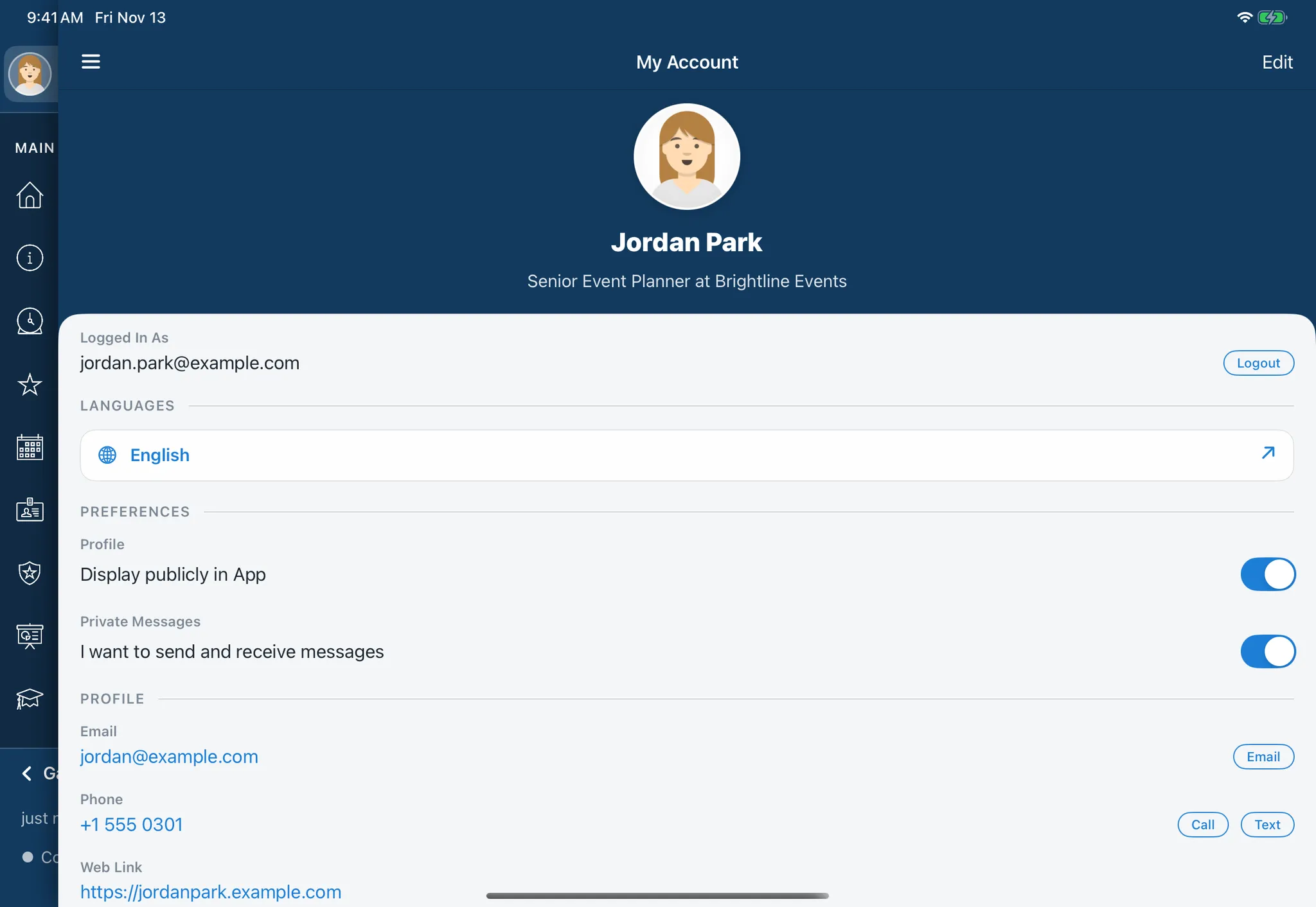
My Account shows your own profile at the event. You can edit your profile, choose your languages and preferences, show your badge code, and log out. The screen title is always My Account. Only the name in the menu can change.
Open My Account
- When you are logged in, open the menu and tap your name or email address at the top of the menu.
- If your event shows My Account in the menu, tap it.
See your profile
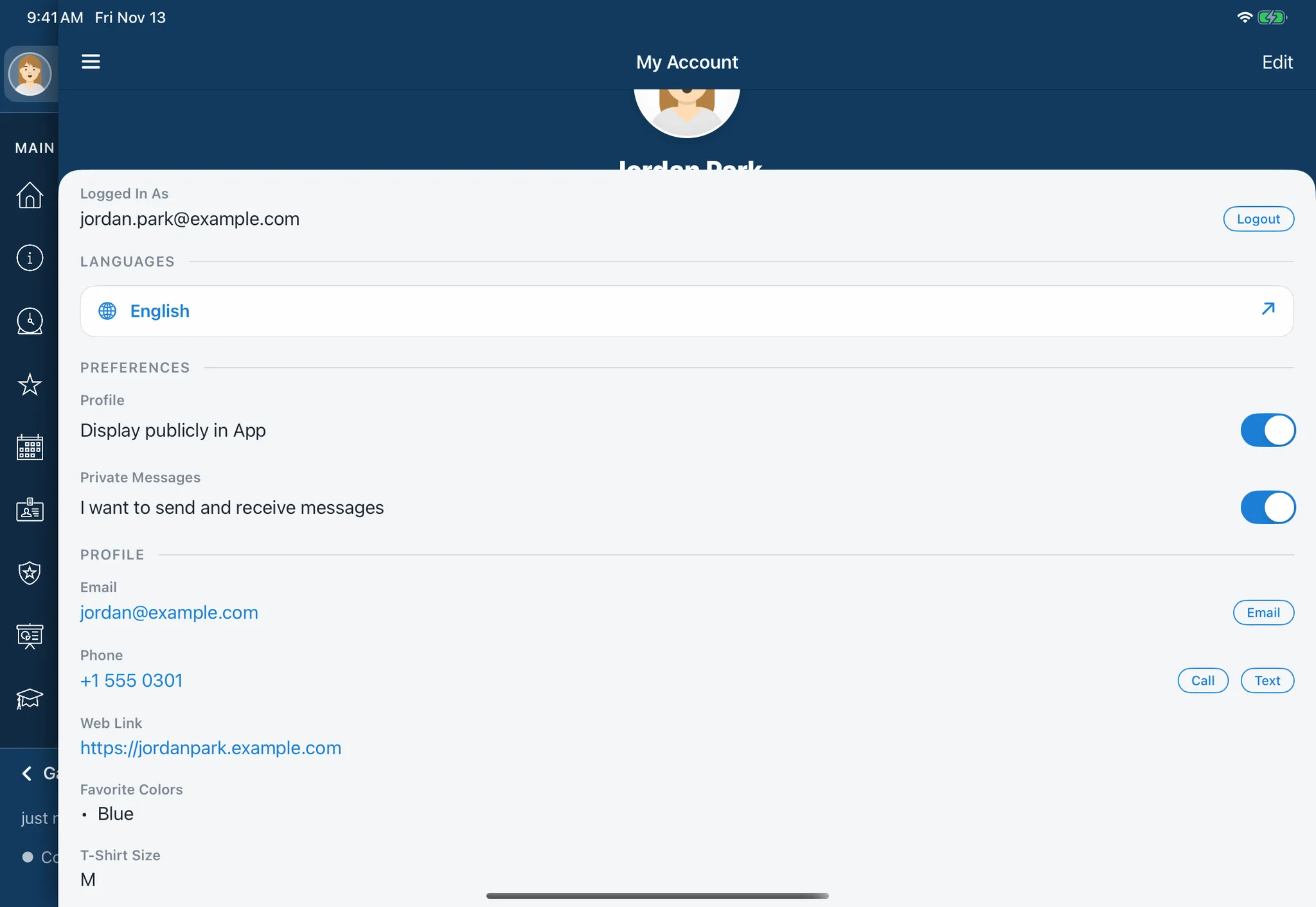
My Account shows these items, from the top:
- Your photo, your name, and your job title and organization. Tap your photo to see it on the full screen.
- Logged In As and your email address, when you are logged in.
- Languages, when the app offers more than one language and you have selected at least one.
- Preferences, when you have a profile.
- Profile: your email address, phone number, website, social media links, and address. Tap them to use them, as on an attendee’s profile. See Attendees.
- Your biography, and other fields that your event adds.
- My Badge Code, when your event scans badges.
My Account updates when you save a change.
Edit your profile
Edit shows at the top of the screen when your event lets you edit your profile. If you do not have a profile yet, Edit shows when your event lets you create one.
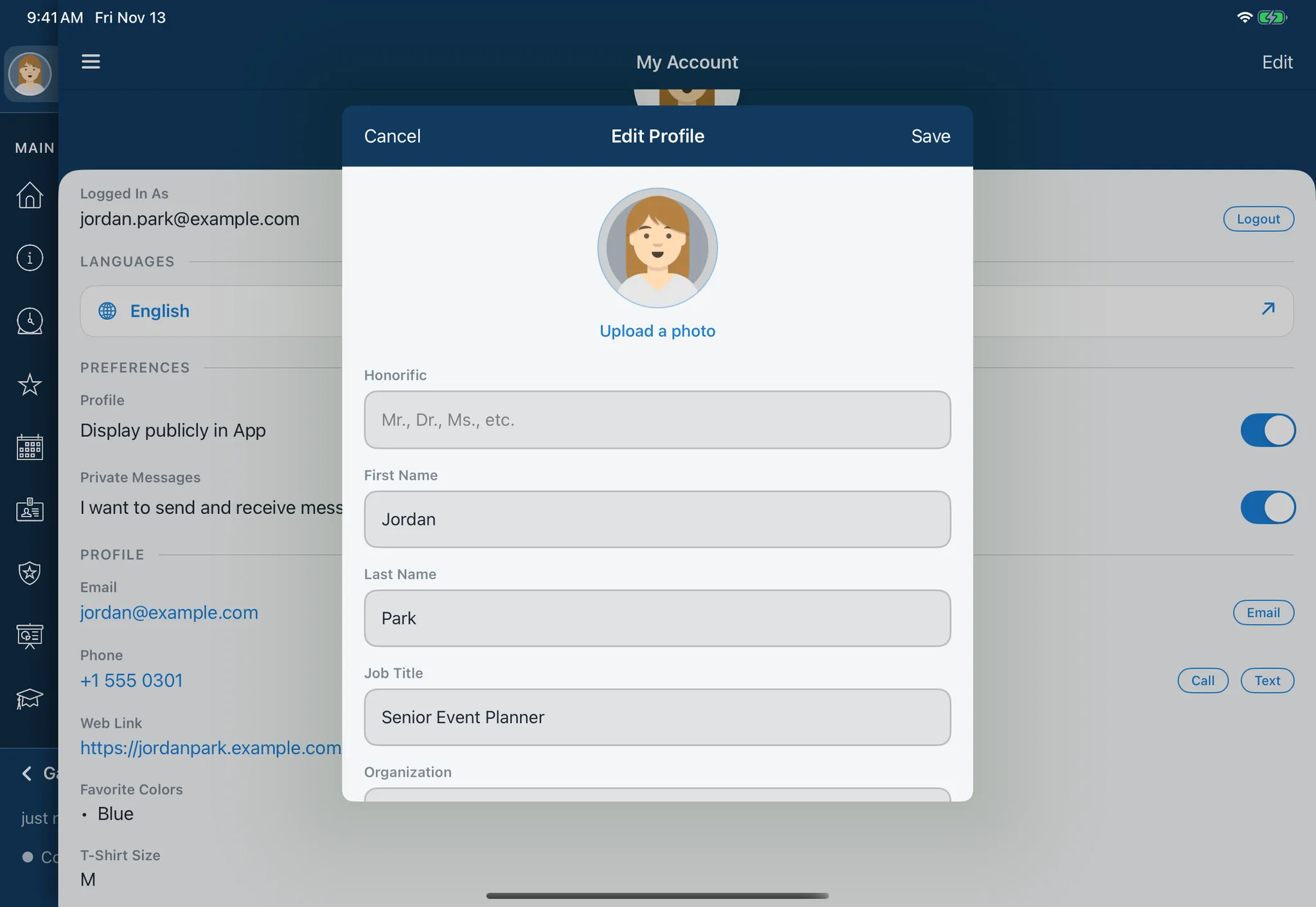
- Tap Edit. Edit Profile opens. If you do not have a profile yet, Create Profile opens. If you are not logged in, the login screen opens instead. Log in, then tap Edit again.
- To change your photo, tap Upload a photo and select a photo.
- Change the fields that you want: Honorific, First Name, Last Name, Job Title, Organization, Displayed Email, Displayed Phone, Website, Street, Ste, Apt, etc., City, State, Zip, and Country.
- Under Social Media, type your name or link for each network that your event lists. Your event chooses the networks.
- Type your Biography, and fill in the other fields that your event adds.
- Tap Save at the top or at the bottom of the form.
While the app saves your profile, it shows Saving. When the save is done, the form closes and My Account shows your changes.
To close the form without saving, tap Cancel.
The form opens in a window over My Account.
If the app cannot save your profile, it shows an alert. Tap OK to go back to the form:
- Error and A first and last name are required when the first name or the last name is empty.
- Error and Unable to update your profile. Please try again later. for other problems, for example when your device has no connection.
When the app asks you to create a profile
Some actions need an attendee profile, for example a check-in to a session. If you do not have a profile, the app shows a message:
- If your event lets you create a profile, the app shows Tell Us About Yourself and asks To participate, please create a profile. Would you like to do this now? Tap Yes to open Create Profile, or Later.
- If your event does not let you create a profile, the app shows Sorry and Sorry, but to participate you need to have been included in the list of participants. Tap OK. Ask your event organizer to add you.
Set your preferences
Preferences has one or two switches. Each switch saves your choice to your profile as soon as you flip it. While the app saves, you cannot flip the switches.
- Profile: Display publicly in App when the switch is on, and Only visible to you when it is off. This switch shows only when your event lets you hide your profile.
- Private Messages: I want to send and receive messages when the switch is on, and I do not want to send or receive messages when it is off. It is the same setting as Allow Messages from Attendees in Messages.
While your profile is set to Only visible to you, you cannot add a post or a photo. When you try, the app shows Your profile must be visible in order to participate socially. Tap OK.
If the app cannot save your choice, the switch goes back and the app shows Error and Unable to update your profile. Please try again later. Tap OK.
Choose your languages
Languages lists the languages that you selected.
- Tap a language. Language opens with Please select your preferred languages.
- Tap a language to select it. A check mark shows next to it. Tap a selected language to clear it. The selected languages move to the top of the list, in the order that you selected them. The first one is the language of the app.
- Tap Done. Done is available when you have selected at least one language.
If you changed your languages, the app loads again in the languages that you selected. If you did not change them, Language closes.
Show your badge code
Your badge code shows as a QR code under My Badge Code. A line of text shows under the code. Your event can write this line. If it does not, the line is Exhibitors and Check-in staff can scan this code.
If you do not have a badge code yet, the section shows QR code is not available.
Log out
Tap Logout next to your email address, under Logged In As. The app asks you to confirm. See Login.
What you might not see
Your event controls these items:
- The feature itself, and its name in the menu.
- The My Account item in the menu.
- The Edit button. It needs your event to let you edit your profile, or to create one if you do not have one.
- The Profile switch under Preferences.
- The social media networks on the form, and the other fields.
- The My Badge Code section, and the line under the code.
- The languages that the app offers.