Login
When you log in, the app knows who you are. You can then send messages, post, comment, and check in. You log in with your email and password. Some events also offer single sign-on.
Open the login screen
You can open the login screen in these places:
- On the list of events, tap Login at the top of the screen.
- In an event, open the menu and tap Login at the top of the menu.
- Tap an action that needs you to log in, for example a new message, a new post, or Check In. The login screen opens. When you log in, you go back to the screen you were on.
If your event requires you to log in, the login screen shows when you open the app. You must log in before you can see the events. Tap Cancel to close the login screen. If you chose the app from a list of apps, you go back to that list. Otherwise, the login screen shows again.
The login screen shows the name and icon of the event, or of the app when you are not in an event. Your event can show a short message above the form.

Log in with your email and password
- Tap Email and type your email address.
- Tap Password and type your password. To see the password as you type it, tap the eye button. Tap it again to hide the password.
- Tap Log In. Log In is available only when you have typed an email address and a password.
While the app logs you in, the screen dims and shows a progress indicator. When you are logged in, the login screen closes.
If the app cannot log you in, a message shows under the form:
- Please verify your email and password when the email address or the password is wrong.
- Please check your internet connection and try again. for other problems, for example when your device has no connection.
To close the login screen without logging in, tap Cancel.
Your event can give one password to all its attendees. Then type your email address and that password. If you are a speaker at an event in this app, that password does not work for you. Log in with your own password. To get one, see “Reset your password” below.

Log in with single sign-on
If your event uses single sign-on, the login screen opens with one button for each sign-in service.
- Tap the button for your sign-in service. The sign-in page of the service opens in the app.
- Sign in on that page.
When you are signed in, the sign-in page and the login screen close. If the sign-in does not finish, the app does not show a message. Close the sign-in page and try again.
To log in with your email and password instead, tap Sign in with Email & Password. To go back to the sign-in services, tap Use single sign-on instead.
Reset your password
- On the login screen, tap Forgot Password?. The email address that you typed on the login screen is already filled in.
- Check your email address, or type it.
- Tap Request Password.
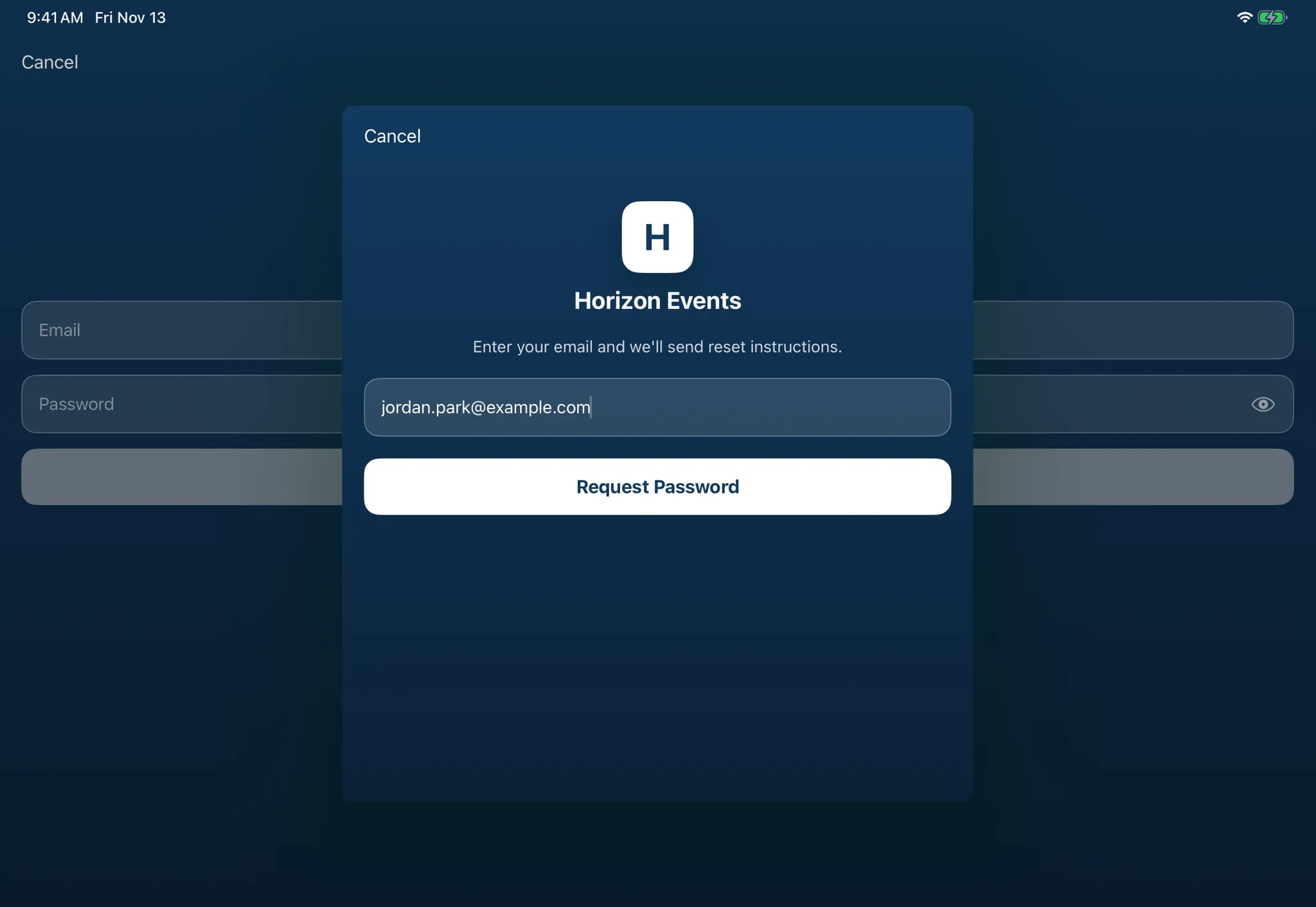
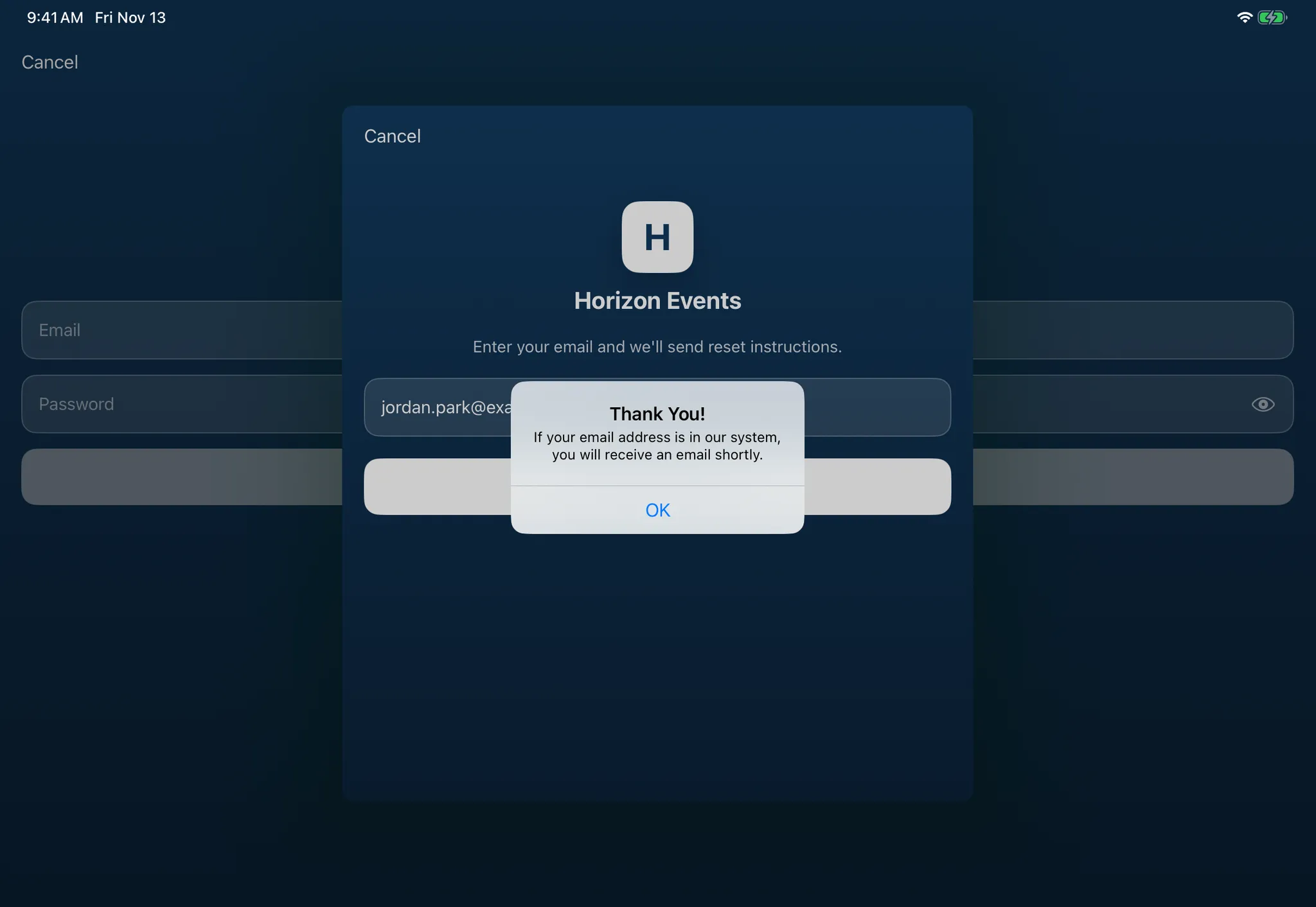
The app shows Thank You! and If your email address is in our system, you will receive an email shortly. Tap OK to go back to the login screen. Your email address is filled in.
If the app cannot send the request, it shows Error and Please check your internet connection and try again. Tap OK and try again.
To go back to the login screen without a request, tap Cancel.
The sender of the email is the name of the app. The subject is “App name Password instructions”. If the email does not arrive, look in your junk or spam folder.
To set your password:
- In the email, tap Set Password. The Set Password page opens in your browser.
- Type a new password in Password. The password must have at least 14 characters, one uppercase letter, one lowercase letter, and one number.
- Type the same password in Retype Password.
- Tap Set Password.
- Go back to the app and log in with your email address and your new password.
The Set Password link works for one day. If the link is too old, request a new email.
The email can also have a one-time password. To use it, type it in Password on the login screen. The one-time password works for 15 minutes.
Register for an event
Some events let you register in the app. Then Register shows on the login screen when you are in that event, or when you open it from the list of events. Register shows with the email and password fields. If the login screen shows sign-in services, tap Sign in with Email & Password first.
- Tap Register.
- Type your email address, your first name, and your last name. Organization and Job Title are optional.
- Tap Register.
If a required field is empty, a message tells you which one: Email cannot be blank., First name cannot be blank., or Last name cannot be blank.
If you are not logged in, when the registration is sent, the app shows Thank You! and Please check your email to confirm your address and complete registration. Tap OK to go back to the login screen. Your email address is filled in.
If you are logged in, your email address is filled in and you cannot change it. When the registration is sent, the registration screen closes. The app shows no message. If the app cannot load the event settings again after that, it goes back to its first screen.
If the event does not accept the registration, Sorry, we could not register your account. If you already registered, you should have received an email with login instructions. shows under the form. If the app cannot connect, Please check your internet connection and try again. shows.
To go back to the login screen, tap Log In. To close the registration, tap Cancel.
Open an event that needs a login or a code
Some events on the list of events need more than a tap to open. When you tap one of them, the app shows one of these screens:
- The registration screen, if you are logged in and the event lets you register.
- The unlock screen, if the event has an unlock code.
- The login screen, for other events. When you log in, the app checks the event again. It opens the event, or it shows the registration or unlock screen.
To open an event with an unlock code:
- Type the code in Unlock Code.
- Tap Unlock. When the code is correct, the event opens.
If the event does not open, for example because the code is wrong or your device has no connection, the app shows Sorry, Code Failed. and Please verify the code and try again. Tap OK and try again.
If you have an account but no code, tap Log In Instead. To close the screen, tap Cancel.
Get help with logging in
If the app has a help page, Help shows at the top of the login screen. Tap Help to open the page in your browser. The app sets this page, not your event.
Log out
You can log out in two places:
- On the list of events, tap Logout at the top of the screen. The app shows Logout and asks Would you like to Logout? Tap Yes to log out, or Cancel.
- In My Account, tap Logout next to your email address, under Logged In As. The app shows Logout and asks Are you sure you would like to logout? Tap Yes to log out, or No. Your event can use a different name for My Account.
When you log out, the app removes the event data that it saved on your device and goes back to its first screen.
What you can do without logging in
Until you log in, you can open the events that do not need a login and read their content. These actions open the login screen first:
- Write a message, or choose who can send you messages. See Messages.
- Write a post, share a photo, or write in the activity feed.
- Post a comment.
- Check in.
- Edit your profile in My Account.
Your event can also ask you to log in to save your schedule.
What you might not see
The app sets these items:
- Whether you must log in when you open the app.
- Single sign-on, and the sign-in services that it shows.
- Forgot Password? and the message on the password reset screen.
- The Help button and its page.
Your event controls these items:
- The Login button on the list of events and in the menu.
- The message above the login form.
- Register, and the message on the registration screen.
- Which events need a login, an unlock code, or a registration, and the message on the unlock screen.
- One password for all attendees.