Attendance Tracker
Attendance Tracker is for event staff who check attendees in at the door of a session. You scan each attendee’s badge, and the app records that the person attended the session.
Who can check attendees in
Your event chooses the staff who can check attendees in, by the email address that they log in with. Log in to the app with that email address. If you are not logged in, or your event did not choose you, the app does not show the check-in buttons that this page describes. Attendance Tracker has no item in the menu.
The app checks attendees in only to sessions that your event sets up for badge check-in.
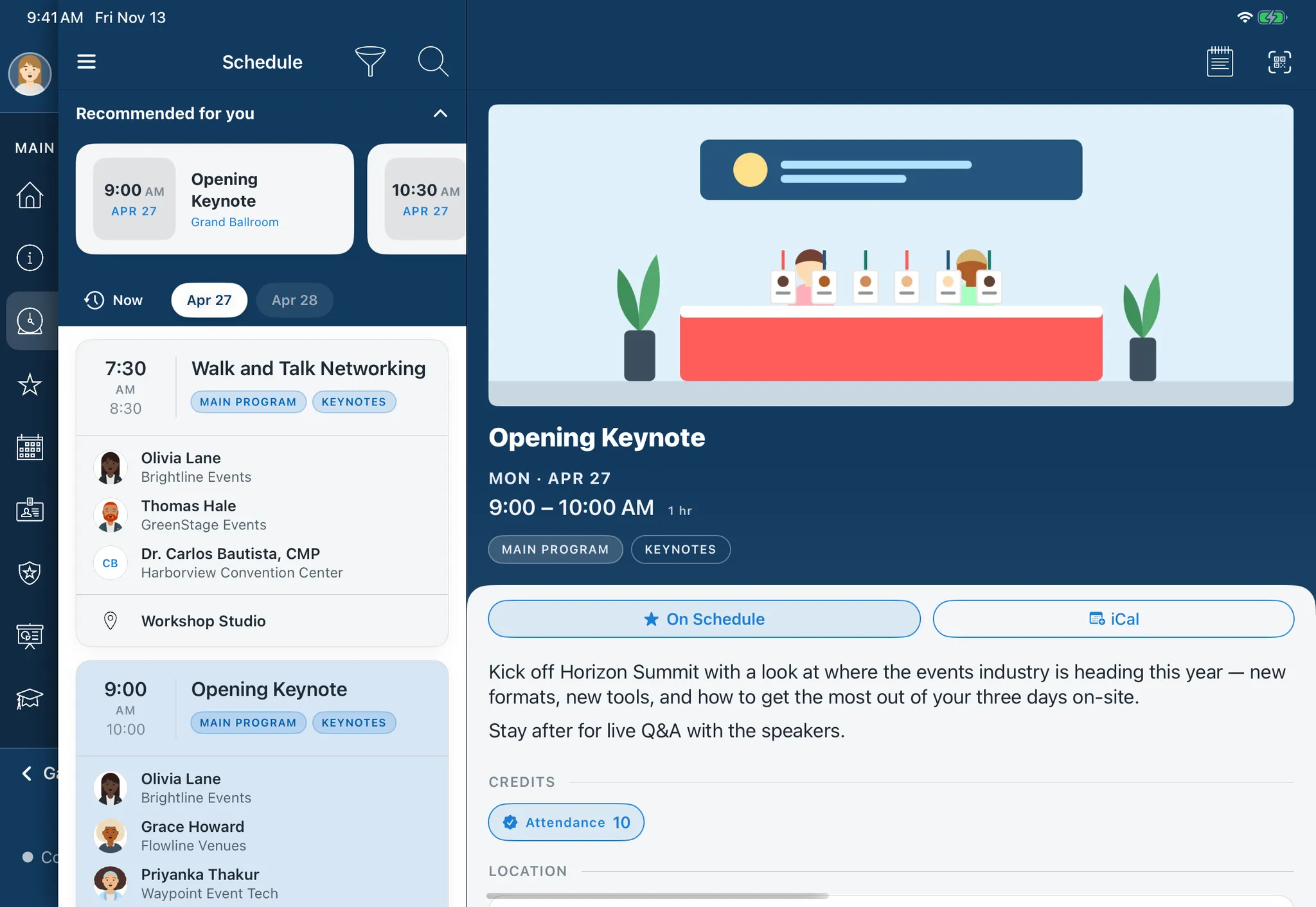
Start from a session
- Open the session, for example from Agenda.
- Tap the scan button at the top of the screen. The button shows only on a session that uses badge check-in.
The Check In screen opens for that session.
Start from the home screen
- On the home screen, tap the scan button at the top of the screen. The Scan screen opens. See My QR Code.
- Tap Check in attendees.
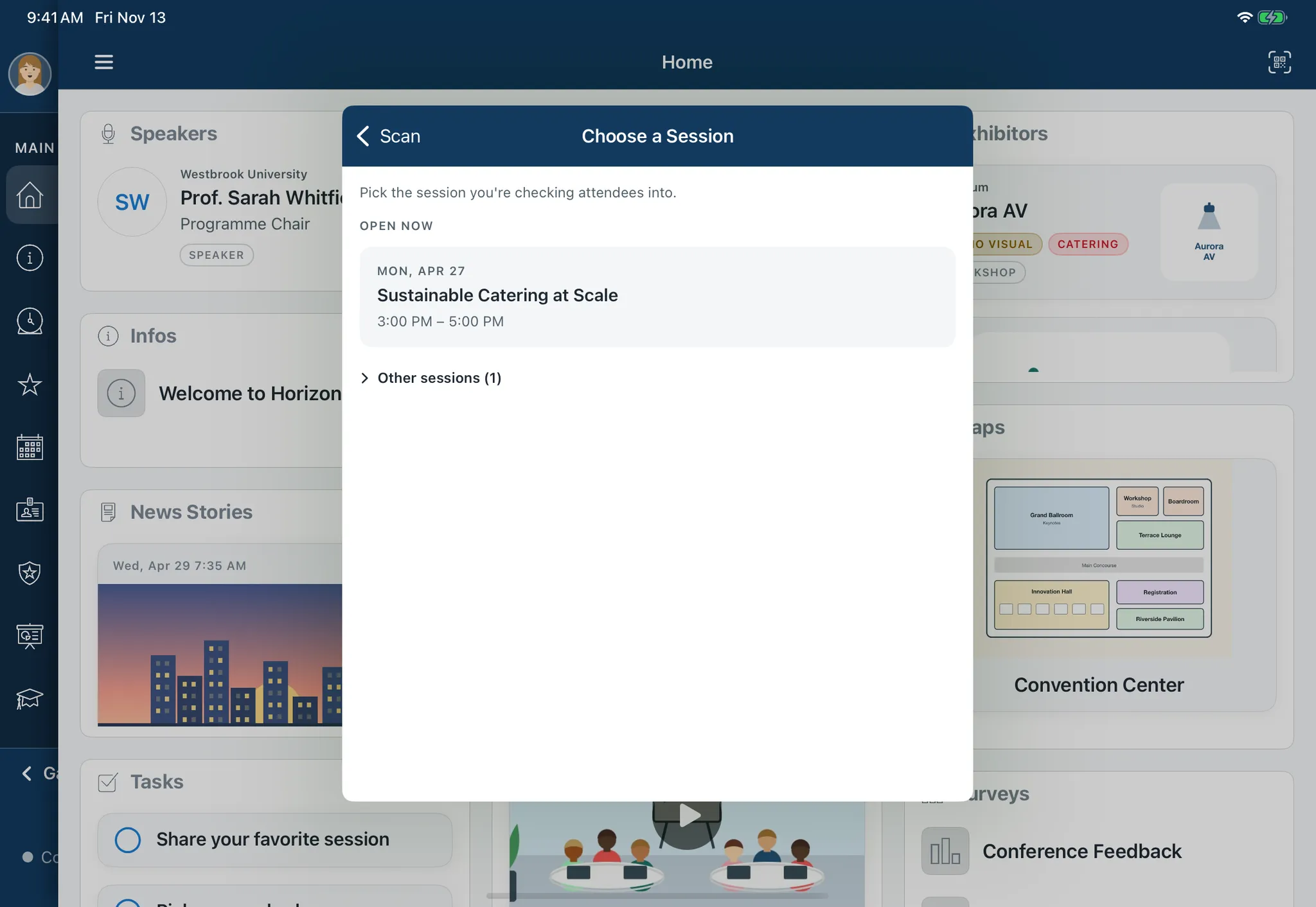
- On Choose a Session, tap the session that you are checking attendees into. The Check In screen opens for that session.
You can also scan an attendee’s badge on the Scan screen. When the badge belongs to an attendee of the event, Choose a Session opens. After you tap a session, the app checks that person in to it, so you do not scan the badge two times.
If you also collect leads at the event, the app asks what to do with the badge. It shows the person’s name and What would you like to do with this badge? Tap Check In to a Session, Capture as Lead, or Cancel.
Choose a session
Choose a Session lists the sessions that use badge check-in, from the earliest to the latest. Each session shows its date, its name, and its time. While a session is in progress, it shows In session and a highlight.
When check-in is open for one or more sessions now, the list has two parts:
- Open now shows the sessions that you can check attendees into now. Your event sets when check-in opens and closes for each session.
- Other sessions shows the number of the other sessions. Tap it to show or hide them.
When check-in is not open for any session, the app shows all the sessions in one list.
A session that has only a start time or only an end time shows under Open now only on that day. A session that has no check-in times never shows under Open now. It is always in the list of other sessions.
The list updates each minute, so sessions move to Open now and away from it while the screen is open.
If no session uses badge check-in, the app shows No Sessions to Check Into and No sessions are set up for badge check-in.
Scan badges
The Check In screen shows the camera, the session’s date, time, length, and name, and the list of scanned attendees.
- Point the camera at the attendee’s badge. The screen shows Point camera at an attendee badge and We’ll check them in when we recognize the code.
- When the app reads the badge, it shows the result at the bottom of the screen.
- After about one second, scan the next badge. The camera does not read the same badge again for 5 seconds.
In portrait, the camera is at the top and the list is under it. In landscape, the camera is on the left and the list is on the right.
The first time you scan, the app asks for access to the camera. If you do not allow it, the screen shows This app doesn’t have permission to access the camera. Open Settings to allow camera access. Tap Open Settings to allow it. If your device has no back camera, the screen shows No Back Camera Available.
Understand the result of a scan
- Scanned and the person’s name: the app checked the person in.
- Already checked in: and the person’s name: the person is already in the list for this session. The app keeps the first check-in time.
- Error: Unknown badge id.: the badge does not belong to an attendee of the event on your device. The app does not check anyone in.
After a check-in, or when the person is already checked in, the list scrolls to the person and highlights them for a few seconds.
The app and the event accept a scan at any time, also before check-in opens and after it ends. The check-in times only decide where a session shows on Choose a Session.
If you scan a code that is not a badge, for example a link or a contact card, the app opens it as the Scan screen does. It does not check anyone in.
See who is checked in
Under the session, Scanned Attendees shows the number of people checked in to the session. The list shows the newest check-in first. Each row shows the person’s name, their badge code, and the time of the check-in. If the person’s data is not on your device, the row shows Unknown attendee.
When you open the Check In screen, the app gets the list for this session from the event. The list then includes the people that other staff checked in on their devices. The app also gets the list again each time it updates the event’s data. If another staff member checks a person in after that, your scan of that person shows Scanned, not Already checked in.
Before anyone is checked in, the list shows Scans will appear here as you check attendees in.
Check in without a connection
The app saves each check-in on your device first, then sends it to the event. If your device is offline, the check-in stays on your device, and the app sends it later.
While you are offline, the list shows the check-ins that are on your device. A badge must belong to an attendee whose data is on your device, or the app shows Error: Unknown badge id.
What you might not see
Your event controls these items:
- The feature itself, and its name.
- Which staff can check attendees in.
- Which sessions use badge check-in.
- When check-in opens and closes for each session.