Messages
Messages shows your conversations at the event. You can read them, reply, and start a new conversation with other attendees.
Read a conversation
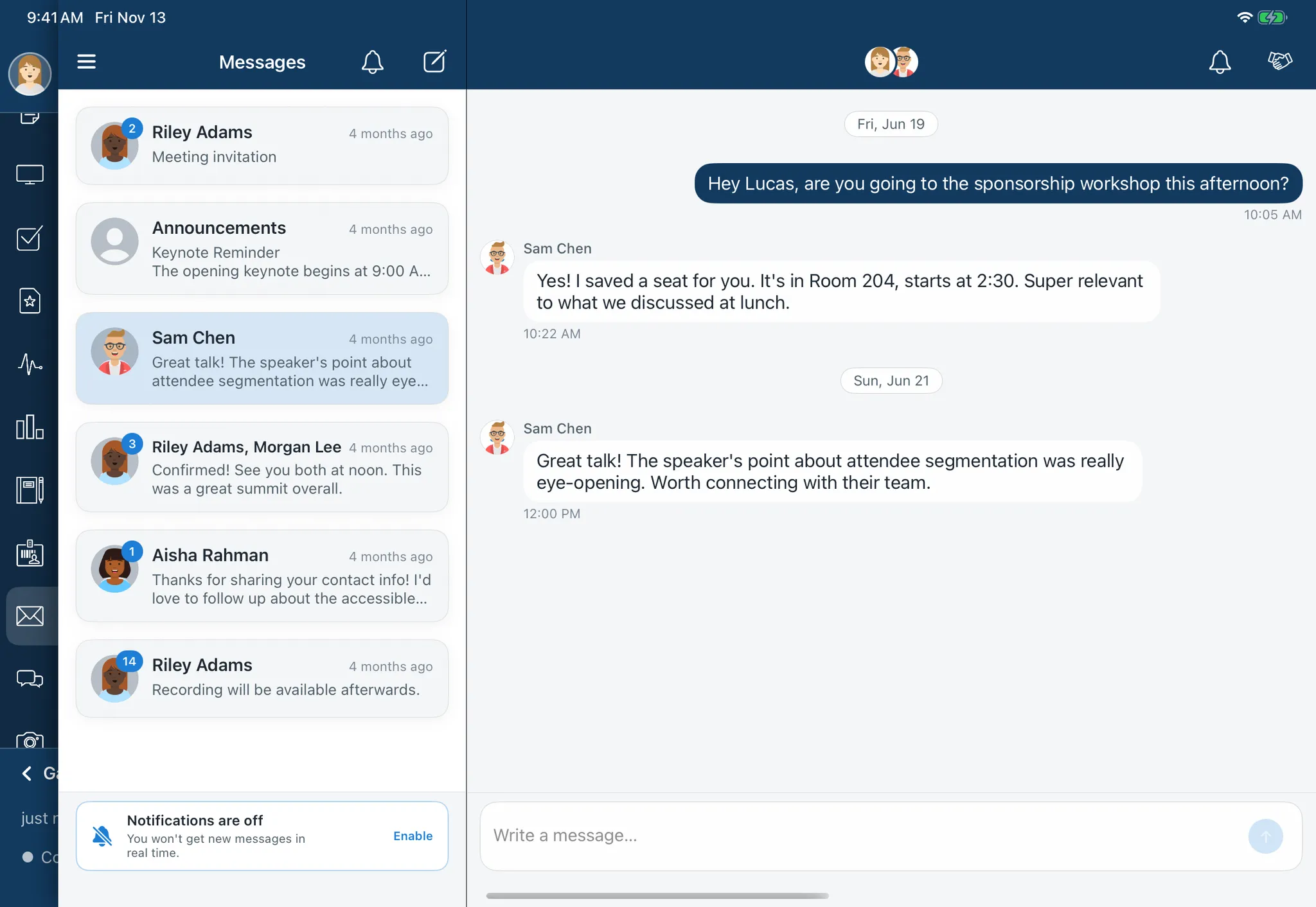
Each conversation in the list shows the other people in it, the time of the last message, and a preview of that message. The newest conversation is at the top. A number on the photo shows how many messages you have not read.
- Tap a conversation.
- Read the messages. The oldest message is at the top, and a date separates each day.
- Tap a link in a message to open it.
The conversation opens next to the list, so you can keep the list in view.
Catch up on unread messages
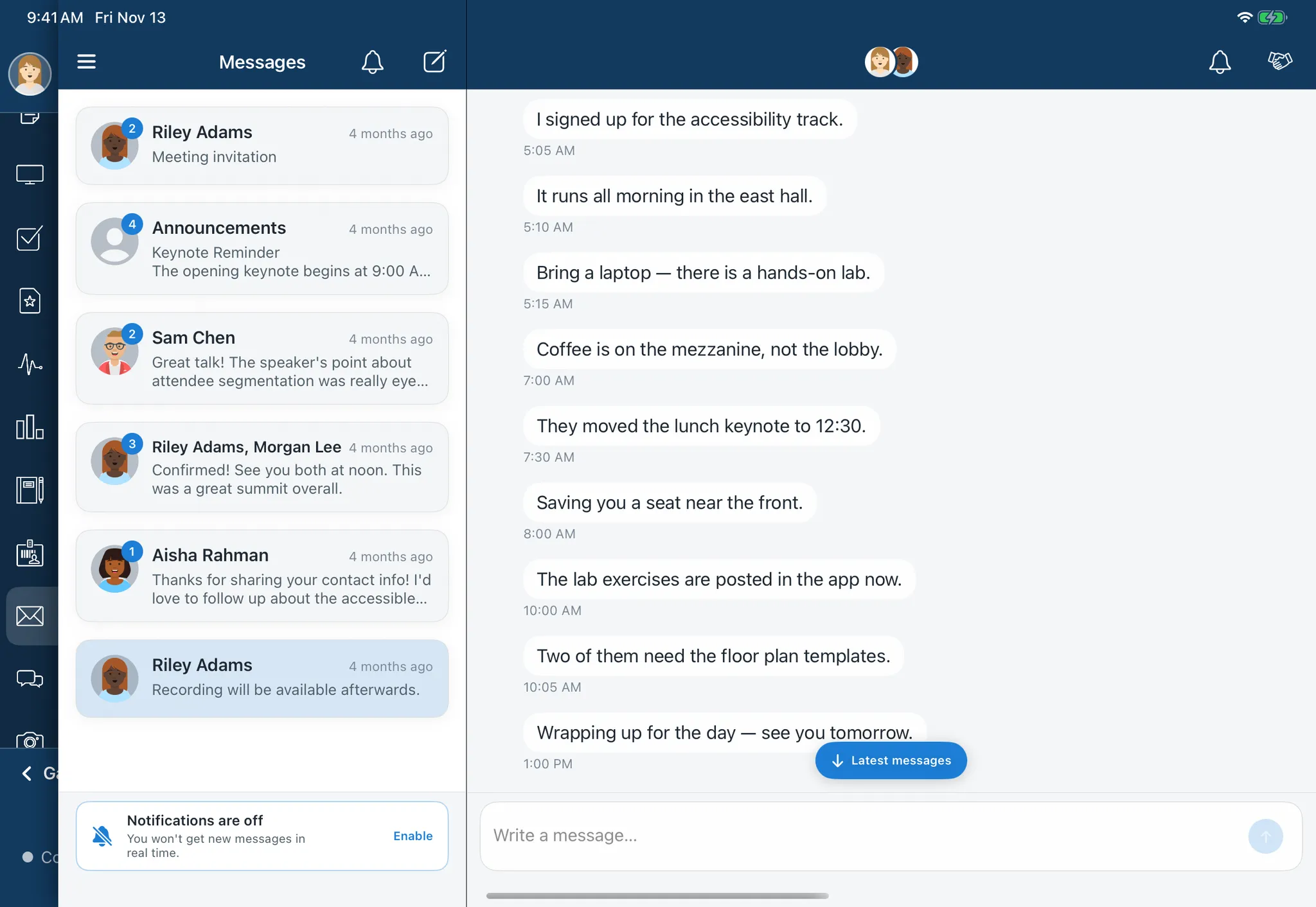
When a conversation has unread messages, it opens at the first one. When you have read everything, it opens at the newest message.
While you are not at the end of the conversation, a button shows at the bottom. It shows the number of unread messages below you, for example 4 unread, or Latest messages when you have seen them all. Tap it to go to the newest message.
Reply to a message
- Open the conversation.
- Tap Write a message… and type your message.
- Tap the send button.
Some conversations are read-only. They do not show the message box, and you cannot reply.
Start a new conversation
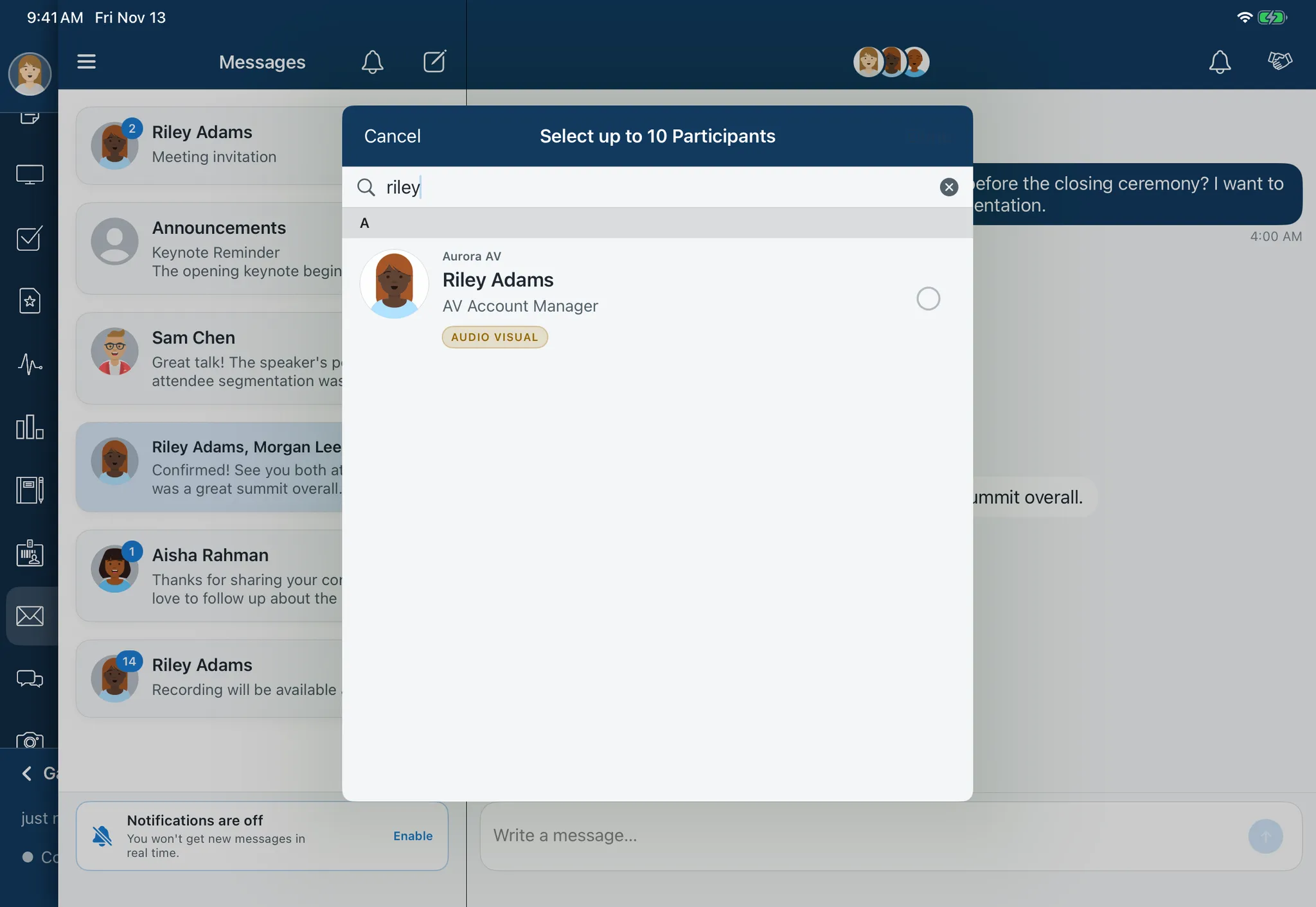
- In the list of conversations, tap the new message button (the pencil and square) at the top.
- Search for a person, then tap a name to select it. Tap the name again to remove it.
- Select more people if your event lets you. The title shows how many people you can select.
- Tap Done.
- Type your message and tap the send button.
If you already have a conversation with the same people, that conversation opens.
You must log in to start a conversation. The list shows only attendees who accept messages.
Send a meeting invitation
If your event uses meetings, you can invite the people in a conversation to a meeting. The form for the meeting comes from your event’s meeting service. For the fields on the form, see Meetings.
- Open the conversation.
- Tap the meeting button at the top of the screen. Your event chooses its icon.
- Fill in the form. For example, choose the time and the people.
- Finish the form. The app sends the invitation to the conversation, and the form closes after a moment.
To close the form without an invitation, tap Cancel.
Your event can offer more than one item that you can send, for example a meeting invitation and a different item. Then a + button also shows next to Write a message…. Tap it, and then tap an item in the Add Attachment list. Tap Cancel to close the list. The button at the top of the screen always opens the first item.
The meeting button and the + button show only when you can send messages in the conversation and everyone in it is a person. They do not show in a conversation with the event.
If the app cannot get the form, nothing opens. If the form has a problem, the app shows Error. Tap OK and try again later. If the invitation does not send, see “If your message does not send” below.
You can also start a meeting request from a person’s profile. See Attendees.
Read a meeting invitation
A meeting invitation shows in the conversation as a card from the meeting service. To answer it, or to change or cancel a meeting that you set up, see Meetings. The card uses the full width of the conversation. If the app cannot load the card, the message shows the name of the meeting as text.
Some cards open more content, for example a form to change the meeting.
The content opens in a window in the middle of the screen.
Tap the close button (the X) to close it.
See who is in a conversation
- Open the conversation.
- Tap the photos at the top of the screen. The Participants list opens.
- Tap Done to close it.
Mute a conversation
- Open the conversation.
- Tap the bell at the top of the screen.
- Turn off Allow Messages from this Group.
- Tap Done.
To get messages from the conversation again, turn the switch back on.
Choose who can send you messages
- In the list of conversations, tap the bell at the top.
- Turn Allow Messages from Attendees on or off.
- Tap Done.
The bell shows only when you have an attendee profile. You must log in to change this setting.
This is the same setting as Private Messages in My Account.
Turn on notifications
When notifications for the app are off, Notifications are off shows at the bottom of the list. Tap Enable to open the notification settings for the app.
When you have no messages
The list shows No messages yet. The text under it tells you what to do next:
- If you are not logged in, tap Login.
- If you do not have an attendee profile and your event lets attendees start conversations, the text tells you that you need one.
- If you can start a conversation, the text tells you to tap the new message button.
If your message does not send
The app shows a message:
- Your message is too long. Sorry! Make the message shorter.
- Please login to send messages. Log in and try again.
- Your message was rejected by the server. Sorry!
- Unable to send your message. Please try again later.
What you might not see
Your event controls these items:
- The feature itself, and its name.
- The new message button. It shows only when your event lets attendees start conversations and your profile accepts messages.
- The number of people you can add to a new conversation.
- The meeting button, and the other items that you can send in a conversation. Your event also chooses the icon and the name of each item.