Polls
Polls is a list of the live polls that your event runs for the whole event, not for one session. Each poll opens as a web page in the app, where you answer it.
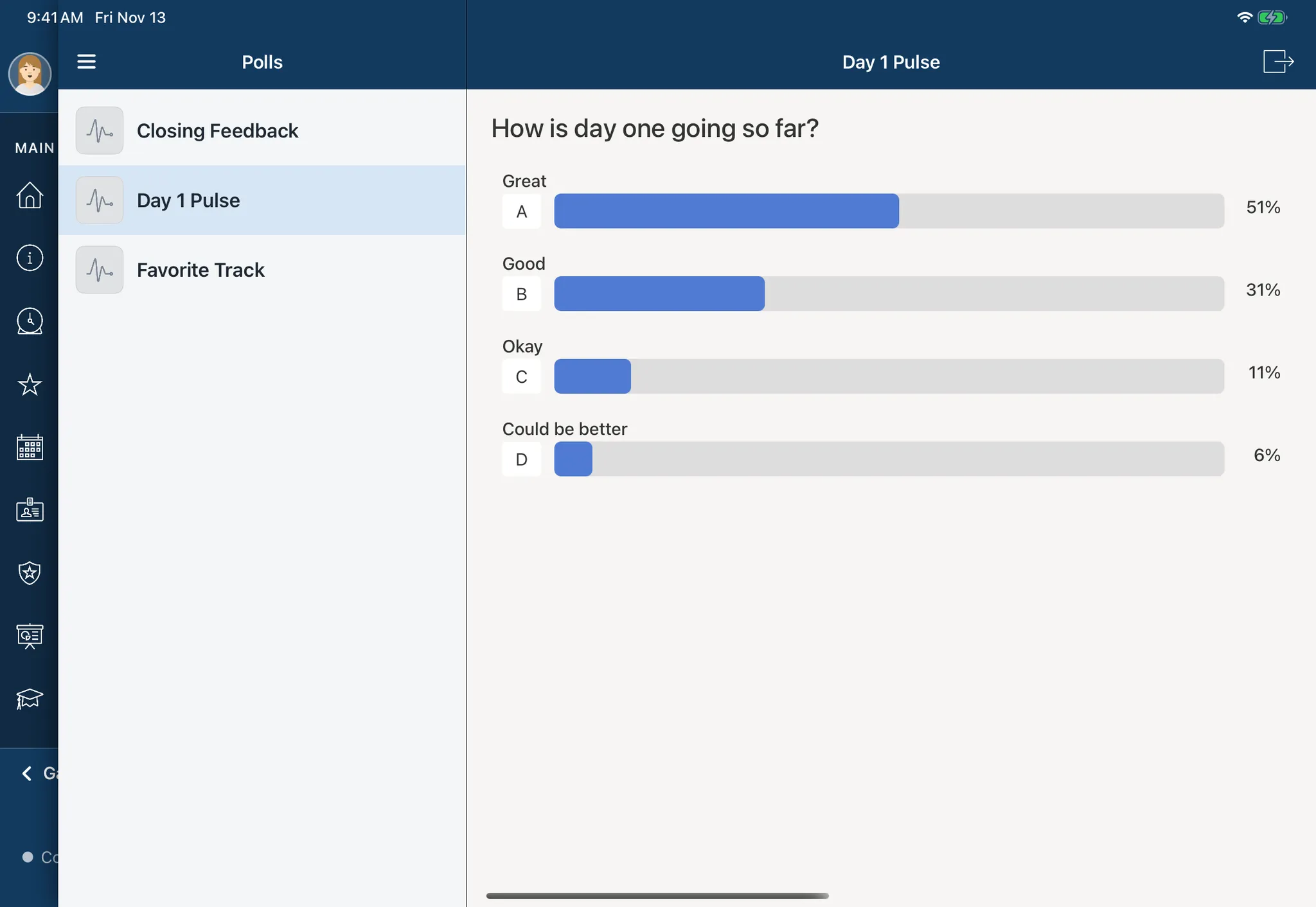
Find a poll
To open the list, open the menu and tap Polls.
The list shows each poll with the poll icon and its name. Your event sets the order of the polls. The list has no search. When your event adds or changes a poll, the list updates.
Your event can show some polls only to some attendees. If you are not logged in, or you have no attendee profile, the list shows only the polls that are open to everyone.
Answer a poll
- Tap a poll in the list. The screen shows the name of the poll at the top. While the page loads, the app shows Loading….
- Answer the poll on the page.
When you are logged in, the app sends your account to the poll, so your answers are linked to you. If you also have an attendee profile, the app sends your name too.
The poll opens next to the list. The poll you opened stays highlighted in the list.
Open a poll in your browser
Tap the open in browser button at the top right of the poll. Your browser opens the poll.
Open a poll from a QR code
Your event can show a QR code for a poll. If you scan the code with the scanner in the app, and the poll is in your list, the poll opens in the app. If the poll is not in your list, the code opens as a normal web link.
When a poll does not open
If the page cannot load, the app shows a message about the problem and Retry. Tap Retry to load the page again.
When there are no polls
If the list has no polls, it shows No polls yet and Polls will appear here when they’re available.
Polls for a session
A poll for one session does not show in this list. It shows in the details of the session, with the name of the poll or Live Poll. See Agenda.
What you might not see
Your event controls these items:
- The feature itself, and its name.
- The polls in the list, their names, and their order.
- Which attendees see each poll.
- The questions on each poll page.