Notes
Notes lets you write a note about an item at the event, for example a speaker, an exhibitor, or a session. All your notes show in one list, and you can export them as a PDF.
Write a note about an item
These screens show the notes button: speakers, exhibitors, attendees, sessions, meetings, tasks, info items, announcements, pages, videos, maps, posts and photos in the social feed, and web pages that open in the app.
- Open the item, for example a speaker’s profile or an exhibitor. See Speakers, Showcase, Attendees, Agenda and Maps.
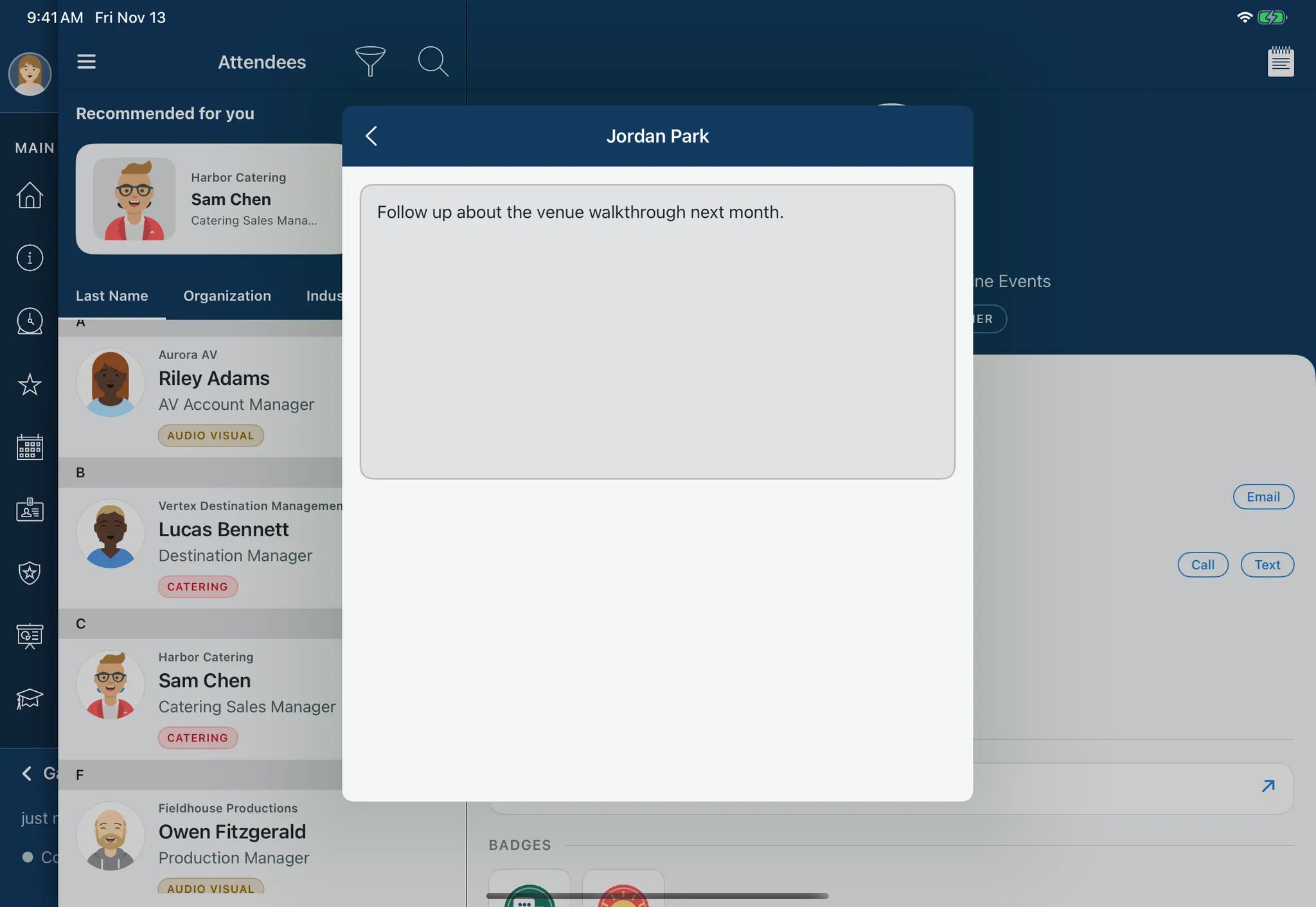
- Tap the notes button at the top of the screen. The note opens over the screen, with the name of the item at the top.
- Type your note. If the note is new, the keyboard opens and Write a note… shows in the empty field.
The app saves your note while you type. There is no save button.
When an item has a note, the notes button at the top of the item changes to show that a note exists.
Edit a note
Open the note again from the item, or from the list of all your notes (see “See all your notes”). Change the text. The app saves each change while you type.
Delete a note
Open the note and remove all its text. When the note has no text, the app deletes it, and it no longer shows in the list.
Go from a note to all your notes
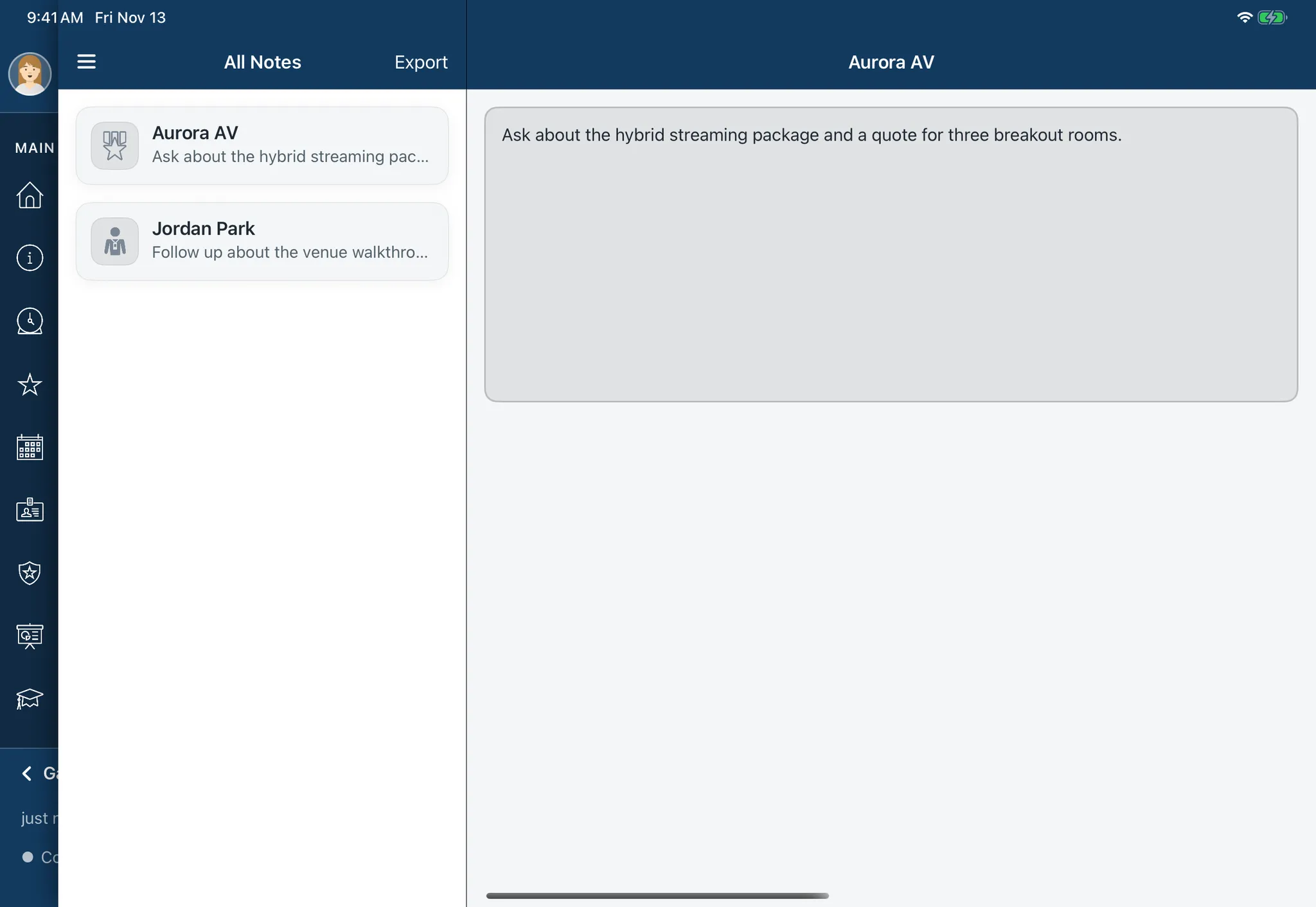
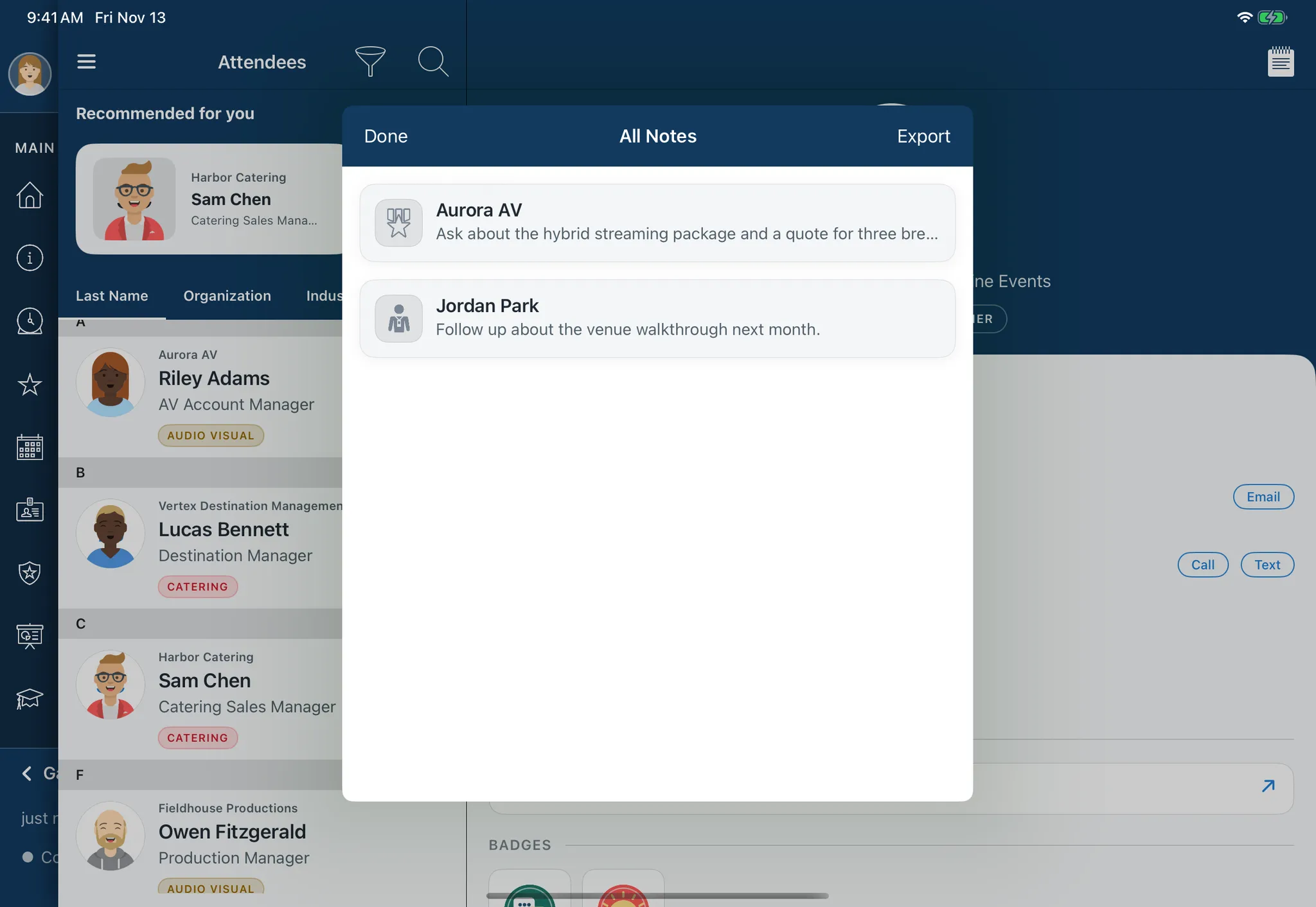
When you open a note from an item, tap the back button at the top of the note. All Notes shows the list of all your notes. Tap a note to open it.
Tap Done to close the list and go back to the item.
See all your notes
Open Notes from the menu. All Notes shows a card for each note. The note that you changed last shows first.
Each card shows:
- The icon of the feature where you wrote the note, for example Speakers or Showcase.
- The name of the item.
- The first line of the note.
- Updated and the date and time of your last change. This line shows only for a note that you changed on this device.
Tap a card to open the note and edit it.
The note opens next to the list.
Export your notes
- In All Notes, tap Export.
- The app makes a PDF named “Collected Notes from” and the name of the event. The PDF shows the name of the event, then the name and the text of each note. The notes are grouped by feature, and sorted by name in each group.
- Choose how to share or save the PDF.
When you have no notes
If you have no notes, the list shows No notes yet and Notes you take will appear here.
Export still shows. If you tap it, the PDF shows only the name of the event.
What you might not see
Your event controls these items:
- The feature itself, and its name.
- The notes button on each item. It shows only when your event uses notes.
The notes button also does not show when an item opens from the home screen with a Done button.