Sessions
As a speaker, you can open each session where you speak or moderate. You can see its details and manage its attachments and links. To open a session, click its name under Speaking on your speaker profile.
Only the speakers of a session can open it. If you open a session that is not yours, the portal opens the login screen with Unauthorized: you do not have access to manage this event.
See a session
The session screen shows:
- The session name, its date and time, and its location. The time does not show when the event hides the times of the session.
- A live poll box, when the event uses live polls. See Live polls.
- Main Video, when the session has a main video.
- Description: the session description. You cannot change it in the portal.
- Survey Results: the surveys of the session. Click a survey name to see its results in a new tab. See Survey results.
- Attachments and Links: the files and links of the session. Click one to open it in a new tab.
- Related Videos: the videos of the session.
The path at the top of the screen has a link back to your profile.
Get the stream details
When a session video is a live stream, the Main Video or Related Videos box shows a Stream button next to the video name.
- Click Stream. The Stream Url and the Stream Key show under the video name.
- Click the copy button next to a field to copy it.
- Paste the values in your streaming software.
Click Stream again to hide the details.
Add an attachment or a link
-
In Attachments and Links, click Edit.
-
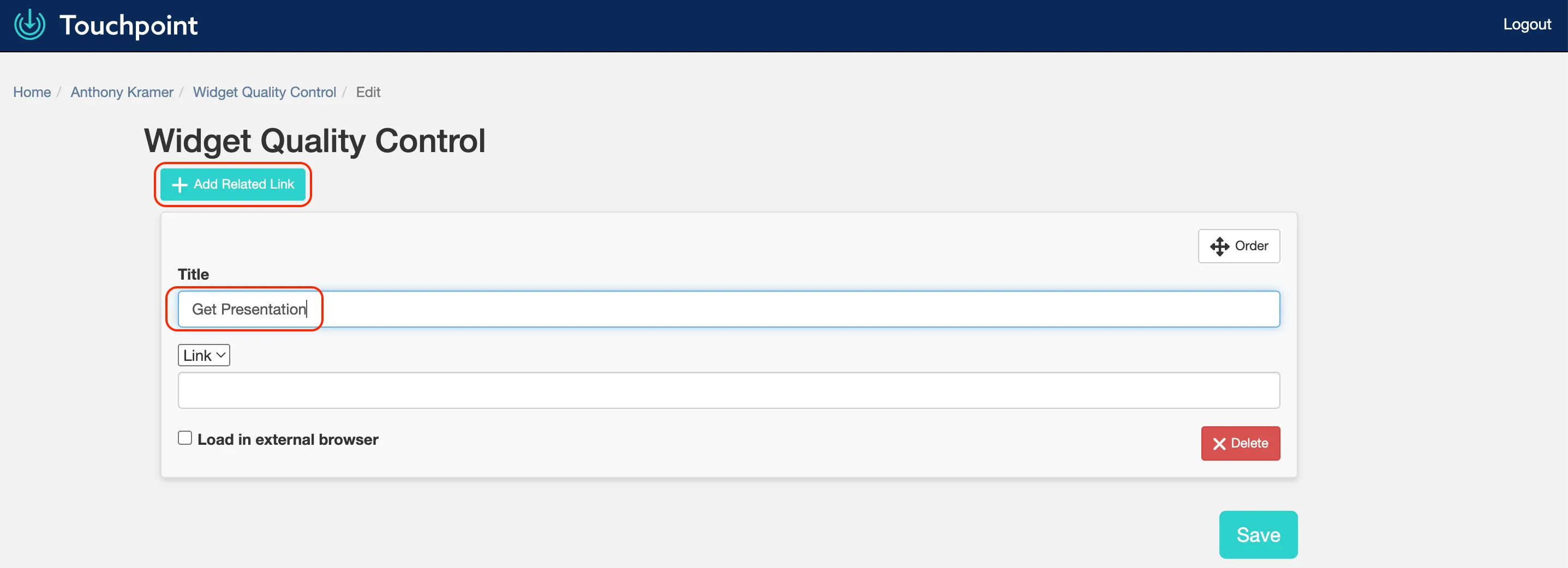
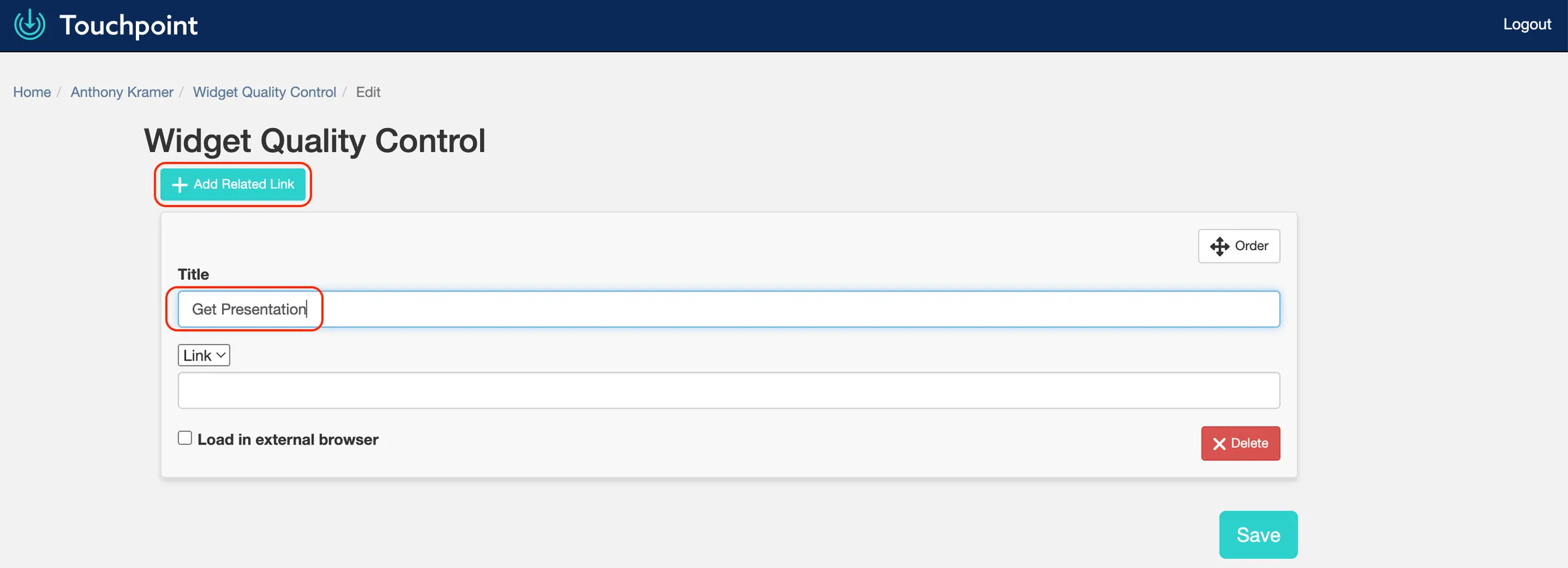
Click Add Related Link. A new item shows.
-
Type a name in Title.
-
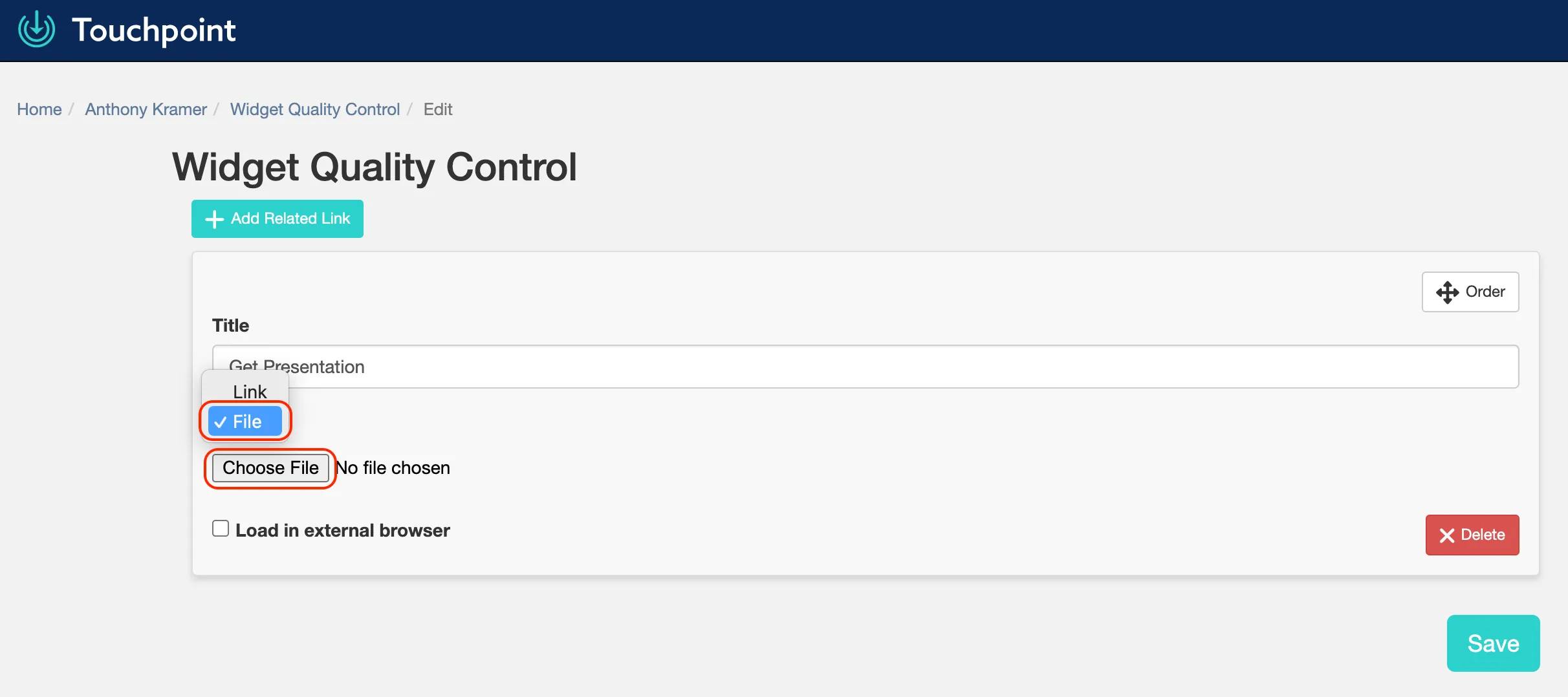
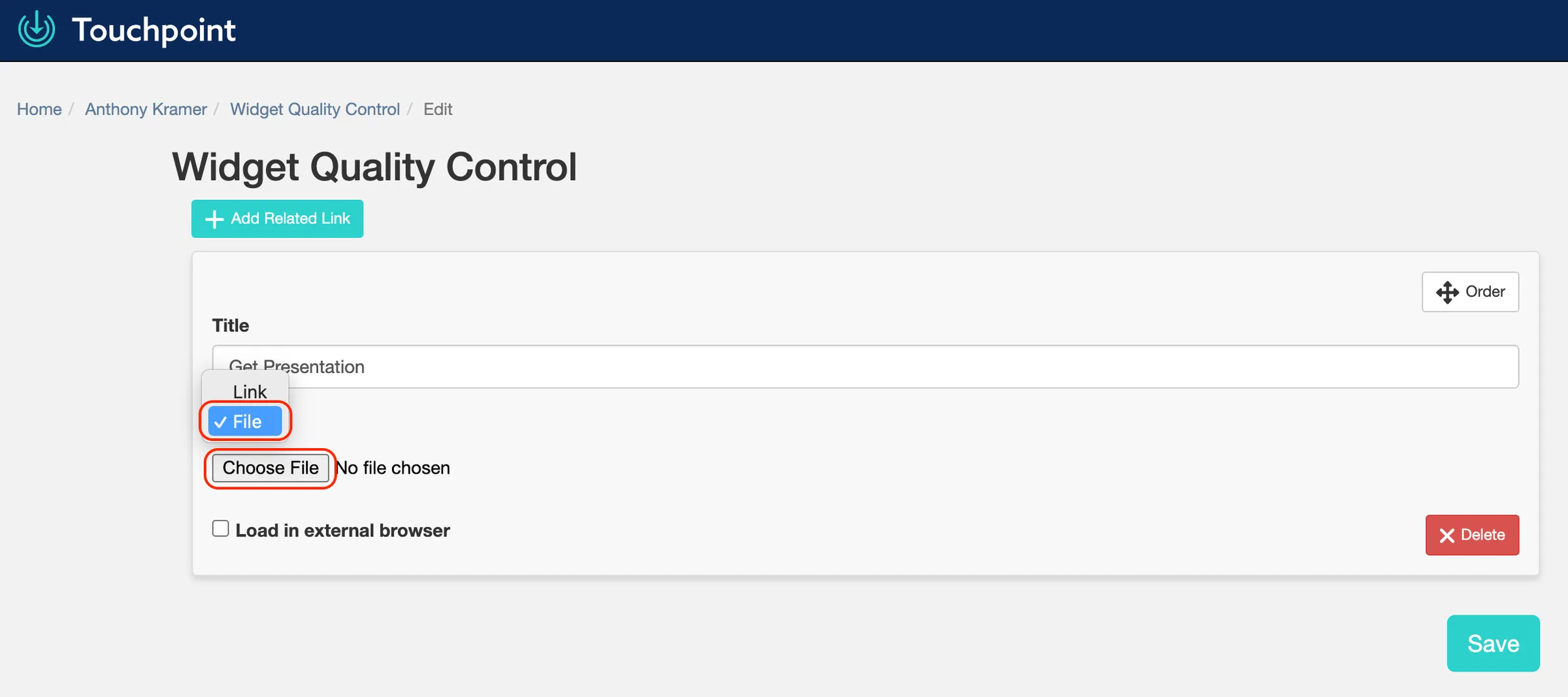
Choose Link or File:
-
Link: type the web address.
-
File: click the file field and choose a file. Wait until the portal shows Upload Succeeded.
-
-
To open the item outside the app, select Load in external browser.
-
Click Save.
The session screen opens. The event app shows the new item in the session.
If the upload fails, the portal shows Upload Failed. Choose the file again.
After you save, a file can take a short time to process. While it processes, the edit screen shows Please wait while file is being processed.
Change an attachment or a link
-
In Attachments and Links, click Edit.
-
Change Title, the web address, or Load in external browser.
-
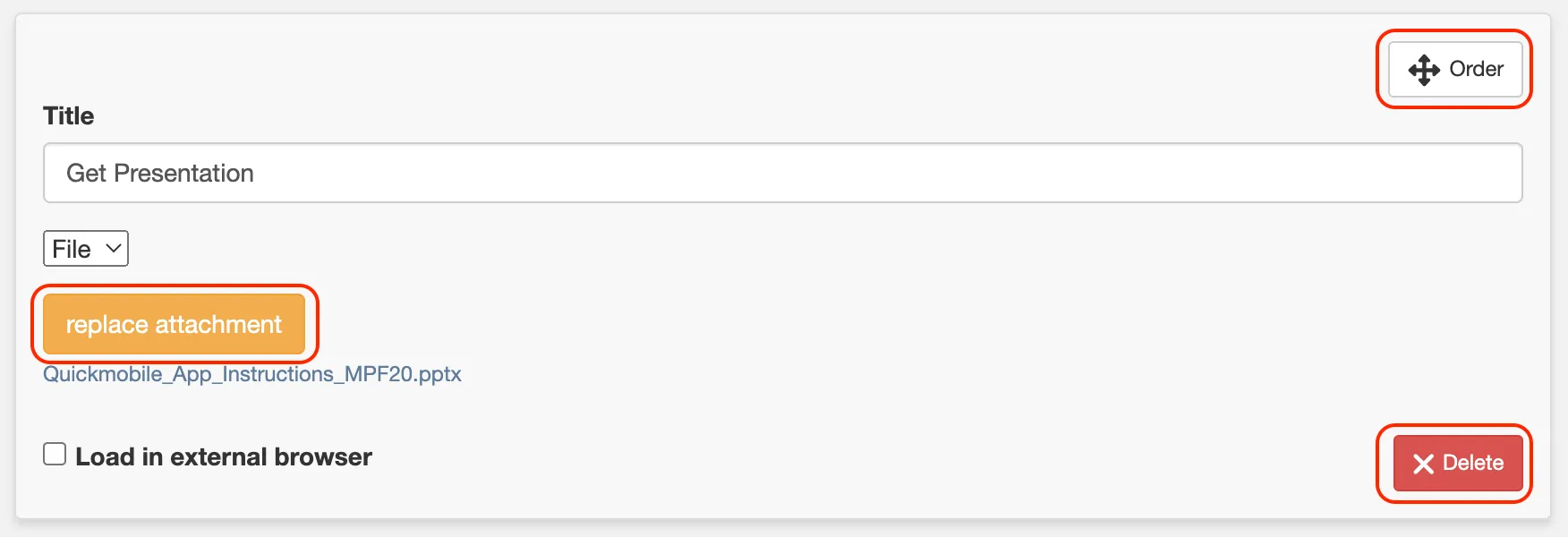
To replace a file, click replace attachment, then choose the new file.
-
Click Save.
When you change an item from File to Link and save, the portal removes the file.
Order the attachments and links
- In Attachments and Links, click Edit.
- Drag an item by its Order button to a new position.
The portal saves the new order when you drop the item. The app shows the items in this order.
Remove an attachment or a link
- In Attachments and Links, click Edit.
- Click Delete on the item.
- Click Save.
Field limits
| Field | Required | Limits |
|---|---|---|
| Title | No | No limit. When you leave it empty, the portal uses Presentation. |
| Link | One of Link or File | Must start with “http://” or “https://”, or be a link into the app. The portal adds “http://” when you leave it out. Each link can show one time in a session. |
| File | One of Link or File | Any file type. |
What you might not see
Your event’s plan and the event organizer control these items:
- The live poll box. It shows only when the event has the Live Polls add-on.
- Main Video and Related Videos. The event organizer adds the videos in the CMS.
- Stream. It shows only for a live stream.
- The surveys under Survey Results. The event organizer links surveys to the session in the CMS.
- The time of the session. The event organizer can hide it.