Exhibitor staff
Your staff are the attendees that the event links to your company. When your event uses lead scanning, the leads that your staff scan in the app show on Leads.
The Attendees panel on your exhibitor profile lists your staff by name. If you have no staff, it shows None found.
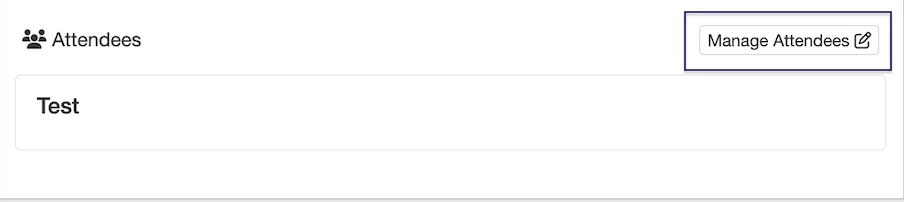
You can add and edit staff only when the event lets exhibitors manage their attendees. Then the panel shows Add Attendee when you have no staff, or Manage Attendees when you have staff.
See your staff
On your exhibitor profile, click Manage Attendees.
The screen shows the table Company name Attendees, with Last Name, First Name, Login Email, and Organization. The table is in order of last name.
- An icon next to the last name shows that the attendee is hidden.
- A check mark next to the login email shows that the attendee has used the event app.
To find a person, type in Search. To sort the table, click a column heading.
Add a staff member
-
On your exhibitor profile, click Add Attendee. Or, on the staff table, click New.

-
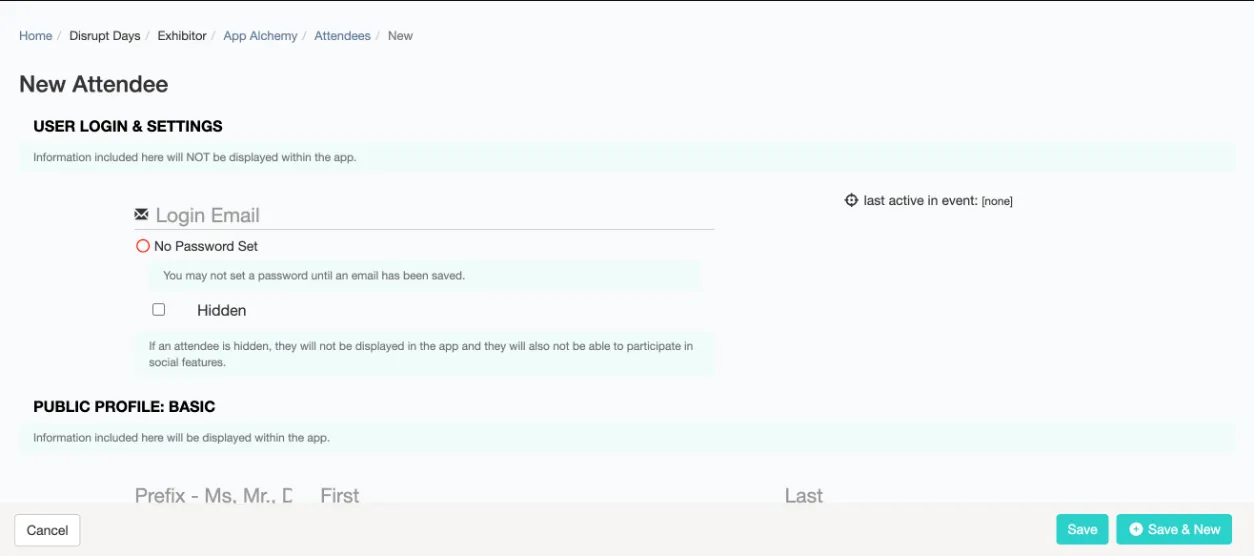
Type the details. Company/Organization starts with your company name.
-
Click Save. To save and add another person, click Save & New.
The person shows in your staff table.
If an attendee with the same login email is already in the event, and is not on the staff of an exhibitor, the portal adds that attendee to your staff. It keeps the details that the attendee already has.
If the portal cannot save, it shows the problem at the top of the screen. For example, Last name can’t be blank.
The portal does not send an email to the person. Tell them the login email that you used. To show as the scanner of a lead, the person must log in to the event app with this login email.
Remove a staff member
You cannot remove a staff member in the portal. Ask the event organizer to remove the person.
Edit a staff member
- On the staff table, click Edit next to the person.
- Change the details.
- Click Save. To leave without changes, click Cancel.
The form has these sections:
- User Login & Settings. The app does not show this information.
- Login Email: the address that the person uses to log in to the event app.
- Password Set or No Password Set: shows if the person has a password.
- Hidden: a hidden attendee does not show in the app, and cannot use the social features.
- The date when the person was last active in the event.
- Public Profile: Basic. The app shows this information.
- Ms., Mr., Dr., First, Last, Company/Organization, and Job Title. If your event uses more than one language, each field has a box for each language.
- Photo.
- Groups: the attendee groups of the event. Choose the groups of the person. The group settings control what the app shows.
Set a first password for a staff member
You can set a password only for a person who does not have a login account in the app yet.
- Make sure that Login Email has a value, and save.
- Open the person again, and click Manage Password.
- Type the password in Password and in Retype Password.
- Click Save.
The password must have 14 or more characters, at least one uppercase letter, one lowercase letter, and one number.
If the login email is empty, the form shows You may not set a password until an email has been saved. If the person already has a login account, the form says that you may not change their password.
Add or change a staff photo
- Open the person.
- Under Photo, drop an image on the box, or click the box to choose an image. If the person has a photo, click Upload new Photo first.
- Crop the image. The crop is always square.
- Click Approve Image.
- Click Save.
To remove the photo, click Delete Photo, then click Save.
Field limits
| Field | Required | Limits |
|---|---|---|
| Login Email | No | 255 characters. Must be a valid email address. |
| Ms., Mr., Dr. | No | 255 characters |
| First | No | 255 characters |
| Last | Yes | 255 characters |
| Company/Organization | No | 255 characters |
| Job Title | No | 255 characters |
| Password | No | 14 to 255 characters. At least one uppercase letter, one lowercase letter, and one number. |
| Photo | No | An image file of 4 MB or less. JFIF files do not work. Cropped square. The portal reduces it to fit 600 x 600 pixels. |
Each attendee in the event must have a different combination of first name, last name, and login email.
What you might not see
Your event’s plan and the event organizer control these items:
- Add Attendee, Manage Attendees, and the staff screens. The event organizer must allow exhibitors to manage attendees in the VIP portal.
- Manage Password. It shows only for a person with a login email and no login account.
- The groups under Groups. The event organizer creates them in the CMS.
- The language boxes. They show only when your event uses more than one language.