Login
The VIP portal is a website where speakers and exhibitors manage what the event app shows about them. Each app has its own VIP portal link. The event organizer gives you this link.
Get access to the portal
The portal does not send an invitation. The event organizer gives you access in the CMS:
- Speakers. The organizer adds you as a speaker and puts your email address in the login email of your speaker profile. The event must have the Speaker VIP Portal add-on.
- Exhibitors. The organizer puts your email address in the VIP Email field of the exhibitor. The event must have the Exhibitor VIP Portal add-on.
Use this same email address to log in. Your exhibitor staff do not get access to the portal. Only the person with the VIP email of the exhibitor can log in for that exhibitor.
If you are a speaker or an exhibitor at more than one event in the same app, one login gives you access to all of them. See Home.
Start for the first time
- Get the VIP portal link from the event organizer. Ask which email address they added for you.
- Create a password. See Create a password.
- Log in. See Log in.
- Open your profile:
- Speakers: open your speaker profile. Check your details and your sessions.
- Exhibitors: open your exhibitor profile. Check your company details, then add your staff and see your leads.
Create a password
You need a password before you can log in the first time.
-
Open the VIP portal link.
-
Under the Login button, click create a password.
-
The Password Setup screen opens. In Registered Email, type the email address that the event organizer has for you.

-
Click Send Email.
The portal shows Manage Password Email Sent. If the portal does not find your email address in the app, it shows Sorry, that email address did not match our records. Check the address, or ask the event organizer which address they used.
The portal finds your address when it is the login email of a speaker, the VIP email of an exhibitor, or the login email of an attendee in one of the app’s events.
If you forget your password, do the same steps. The new password replaces the old one.
Exhibitors who are not speakers: if you already log in to the event app with the same email address, the portal and the event app use the same account. Your event app password works in the portal. When you set a new password in the portal, the event app also uses it.
Use the password email
The email comes from the app name, at the address donotreply@certaintouchpoint.com, with the subject “App name Password instructions”. Check your junk or spam folder if it does not arrive.
The email has a link to set your password. The link works for one day. If your app uses one-time passwords, the email also has a one-time password. You can type it in Password on the login screen. It expires within 15 minutes.
To set your password:
- Click the link in the email. The Password Setup screen opens.
- Type a password in Password, and type it again in Retype Password.
- Click Set Password.
The password must have 14 or more characters, at least one uppercase letter, one lowercase letter, and one number.
The portal shows Password Set and Thank you. Your password has been set and you may return to the app to login. Click Return to Login to go to the login screen.
If the password does not meet the rules, or the two passwords are not the same, the portal shows the problem at the top of the screen. Type the password again.
If the link is more than one day old, the portal shows This password reset token has expired. Request a new one and try again. The Password Setup screen opens, so you can ask for a new email.
Log in
-
Open the VIP portal link. The screen shows the app icon, the app name, and Welcome to the Speaker and Exhibitor Management VIP Portal.
-
Under Please login, type your email address in Email.
-
Type your password in Password.
-
Click Login.
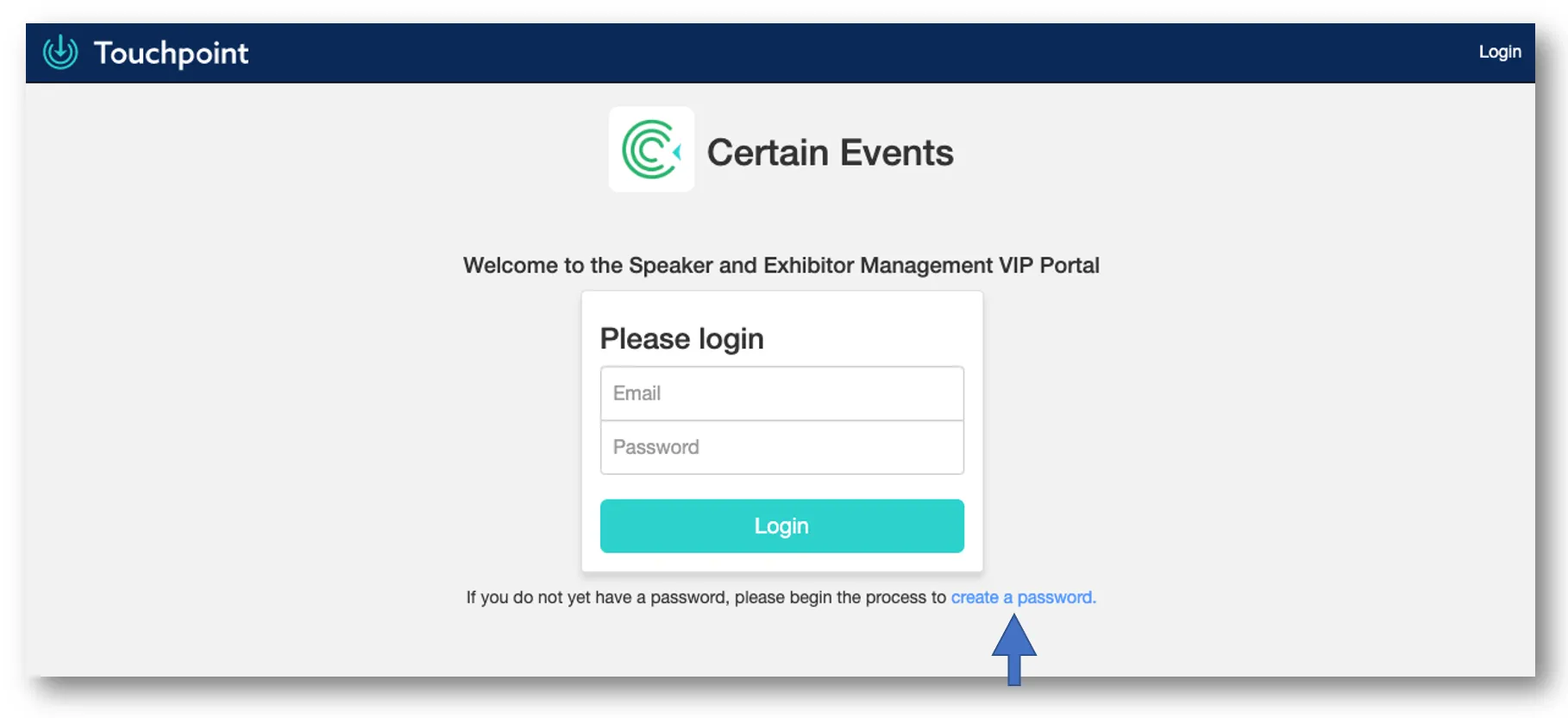
If the email address or the password is wrong, the portal shows Invalid login credentials. Please try again.
After you log in, the portal opens your list of events. If you have one speaker profile or one exhibitor profile only, the portal opens that profile. If you opened a portal page before you logged in, the portal opens that page.
If you also manage events in the CMS for this app, log in with your CMS email address and password.
The portal needs JavaScript and cookies. If your browser blocks cookies, the login screen shows You must have JavaScript enabled and allow cookies in order to login and use this mobile site. Please check your browser settings.
If your account is locked
If the portal locks your account, it shows a message on the login screen. It also sends you an email with a link to set a new password. The account stays locked until you set a new password, or until the event organizer unlocks it.
Log out
Click Logout at the top right of any screen. The login screen opens.
When you log in with a speaker or an exhibitor account, the portal logs you out after two hours without activity.
Field limits
| Field | Required | Limits |
|---|---|---|
| Yes | The address that the event organizer has for you. Capital letters do not matter. | |
| Password | Yes | 14 to 255 characters. At least one uppercase letter, one lowercase letter, and one number. |
| Retype Password | Yes | Must be the same as Password. |
What you might not see
Your event’s plan and the event organizer control these items:
- Access to the portal for speakers. The event must have the Speaker VIP Portal add-on, and your speaker profile must have your email address as its login email.
- Access to the portal for exhibitors. The event must have the Exhibitor VIP Portal add-on, and the exhibitor must have your email address as its VIP email.
- The one-time password in the email. It shows only when the app uses one-time passwords.