Leads
Leads are the attendees that your staff scan with the event app at your booth. You see your leads in the VIP portal. They show on your exhibitor profile when the event turns on lead scanning for your company.
A lead shows the name of the staff member who scanned it when that person is on your staff list. See Exhibitor staff.
See your latest leads
On your exhibitor profile, Latest Scanned Leads shows the five newest leads. Each lead shows the name, the organization and job title, and the notes. The name of the staff member who scanned the lead shows at the right. When the scanner is not on your staff list, it shows Unknown scanner.
With no leads, the panel shows None yet.

See all leads
On your exhibitor profile, in Latest Scanned Leads, click View All.
The Leads screen lists all leads in order of name. Each lead shows:
- The name, the organization, and the job title.
- The scanner’s name, and the date and time of the scan. When the scanner is not on your staff list, no name shows.
- The email address, phone number, and address, with “|” between them.
- Each custom field, as the field label and the answer. A rating shows as stars.
- The notes.
Removed leads do not show.
Download your leads
On your exhibitor profile, in Latest Scanned Leads, click Download All. You can also click Download All on the Leads screen.
The portal downloads an Excel file with one sheet, Leads. The first row has the column names. Each other row is one lead, in order of name. The file has these columns:
| Column | What it has |
|---|---|
| Full Name | The lead’s full name. |
| First Name | The lead’s first name. |
| Last Name | The lead’s last name. |
| Organization | The lead’s organization. |
| Job Title | The lead’s job title. |
| The lead’s email address. | |
| Telephone | The lead’s phone number. |
| Address | The lead’s address in one field. |
| Street 1 | The first street line. |
| Street 2 | The second street line. |
| City | The city. |
| State | The state. |
| Postal Code | The postal code. |
| Country | The country. |
| Scanner | The name of the staff member who scanned the lead. Deleted when the scanner is not on your staff list. |
| Scanner Email | The login email of the scanner. Deleted when the scanner is not on your staff list. |
| Scan Date | The date and time of the scan, in the event’s time zone. |
| Notes | The notes that your staff wrote. |
| One column for each custom field | The answer. The column name is the field label. A rating is a number. A choice with more than one answer has “|” between the answers. |
The file keeps all text as text. A cell that starts with “=” does not run as a formula.
Set your custom fields
Custom fields are the questions that your staff answer about a lead in the app. When you add custom fields, your staff see your fields in the app in place of the event’s lead fields. The lead list and the download also use your fields.
-
On your exhibitor profile, in Latest Scanned Leads, click Manage Custom Fields. The custom fields window opens.

-
Click Add field. A new row shows.
-
Type the question in Field Label.
-
Choose a Type:
- Text: a free text answer.
- Rating: a number of stars. In Max, type the highest rating, from 1 to 10.
- Choice: a list of answers. Click Add a choice for each answer, and type it. To let your staff pick more than one answer, select Multiple Answers.
-
To change the order, drag a field or a choice by its arrows button.
-
To remove a field, click its red X button. To remove a choice, click the red X button next to it.
-
Click Save. To leave without changes, click Cancel.
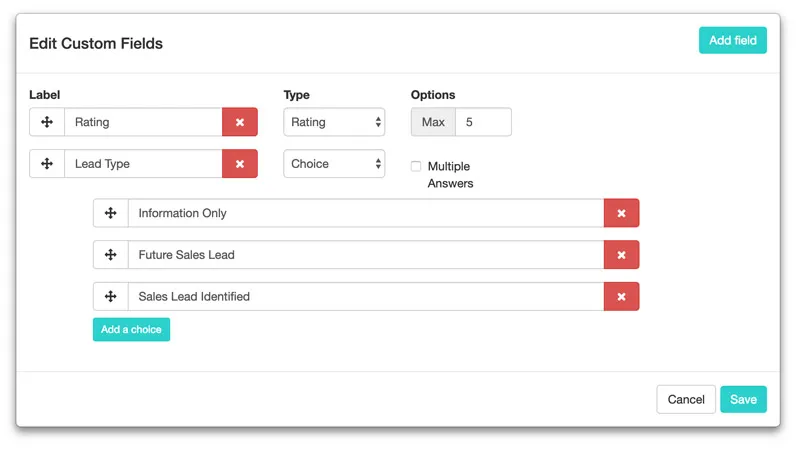
The portal saves the fields when you click Save. You do not need to edit your profile.
When you remove a field and save, the portal also deletes the answers to that field from all your leads. You cannot get them back.
When you add your first custom field, the lead list and the download stop showing the answers to the event’s lead fields.
A field with an empty label is not saved. A field that came from an outside system shows a cloud button in place of the red X button. You cannot remove it.
If Max is not from 1 to 10, the window shows This max is outside the range of acceptable values (1 - 10).
Field limits
| Field | Required | Limits |
|---|---|---|
| Field Label | Yes | No limit. A field with no label is not saved. |
| Type | Yes | Text, Rating, or Choice |
| Max (rating) | No | 1 to 10. A rating answer above 10 is not saved. |
| Choice | No | No limit on the number of choices |
What you might not see
Your event’s plan and the event organizer control these items:
- Latest Scanned Leads, View All, Download All, and Manage Custom Fields. They show only when the event turns on lead scanning for your company.
- The event’s lead fields. When you have no custom fields, the list and the download use the fields that the event organizer sets.