Reports
The event reports show how attendees use your app: who opened it, which sessions they saved, where they checked in, what they read and downloaded, and more. Most reports have an Excel export.
To open a report, go to your event’s dashboard and click Event Reports. Then click the name of a report. The list shows only the reports that apply to your event. See Dashboard. Some features in the main menu also open a report:
- AI Assistant opens the AI Assistant usage report. See AI Assistant.
- Lead Capture opens the lead report. See Leads.
- My Schedule opens the My Schedule report.
- Badge Game opens the badge awards report.
Your event can use different names for these menu items.
Who can open the reports
You must have the Access Reports ability on your manager account. Without it, the Event Reports button does not show, and the View all links on the dashboard cards do not show. If you open a report without the ability, the CMS goes back to the dashboard and shows Sorry, you are not authorized to access. See Managers.
Some reports also need access to one feature: the visitors report (attendees), the session check-in report (agenda), the meetings report (My Schedule), the badge awards report (Badge Game), and the AI Assistant report. If your account can use only some features, you cannot open a report whose feature you cannot use.
Export a report to Excel
Most exports work in the background:
- In the report, click Export, Excel Export, or Excel Download, and then the export that you want.
- The CMS opens a new file in Secure Files and shows its progress.
- When the progress is complete, click Download.
The file stays in Secure Files, and it expires on the date that the page shows. Times in the files use your event’s time zone. See Secure files.
Most exports contain all the data in the report. A search or a filter on the screen does not change the export.
Visitors Report
This report lists the attendees of your event. It shows if each attendee allows push notifications, and when they last used the app.
- The list shows Last Name, First Name, Login Email, Push Notifications Allowed, and Last Active. Click a column header to sort the list. The newest Last Active shows first.
- Type in Search… to find attendees.
- Click the filter button in the search field to show only active or inactive attendees, or only attendees who allow or do not allow push notifications.
Click Export and then Viewers Report to export. The file has two sheets:
- Attendee Viewers: the attendees who opened the event in the app.
- Attendee NON Viewers: the attendees who did not.
Each sheet has the columns Email, First Name, Last Name, Organization, Title, and Last Active. When your event has participant types, the next column is Participant Type. Then there is one column for each attendee group. Last Active is empty on the second sheet.
Survey Results, Live Poll Results, and Education Credits Report
These reports belong to their features. See Surveys, Polls, and My Credits.
Lead Scanning
This report lists the leads that exhibitors scanned. See Leads.
Ad Banner Report
This report shows when your event has ad banners. For each rotating home image and each ad banner, it shows the image and Total Banner Clicks. For a banner that shows on more than one item, it also shows the clicks on each item.
VIP Portal Reports
This report lists the people who opened the VIP portal for your event. It shows Name, Email, Type, and Last Active. Type shows the kind of account, for example a speaker or an exhibitor. Unknown shows when the CMS cannot match the account to a person.
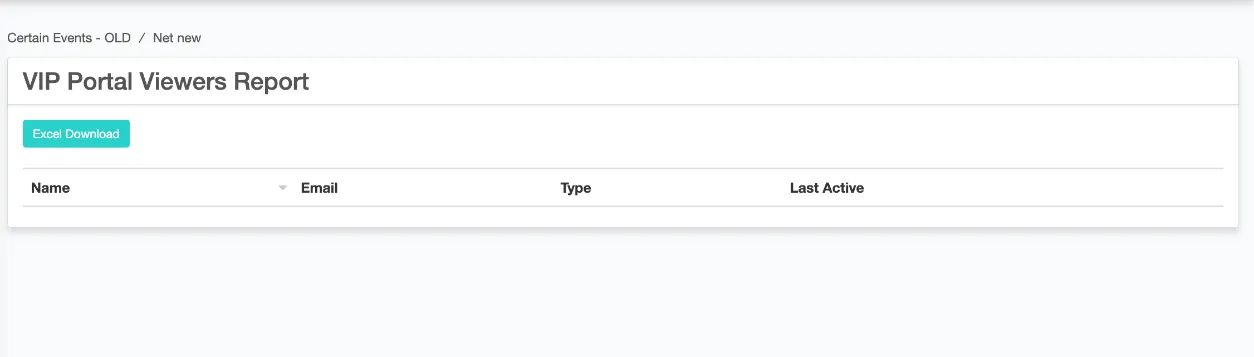
Click Excel Download to export. The file has the columns Full Name, Email, Type, and Last Active.
My Schedule Report
This report shows how many attendees added each session to their schedule.
- The list shows Starts At, Name, Favorited, and Scheduled for each session. Meetings do not show. A private session has the label Private. Click a column header to sort the list.
- Favorited is the number of attendees who saved the session to their schedule. Click the number to see the list of these attendees.
- Scheduled is the number of attendees whom you assigned to the session. Click the number to see the list of these attendees.
- When your sessions take registrations or have capacity planning, the list also shows Location, Capacity, and % Full.
- Type in the search field to find a session by name.
The Export menu has two exports:
- Excel: one row for each session, with Time, Name, Location, Private, Favorited, and Scheduled. With registrations or capacity planning, the columns Location, Capacity, and % Full follow. Then there is one column for each session group.
- All to Excel (beta): one sheet for each public session. Each sheet starts with the session name and time, then lists Name, Email, Organization, and Job Title of each person who saved the session.
On the list of attendees who saved one session, click Export and then Excel. The file lists Name and Email of each person. A person whom the CMS cannot identify shows as Anonymous Person.
Personal Itinerary Report
This report shows how many attendees you assigned to each public session.
- The list shows Starts At, Name, Location, and Scheduled. Click the number in Scheduled to see the attendees.
- Click No Personal Itinerary to see the attendees who have no assigned sessions.
The Export menu has two exports:
- Public Itineraries: one row for each attendee and each assigned session, with Email, First Name, Last Name, Organization, Title, Session Title, Session Start, Location, and Checked In At. An attendee with no assigned sessions has one row with NO SCHEDULE.
- Private Itineraries: one row for each attendee and each private session that you assigned, with Id (the session ID), First Name, Last Name, Login Email, Private Event Name, Start Date, End Date, and Location.
Meetings Report
This report lists the meetings of your event. See Meetings.
- The list shows Name, Location, Participants, Starts At, and Created By. The newest meetings show first. Click a column header to sort the list.
- Created By shows Organizer for a meeting that you made in the CMS, and Attendee for a meeting that an attendee made in the app.
- Participants shows the first two participants. Click + N more to see all participants in a panel. Click a participant to open their profile in the CMS.
- Type in Search… to find a meeting by name.
- Click the filter button in the search field. Turn on Organizer only or Attendee only to filter by Created By. Under Starts At, enter a date in On or after, On or before, or both.
Click Export and then Meetings Report to export. The file has the columns ID, Name, Starts At, Ends At, Location, Participants, Description, and External Id.
Session Check In Overview
This report lists the sessions that use check-ins. It shows Starts At, Name, Check In Type, Code, and Check Ins.
Click the number in Check Ins to open the detailed report for the session:
- The list shows Last Name, First Name, Session Visibility, Login Email, and Checked In At. Session Visibility shows Assigned when you assigned the session to the attendee, and Bookmarked when the attendee saved it. Checked In At shows the check-in time and, when there is one, the check-out time.
- Type in Search… to find attendees by name or email.
- Click the filter button in the search field. Turn on Show Checked In, Show Assigned, or Show Bookmarked to choose the attendees in the list. All three are on at first. When you turn all three off, the list shows all attendees.
Click Check In Detail to see every check-in in your event, grouped by session. The list shows Last Name, First Name, Email, and Checked In At. When your sessions use check-outs, it also shows Checked Out At.
To export:
- On the overview, click Export and then All to Excel. The file has one row for each session, with Time, Title, Parent Session, Check In Type, Check In Code, and Total Check Ins.
- On Check In Detail, click Email Excel and then Include All Attendees or Include Scheduled Attendees. The CMS shows Please check your email account in a few minutes and sends you an email with a link to the file. The file has one row for each check-in, with Session, Parent Session, First Name, Last Name, Email, Checked In At, Checked Out At, and External Id. It also adds a row with NONE for each attendee who did not check in: all attendees, or only the attendees whom you assigned to the session.
Exhibitor Check In Detail
This report lists your exhibitors and the number of check-ins at each one. Click an exhibitor to see Last Name, First Name, Email, and Checked In At for each check-in. See Exhibitors.
Click Export and then Excel to export. In the file, each exhibitor has a row with its name. Under it, each check-in has a row with the check-in time, the attendee name, the email, and the organization.
Gaming Leaderboard
This is the badge awards report. It lists each badge that an attendee earned, with the newest first. See Gaming.
- Type in Search… to find awards.
- Use the filters on the left: Badge, Participant Type, and Awarded At (FROM and TO dates). Click a filter name to open it.
- Click an attendee name to show only the awards of that attendee.
- Click Leaderboard Report to see the attendees ranked by Badge Count, with Last Name, First Name, and Email.
Click Excel Export (or Excel Download on the leaderboard) to export. The file has two sheets:
- leaderboard: Badge Count, Name, Email, Organization, and Title. When your event has participant types, Participant Type follows. Then there is one column for each attendee group.
- badge awards: Badge Name, Goal Label, Awarded At, Attendee Name, Email, Organization, and Title.
Social Activity per Attendee
This report shows, for each attendee, the number of Photos, Posts, Comments, and Likes in your event. It shows when your event uses the activity feed, photos, or the discussion board. See Activity feed.
Click Excel Download to export. The file has the columns First Name, Last Name, Email, Photos Posted, Posts Posted, Comments Posted, and Likes Posted.
Messages Sent Report
This report ranks attendees by the number of messages that they sent. Messages to other attendees and messages to the event count. It shows when at least one attendee sent a message. Messages from the event do not count. See Messages.
- The totals at the top show the messages sent, the senders, the average per sender, and the percent of direct messages. The totals follow the search and the filters.
- Each row shows the attendee, the last time they sent a message, their participant types, and the number of messages. The bar shows the split between Direct messages (a conversation between two people) and Group messages (three or more people). Click the name to open the attendee in the CMS.
- Type in Search… to find an attendee by name or email.
- Click Participant Type to filter by one or more types. This filter shows only when your event has participant types.
- Click Sent At and enter a From date, a To date or both. Both dates are included, in your event’s time zone.
- Click Clear all to remove the search and the filters.
- Click a row to open Messages over time: a chart of the messages that the attendee sent and received. Click a part of the chart to zoom in. Click Back to or Reset zoom to zoom out.
Click Excel Export to export all senders. The file has the columns Name, Email, Participant Types, Messages Sent, Direct, Group, and Last Sent.
Related Link Download Reports
This report shows how many times attendees opened each attachment or link that you added to a session, speaker, exhibitor, or other item.
- The list shows Source Type, Source Name, Attachment/Link Name, and Total. Click a row to see who opened it and when. An attendee whom the CMS cannot identify shows as Anonymous.
- Click Attendee Summary to see the number of Downloads for each attendee. Click an attendee to see what they opened.
Click Export and then Excel to export. The file has the columns Source Type, Source Name, Download Name, First Name, Last Name, Email, and Downloaded At.
Link View Reports
This report shows how many times attendees opened each link in your Links features. See Links.
- The list shows Link and Total Views. Click a link to see who opened it and when.
- Click Attendee Summary to see the Total Views of each attendee. Click an attendee to see the links they opened.
Click Export and then Excel to export. The file has the columns Link Name, Link URL, First Name, Last Name, Email, and Viewed At.
Announcement Viewing Reports
This report shows how many attendees read each announcement. See Announcements.
- The list shows Announcement Name, Published Date, and Total Views. Click an announcement to see who read it and when.
- Click Attendee Summary to see each attendee and their Announcements Read. Click an attendee to see what they read.
Click Export and then Excel to export. The file has the columns News Story Name, First Name, Last Name, Email, and Read At.
Task Reports
This report shows the progress on each to-do list task. See Tasks.
- The list shows Name, Due, Participant Types, Groups, # Assignees, and % Done. Click a task to see each assignee and the date they completed it.
- Click Attendee Task Summary to see each attendee, with Participant Type, Groups, # Tasks, and % Done. Click an attendee to see their tasks. Pending means that the attendee did not complete the task. Unknown means that the attendee has not logged in to the app.
Click Export and then Excel to export. The file has one row for each task and assignee, with Task, First Name, Last Name, Completed, Participant Types, Created At, and the time of the last change to the task. Created At is the time that the task was made. Completed shows the completion time, Pending, or Unknown.
AI Assistant Usage
This report shows how attendees use the AI Assistant. See AI Assistant.
Click Excel Export to export. Unlike most exports, this export uses the From and To dates of the report.
What you might not see
Your role, your event’s plan and your event’s settings control these items:
- The Event Reports button, the View all links on the dashboard, and all reports. They need the Access Reports ability.
- The reports that need a feature. They need access to that feature, and the feature must be in your event.
- Live Poll Results: only when your event has the Pulse add-on or has polls.
- Lead Scanning: only when your event has the Lead Capture feature.
- Education Credits Report: only when your event has the My Credits feature.
- Ad Banner Report: only when your event has ad banners.
- VIP Portal Reports: only when your event has the speaker or exhibitor VIP portal.
- My Schedule Report: only when the My Schedule feature lets attendees save sessions, and the feature is not hidden.
- Personal Itinerary Report: only when the My Schedule feature has planned itineraries on.
- Meetings Report: only when your event has meetings.
- Session Check In Overview: only when your sessions allow check-ins.
- Exhibitor Check In Detail: only when your exhibitors allow check-ins.
- Gaming Leaderboard: only when your event has the Badge Game feature.
- Social Activity per Attendee: only when your event has the activity feed, photos, or the discussion board.
- Messages Sent Report: only when an attendee has sent a message.
- Related Link Download Reports, Link View Reports, Announcement Viewing Reports, and Task Reports: only when your event has related links, links, announcements, or tasks.
- AI Assistant Usage: only when your event has the AI Assistant feature.
- The Location, Capacity, and % Full columns of the My Schedule report: only when your sessions take registrations or use capacity planning.
- The Checked Out At column on Check In Detail: only when your sessions use check-outs.
- The Participant Type filters and columns: only when your event has participant types.