Locations
A location is a room or a place at your event. You connect a location to a session, a meeting, or an exhibitor. You put a location on a map with a pin. See Maps.
To open the list, click Locations under Related Resources in the CMS menu. This item shows when your event uses the agenda, the calendar, planned meetings, or exhibitors. You can open the list when you manage the event. When your event hides locations in the apps, the menu item looks dimmed.
Find a location
The Locations tab shows the locations that your team made, with their number. The Attendee Created tab shows the places that attendees typed when they made a meeting in the app, with their number.
The table shows the name and the map of each location. Type in Search to find a location. Click a column header to sort the list.
When your event uses more than one language, a column shows which translations each location has.
Add a location
-
On the Locations tab, click New.
-
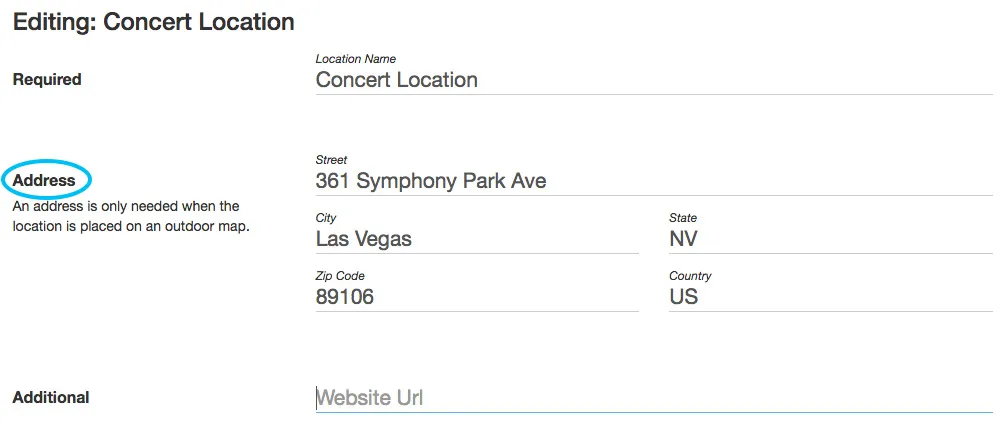
Type a Location Name. If your event uses more than one language, a field for each extra language shows under the name.
-
Optionally fill in Street, City, State, Zip Code, and Country. The apps show the address. Attendees can tap it to open it in a maps app. The form says that an address is needed only for a street map.
-
Optionally type a Website Url.
-
Click Save & View to save and open the location. Or click Save & New to save and start a new location.
When you edit a location, the second button is Save & List. It saves and opens the list. Click Cancel to leave the form without a save. If the save fails, the CMS shows the form again with the errors at the top, for example Name has already been taken.
When you add or rename a location, and an attendee-created place has the same name, the CMS replaces that place with your location. Meetings and exhibitors at that place move to your location.
What attendees see
A location can have a map pin, an address and a website. The apps show each one that the location has, in this order:
- The map pin, when the location is pinned on a map that the attendee can see.
- The address, when the location has a street, a city, or a state.
- The website, when the location has a Website Url. The apps show the location name on it, not the web address.
See a location
Click a location name. The page shows the map with the location pin, the address, the Website Url, and the capacity, when the location has them. Click Prev or Next to open the next location. Click Edit to change it.
Merge locations
Use merge when two locations are the same place.
- Select the check boxes of two or more locations.
- Click Actions, then Merge. If you select only one location, the CMS shows Select at least two to merge.
- The merge page shows the old locations with their sessions and exhibitors. Under Combined Location, check the fields of the new location. The CMS fills them in from the old locations.
- Click Merge.
The CMS makes one new location. It moves the sessions, meetings, and exhibitors of the old locations to it, and deletes the old locations. The new location is on the Locations tab, also when you merge attendee-created places. It shows Locations combined! If the merge fails, it shows There was a problem combining. Click Cancel to stop.
Delete locations
- Select the check boxes of the locations.
- Click Actions, then Delete, and confirm.
The CMS shows how many locations it deleted. Sessions, meetings, and exhibitors at a deleted location then have no location. The CMS does not delete a location that came from an outside system. Its page shows the name of the system and (not deletable) in place of Delete. You can delete attendee-created places.
Import and export locations
- Click Import, then Excel, to import locations from a spreadsheet. See Import content.
- Click Export, then All to Excel, to export all locations. The CMS makes the file in Secure files and opens it there.
These buttons show on the Locations tab only. Export needs the export permission in your role.
Field limits
| Field | Required | Limits |
|---|---|---|
| Location Name | Yes | 255 characters. Must be unique among the locations of the event. |
| Street, City, State, Zip Code, Country | No | 255 characters each. |
| Website Url | No | 255 characters. |
What you might not see
Your role and your event’s features control these items:
- The Locations menu item. It needs the agenda, the calendar, planned meetings, or exhibitors.
- The translation column and fields. They need more than one event language.
- Import and Export. Export needs the export permission in your role.
- The map on the location page. It shows only when the location is on a map.